The best video editing software for YouTube depends on what you film and who cuts your timeline: most solo and mid-tier creators edit long-form videos in DaVinci Resolve because its free version exports clean 4K at 60 fps, while channels with editor teams and After Effects graphics run on Adobe Premiere Pro. Solo Mac creators who care most about render speed pick Final Cut Pro, and CapCut leads template-driven YouTube Shorts. If you record talking-head videos, podcasts, or tutorials and want to cut pauses and pull captioned Shorts by typing plain-English instructions, ChatCut edits a multi-track timeline you can still adjust by hand.
Key takeaways:
- Working YouTubers combine tools. Established channels pair a primary desktop editor (Resolve, Premiere Pro, or Final Cut Pro) with a Shorts or transcript-editing tool.
- Free no longer means crippled. DaVinci Resolve (desktop) and Apple iMovie (Mac, iPhone, iPad) export up to 4K without watermarks at $0.
- Check free-tier fine print first. Filmora, Descript, and OpusClip watermark free exports, and OpusClip expires free clips after three days.
- Match your real bottleneck. Color grading, multi-editor handoff, trend templates, and trimming 40 minutes of spoken retakes are four different jobs.
Disclosure: ChatCut makes one of the editors on this list; we evaluated every tool against its official documentation and pricing pages using the same criteria, and we list our own limits alongside everyone else’s.
Best Video Editing Software for YouTube at a Glance
| Tool | Best for | Platforms | Free-plan limits | Paid from (US) | Learning curve |
|---|---|---|---|---|---|
| DaVinci Resolve | Free pro editing & color | macOS, Windows, Linux, iPadOS | $0, no watermark, up to 4K UHD 60 fps; lacks Studio multi-GPU & neural tools | $295 once ($236 online promo) | Steep |
| Adobe Premiere Pro | Editor teams & After Effects | macOS, Windows (+ mobile) | 7-day trial only; payment method required | $22.99/mo (annual, billed monthly) | Steep |
| Final Cut Pro | Fast Apple Silicon turnaround | macOS, iPadOS (bundle) | 30-day Apple Creator Studio trial | $299.99 once or $12.99/mo bundle | Moderate |
| CapCut | Shorts & trend templates | iOS, Android, macOS, Windows, Web | Free assets export clean; auto-captions & Pro templates need Pro | $19.99/mo or $179.99/yr | Easy |
| ChatCut | Talking-head & long-to-Shorts | Web, macOS, Windows, Agent Plugin | Manual edits, captions, local 4K export; 60 min cloud export | $25/mo (100 credits) or $252/yr | Easy |
| Descript | Document-style podcast edits | macOS, Windows, Web | 60 media min/mo, 720p export with watermark | $16/mo annual ($24/mo monthly) | Easy |
| OpusClip | Batch clipping finished uploads | Web | 60 credits/mo, watermarked, clips expire after 3 days | $15/mo (Starter); Pro $14.50/mo billed annually | Very easy |
| Wondershare Filmora | Drag-and-drop effects | Windows, macOS, iOS, Android | Exports carry a Filmora watermark | ~$49.99/yr or ~$79.99 perpetual | Easy |
| Apple iMovie | First uploads on Apple gear | macOS, iOS, iPadOS | $0, no watermark, up to 4K; capped at two video tracks | Free ($0) | Very easy |
What YouTubers Actually Use in 2026 (And How We Chose)
Searchers ask two things at once: what working YouTubers edit on, and which editor fits my channel today. Public hiring posts, creator breakdowns, and interviews answer the first part clearly.
At 10M+ subscribers, top channels run a stack rather than one app. MrBeast’s video editor job posting asks for Premiere Pro, After Effects, and Photoshop, and editor Mack Hopkins cut Beast Games in Premiere Pro with After Effects on nearly every shot (No Film School profile of Mack Hopkins). Ali Abdaal’s team has used both Premiere Pro and Final Cut Pro, and he co-built FireCut, an AI plugin for Premiere Pro that cuts silences (Adobe customer profile).
Among smaller and mid-size channels, momentum favors DaVinci Resolve. In Storyblocks’ February 2026 roundup of five creators (Gerald Undone, Daniel Batal, Katie Steckly, Tymon Reynders, and Jade Beason), four cited Resolve (two alongside Premiere Pro), and Jade Beason hires an editor instead. Five interviews aren’t a census, yet the draw is clear: $0 cost with studio color and audio.
We scored every option on four checks: free-plan honesty (watermarks, resolution caps, expiry), 16:9 + Shorts workflow, laptop hardware fit, and first-year cost. On November 18, 2026, we ran a hands-on long-to-Shorts edit in our desktop app on a two-minute talking-head clip; for the other eight tools, features, limits, and US prices are based on the official docs and pricing pages, checked on November 18, 2026. Need cutting steps first? Read how to edit a YouTube video.
The 9 Best Video Editing Software for YouTube in 2026
1. DaVinci Resolve: best free full-featured editor
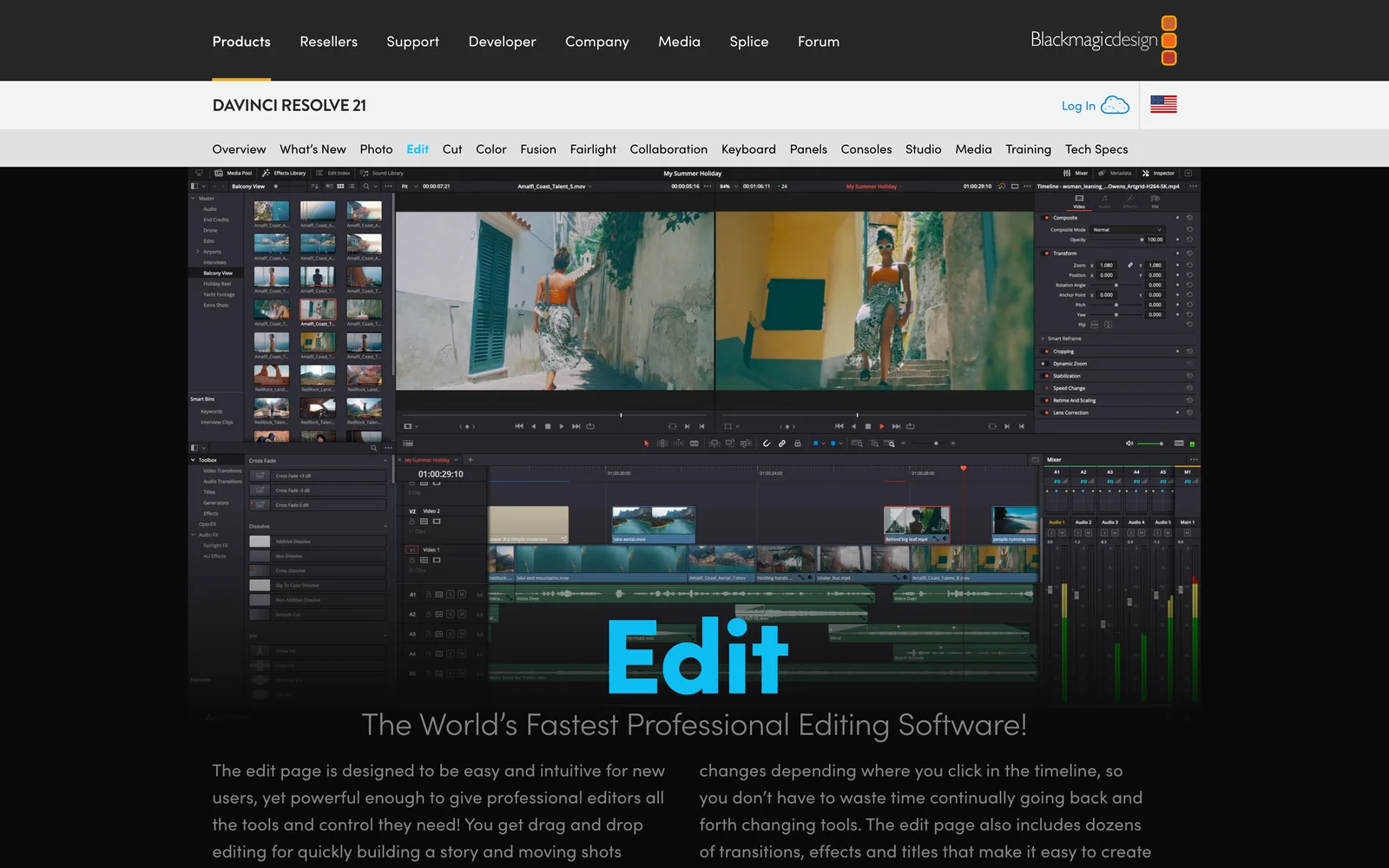
DaVinci Resolve combines multi-track editing, Fusion VFX, Fairlight audio, and Hollywood’s standard color-grading suite in one desktop app. Unlike trialware, the free build handles complete 16:9 and 9:16 YouTube productions indefinitely.
- Best for: Solo and mid-tier YouTubers wanting pro long-form editing, color, and audio without a subscription.
- What stands out:
- Exports watermark-free video up to 4K UHD (3840×2160) at 60 fps for $0, with no duration cap.
- Cut, Edit, Color, Fusion, and Fairlight workspaces keep color matching and loudness normalization in one project.
- Studio unlocks GPU-accelerated 10-bit H.264/H.265 decoding and encoding, >4K60 timelines, and Neural Engine tools such as Magic Mask.
- Limits:
- Heavy hardware floor on Windows: Blackmagic lists 16 GB of RAM as the minimum (32 GB when using Fusion) and an integrated GPU or a discrete GPU with 4 GB+ of VRAM.
- Free Windows/Linux builds decode some 10-bit camera files on CPU unless you generate proxies.
- Node-based compositing and grading take study.
- Pricing: Free ($0); DaVinci Resolve Studio lists at $295 once ($236 online promo on November 18, 2026).
- Skip it if: You edit on an older 8 GB laptop without discrete graphics, or only post quick template Shorts.
2. Adobe Premiere Pro: best for scaling channels and teams
Adobe Premiere Pro remains the standard timeline for commercial YouTube channels hiring editors (Adobe renamed it simply Adobe Premiere in January 2026). Its moat is Creative Cloud integration: After Effects comps, Photoshop thumbnail layers, Audition sessions, and Frame.io comments link straight into your sequence.
- Best for: Channels collaborating with freelance editors, using After Effects graphics, or running sponsor reviews.
- What stands out:
- Largest freelance editor pool on YouTube—hired editors and motion designers can open your project immediately.
- Text-Based Editing, Speech Enhance, Auto Reframe for 9:16 cuts, and Frame.io review links speed up team turnarounds.
- Deep plugin and
.mogrttemplate ecosystem for lower thirds, captions, and multicam switching.
- Limits:
- Only a 7-day trial that converts to a paid plan unless you cancel; canceling an annual, paid-monthly plan after 14 days carries a fee of 50% of the remaining balance (Adobe’s cancellation terms).
- Adding After Effects means a second single-app plan or Creative Cloud Pro (US$69.99/month on an annual plan, billed monthly).
- Pricing: From $22.99/month (annual, billed monthly) single-app, or $69.99/month for Creative Cloud Pro (7-day trial).
- Skip it if: You cut solo, skip After Effects, and would rather spend $275+ a year on audio or lighting.
3. Final Cut Pro: best for solo Mac creators who want speed
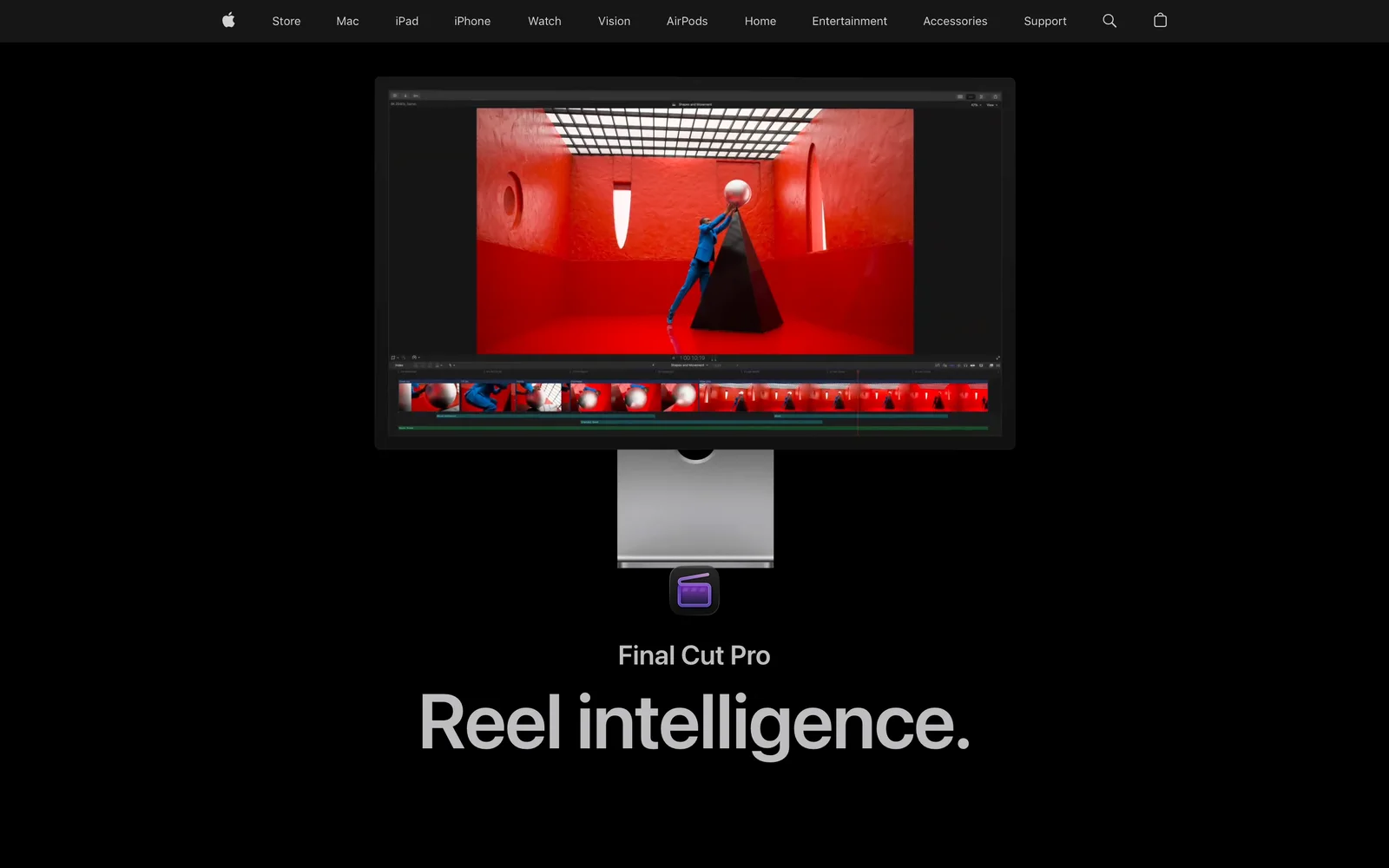
Final Cut Pro is tuned for Apple Silicon media engines on MacBooks and Mac Studios. Its trackless Magnetic Timeline keeps connected B-roll and sound effects locked to spoken lines during ripple trims.
- Best for: Mac-only solo creators—vloggers, reviewers, and essayists—prioritizing fast scrubbing and 4K exports.
- What stands out:
- Magnetic Timeline prevents sync collisions when cutting mistakes out of a 25-minute A-roll track.
- Free to try through Apple Creator Studio’s 30-day trial; Apple’s old 90-day Final Cut Pro trial link now redirects to the main product page.
- Buy once on Mac, or bundle Mac/iPad Final Cut Pro with Logic Pro, Motion, and Compressor via Apple Creator Studio.
- Limits:
- Strictly macOS/iPadOS—no Windows build exists, complicating PC editor handoffs.
- Magnetic Timeline takes adjustment if you come from fixed-track editors.
- Pricing: $299.99 once on Mac, or $12.99/month ($129/year) in Apple Creator Studio after a 30-day trial ($2.99/month or $29.99/year for students/educators).
- Skip it if: You use Windows, hire PC editors, or prefer classic fixed tracks.
4. CapCut: best for YouTube Shorts and trend templates
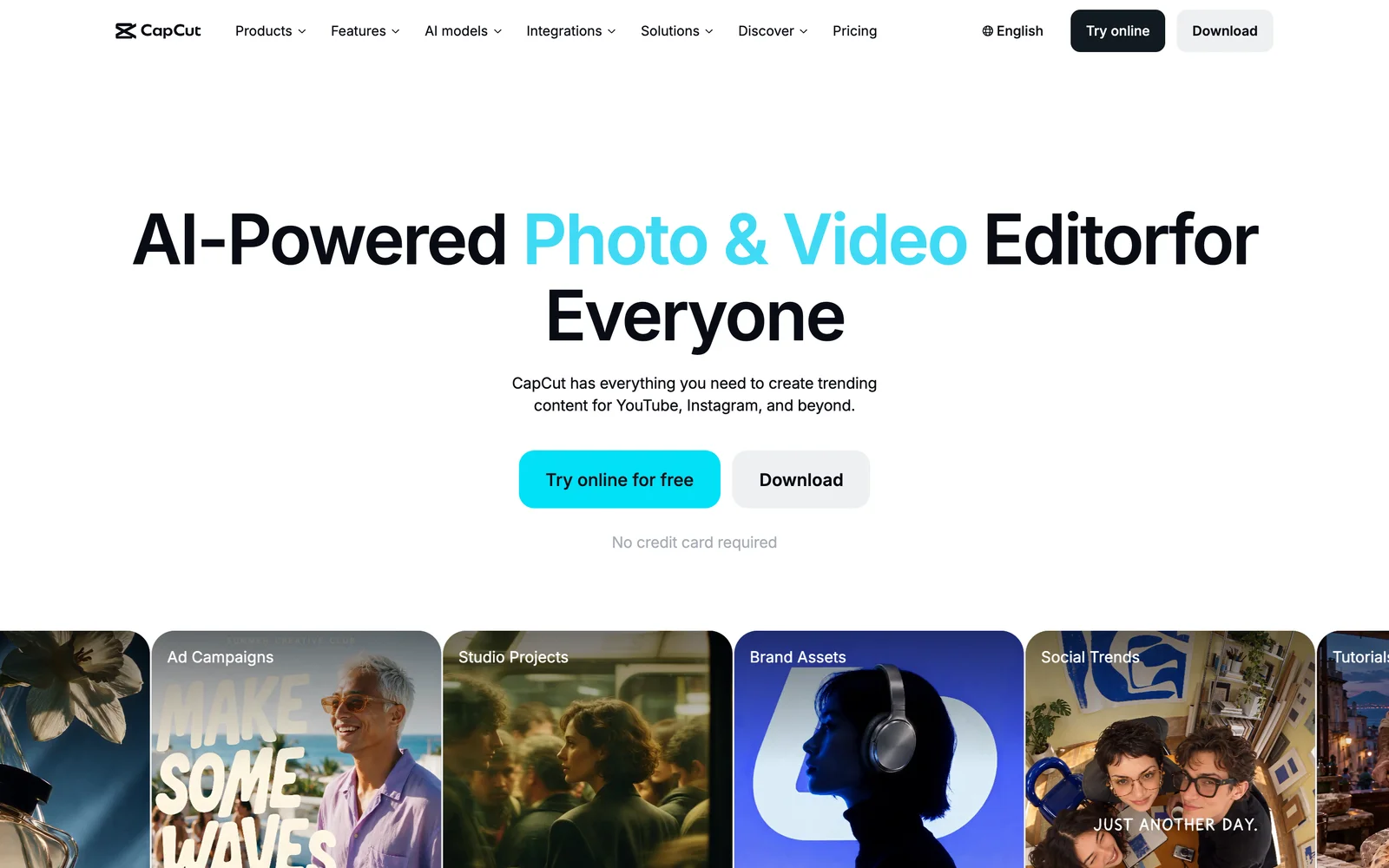
CapCut spans iOS, Android, macOS, Windows, and web, making it the go-to starting point for YouTube Shorts and fast commentary under ten minutes. Auto-captions, beat markers, and kinetic text presets turn phone clips into vertical uploads quickly.
- Best for: Shorts-first creators relying on animated captions, trend templates, and phone-to-laptop sync.
- What stands out:
- Auto-captioning (a Pro feature) paired with kinetic text styles, stickers, and one-click 9:16 formatting.
- Edits using only free assets export without a forced watermark (see CapCut’s watermark policy and delete optional template end-slates).
- Cross-platform apps let you rough-cut on mobile and polish on desktop.
- Limits:
- Many popular caption styles, effects, and higher export options carry a “Pro” badge blocking free export.
- Long 20-minute horizontal edits with 10+ tracks feel cramped next to Resolve or Premiere.
- Unavailable in India, where the app has been banned since 2020.
- Pricing: Free tier; CapCut’s Standard vs. Pro guide lists CapCut Pro at $19.99/month or $179.99/year, and the pricing page shows 1,200 monthly AI credits (rates vary by platform and country).
- Skip it if: You create from India, mix complex long-form audio, or dislike dodging Pro-locked assets.
5. ChatCut: best for talking-head and long-video creators
ChatCut is an AI video editor for the web, macOS, and Windows where you type what you want—such as cutting pauses or pulling vertical Shorts—and an agent edits a real multi-track timeline you can keep adjusting by hand.
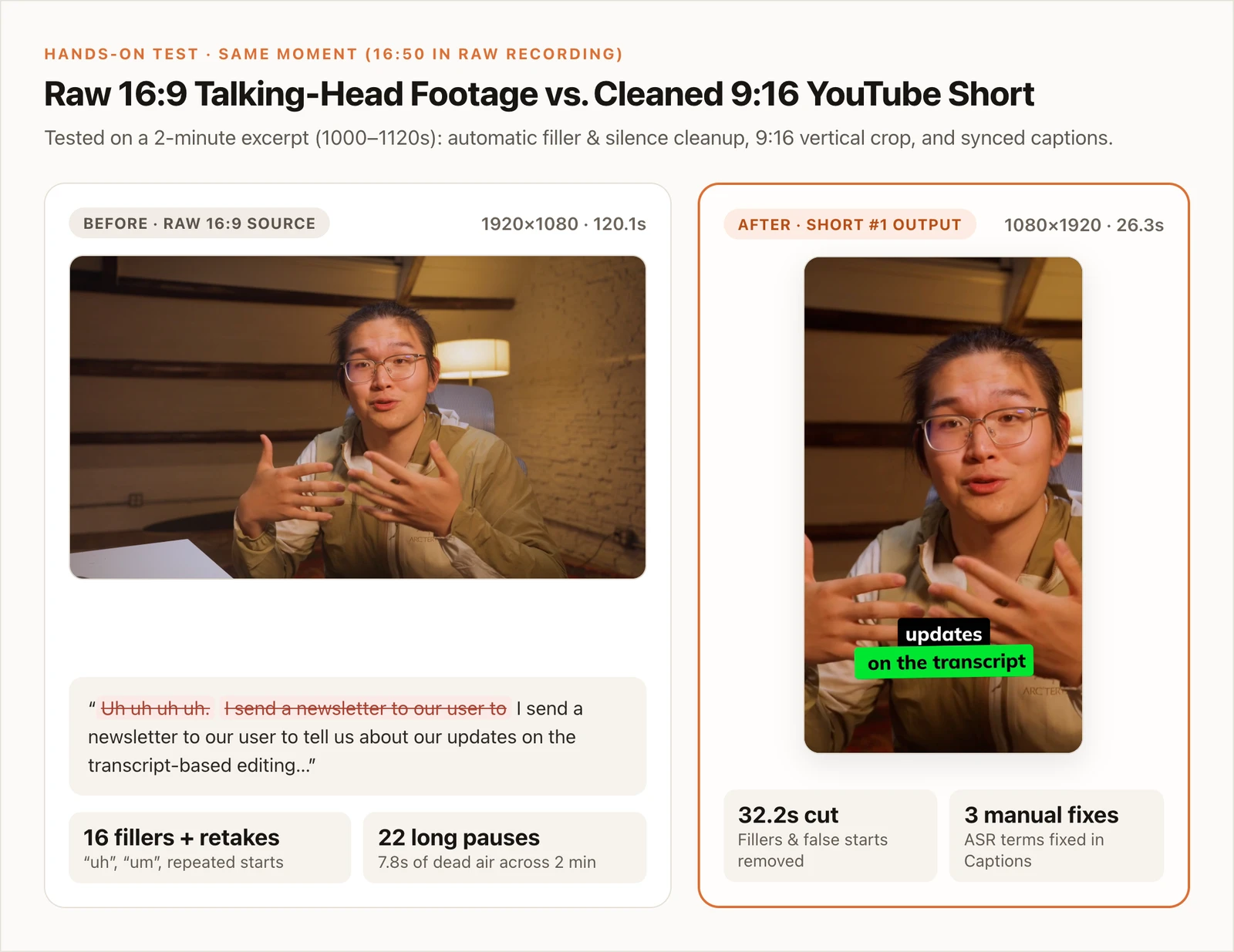
In our November 18, 2026 test on a two-minute 1080p talking-head clip, Desktop cut 16 “uh”/“um” fillers, compressed 22 pauses (saving 7.8s), and trimmed false starts—removing 32.2 seconds total. We split three standalone ideas onto separate 1080×1920 timelines (26.3s, 26.1s, and 30.9s) with the built-in Submagic caption preset, then took about two minutes in Captions to fix three misheard terms (“aero editing” → “A-roll editing”) and two 0.02s boundary cards. Credits used: 0 (transcription, captions, manual cuts, and local exports are credit-free, and external agent reasoning used our own plan).
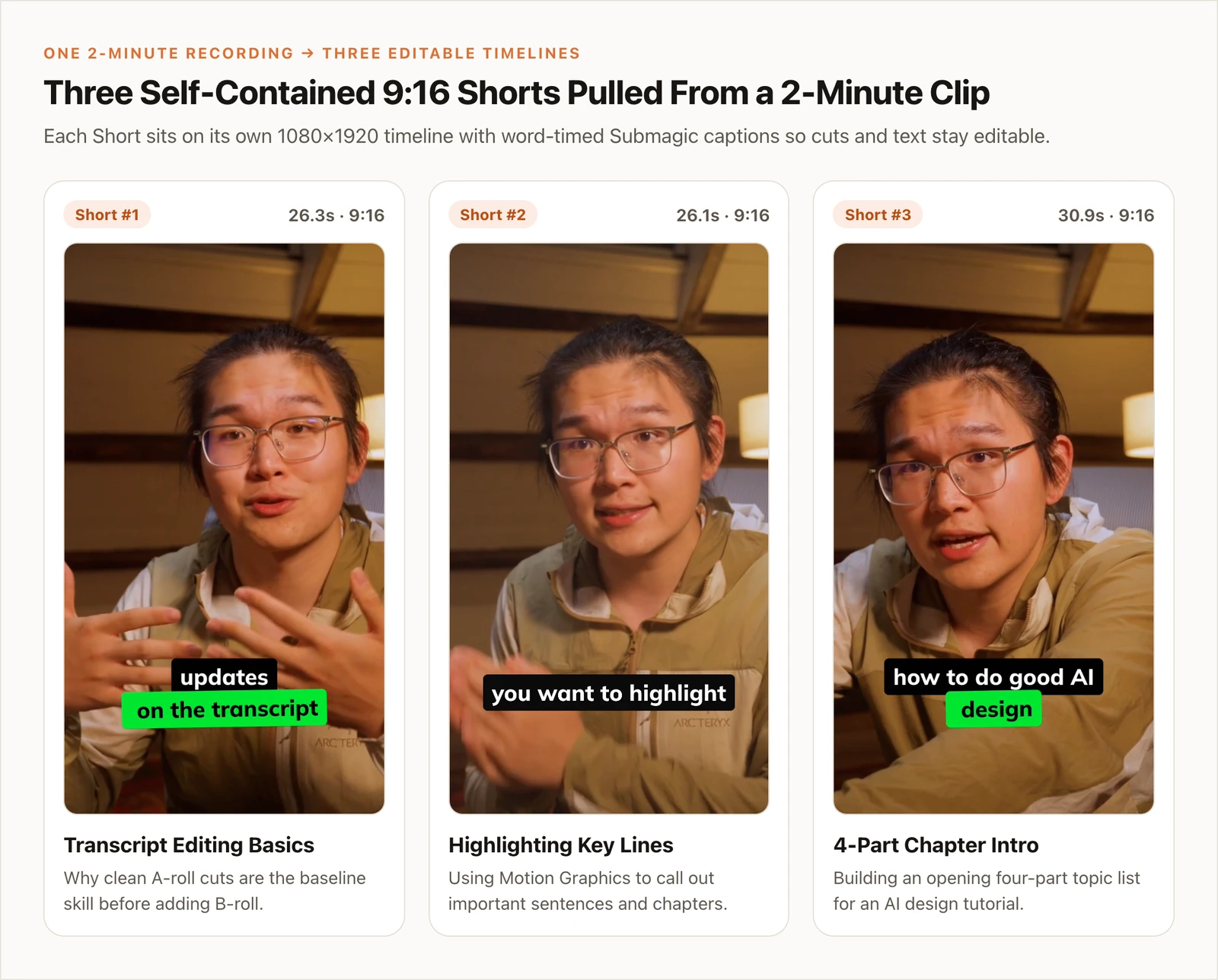
- Best for: Talking-head educators and podcasters turning 15–60 minute recordings into clean A-roll and YouTube Shorts.
- What stands out:
- AI cuts stay editable on a real timeline—adjust trims, restyle captions, or export FCP7 XML to Premiere Pro or Resolve.
- Uploads, transcription, captions, manual edits, and Desktop local 4K exports use zero credits on Free.
- Agent Plugin connects Claude Code, Codex, and WorkBuddy desktop apps on their own subscriptions.
- Limits:
- Requires internet access at all times, including Desktop.
- Built-in agent messages use credits, AI video/image generation requires a paid plan, and Free cloud exports cap at 60 cumulative minutes and 1080p.
- No Linux app (Windows x64 only), no FCPXML export, not built for pro color grading, and the plugin runs in desktop agent apps rather than ChatGPT’s or Claude’s websites.
- Pricing: Free plan; paid from $25/month (100 credits) or $252/year.
- Skip it if: You edit offline, use Linux, or focus on cinema color grading and VFX.
6. Descript: best for transcript-first video podcasts
Descript turns dialogue editing into word processing: import an interview or podcast, read the transcript, and delete or reorder sentences like a doc. Underlord AI actions and Studio Sound voice cleanup suit multi-host shows.
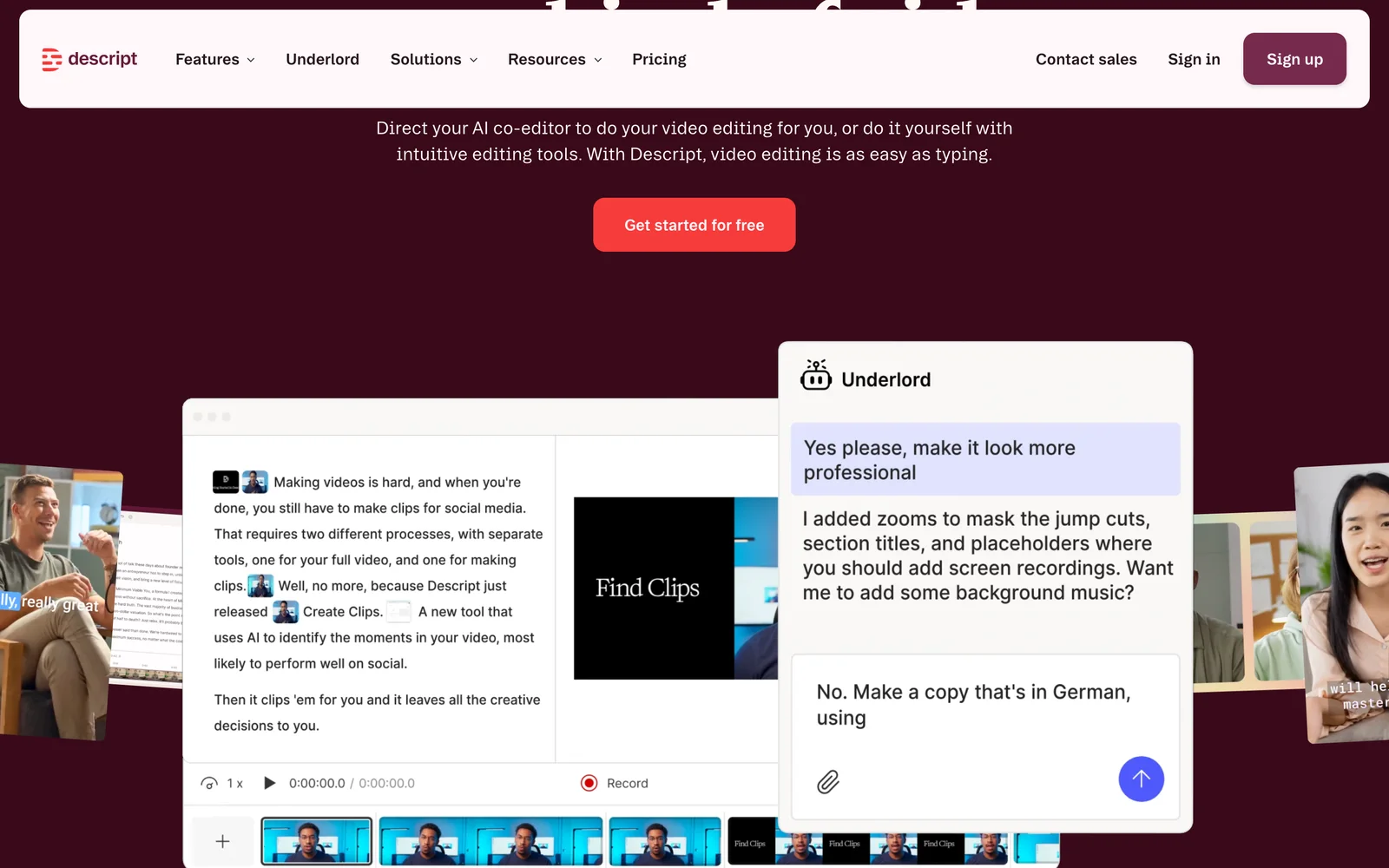
- Best for: Video podcasters and interview channels structuring episodes around spoken outlines.
- What stands out:
- Deleting transcript text cuts matching audio/video immediately, alongside filler removal and Studio Sound echo cleanup.
- Scene blocks attach slides, B-roll, or speaker layouts without manual track routing.
- Creator includes 30 media hours/month and clean 4K exports.
- Limits:
- Free plan caps media at 60 minutes/month and watermarks 720p exports.
- Hobbyist ($16/month annual) caps exports at 1080p and 10 media hours/month; 4K requires Creator.
- J-cuts, L-cuts, and keyframed motion feel stiffer than in Resolve or Premiere.
- Pricing: Free (watermarked 720p); Hobbyist $16/month billed annually ($24/month monthly); Creator $24/month annual ($35/month monthly).
- Skip it if: You cut B-roll vlogs, gaming montages, or beat-synced essays.
7. OpusClip: best for hands-off batch clipping from finished uploads
OpusClip is a post-upload repurposing service rather than a primary 16:9 editor. Paste a YouTube link or finished talk, and it scores hooks, reframes speakers to 9:16, adds captions, and schedules Shorts.
- Best for: Podcasters and streamers finishing horizontal episodes elsewhere who want automated vertical clip batches.
- What stands out:
- Turns one YouTube link into ranked vertical clips with animated captions in 20+ languages.
- Pro exports XML timelines to Premiere Pro and DaVinci Resolve and rolls unused credits over for two months.
- Built-in calendar schedules directly to YouTube Shorts, TikTok, and Reels.
- Limits:
- Free tier gives 60 credits/month, adds a watermark, locks manual edits, and clips stop being exportable after 3 days.
- Cannot assemble your main horizontal video from raw camera files.
- Visual demos still need human review so cuts don’t land mid-thought.
- Pricing: Free (watermarked, 3-day expiry); Starter $15/month (150 credits/month); Pro $29/month or $14.50/month annual ($174/year).
- Skip it if: You want one timeline for both 16:9 episodes and Shorts, or film visual tutorials.
8. Wondershare Filmora: best for beginners who want drag-and-drop effects
Wondershare Filmora sits between starter apps and dense pro suites, pairing a multi-track timeline with built-in titles, transitions, stickers, speed ramps, and motion tracking.
- Best for: Hobbyist YouTubers on mid-range PCs or Macs wanting ready-made effects without learning Fusion or After Effects.
- What stands out:
- Approachable interface stocked with YouTube intro/outro presets, split-screen layouts, keyframing, and auto-reframe.
- Runs smoothly on modest laptops that struggle with DaVinci Resolve.
- Offers annual subscriptions and a one-time Perpetual license for the current major version.
- Limits:
- Free version stamps a Filmora watermark on every export.
- Many stock effects and AI tools require extra add-ons or AI credits.
- Perpetual licenses exclude future major version upgrades.
- Pricing: Watermarked trial; Individual plans on Filmora’s store start around $49.99/year (Basic), ~$59.99/year (Advanced), or ~$79.99 Perpetual.
- Skip it if: You want a watermark-free $0 editor (choose Resolve, iMovie, or Clipchamp).
9. Apple iMovie: best zero-cost starter editor on Apple devices
Apple iMovie is a free Apple app for Mac, iPhone, and iPad, remaining the easiest way to cut your first ten YouTube uploads on Apple gear and export clean 4K video.
- Best for: First-time creators on a Mac, iPad, or iPhone wanting $0 cost and zero setup friction.
- What stands out:
- Free on Apple devices with no watermarks, no duration caps, and 4K export at 30 fps (60 fps projects export at 1080p).
- Projects move between iPhone, iPad, and Mac, and import into Final Cut Pro later.
- Covers green-screen keying, picture-in-picture, split screen, and noise reduction.
- Limits:
- Capped at two video tracks (main storyline plus one overlay), blocking layered B-roll stacks.
- Lacks built-in auto-captions and native 9:16 canvases on Mac without rotation workarounds.
- Pricing: Free ($0) via the App Store and Mac App Store; see Apple’s iMovie support.
- Skip it if: You run Windows, cut vertical Shorts on desktop, or stack three+ visual layers.
Also Considered
- Microsoft Clipchamp: Windows 11’s built-in starter editor. Free accounts export clean 1080p video with free assets and AI captions; 4K UHD needs Microsoft 365 Personal/Family.
- YouTube Create & YouTube Studio Editor: Free, watermark-free Google tools. YouTube Create (Android/iOS) cuts phone videos and Shorts with auto-captions; YouTube Studio only trims or blurs already uploaded videos.
- Shotcut: Free, open-source (GPLv3) editor for Windows, macOS, and Linux with 4K exports and no watermark—handy on Linux or older PCs, though spartan.
- Adobe Premiere Rush (Discontinued): Adobe ended Premiere Rush support on September 30, 2026. Use Premiere on mobile or CapCut instead. (Building automated channels? See how to make a faceless YouTube video.)
How to Choose the Right YouTube Video Editor
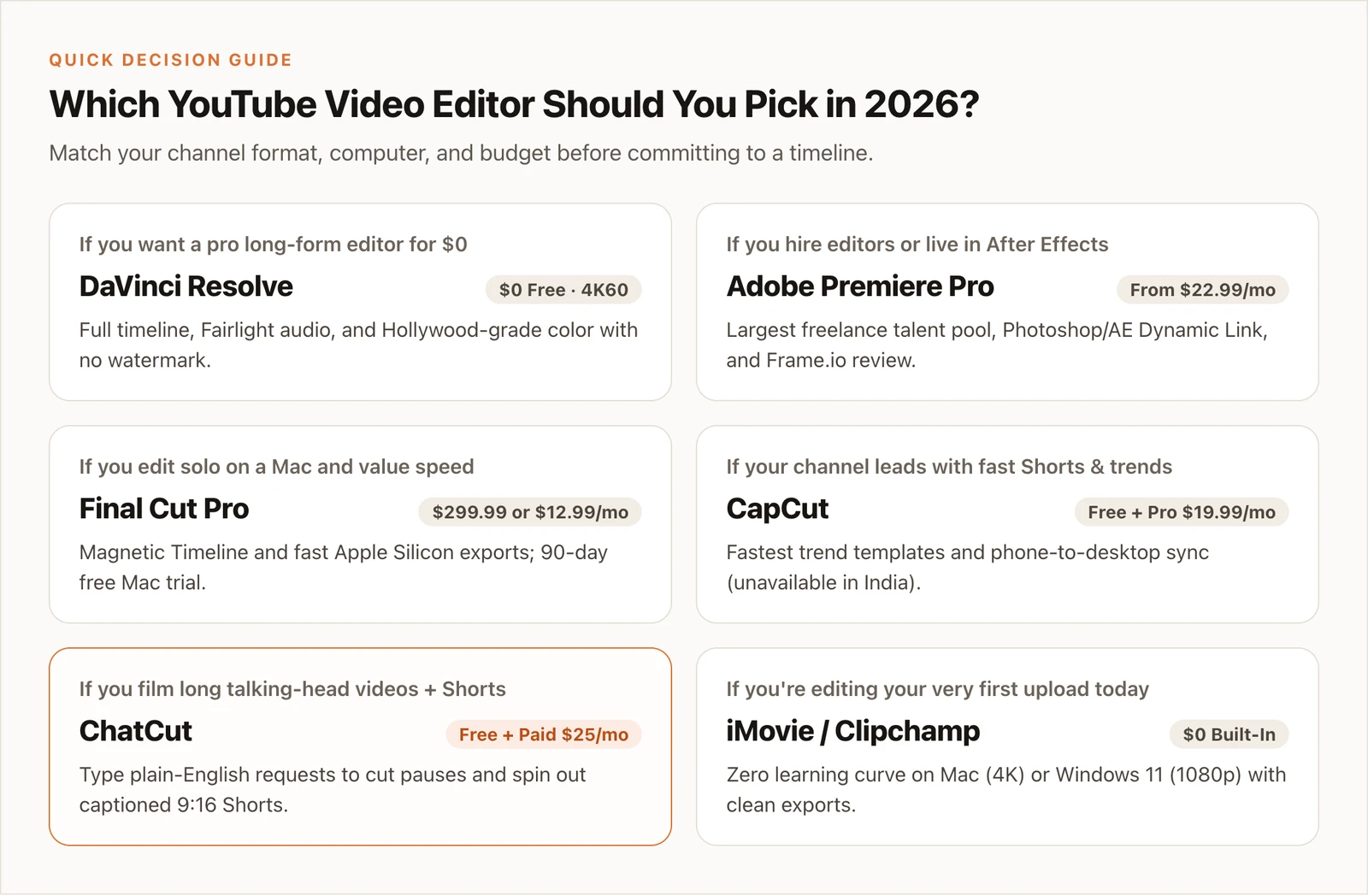
- If you want a $0 pro editor you won’t outgrow, pick DaVinci Resolve.
- If you hire freelance editors or live in After Effects, pick Adobe Premiere Pro.
- If you edit solo on an Apple Silicon Mac and value speed, pick Final Cut Pro (try the 30-day Apple Creator Studio trial first).
- If your channel leads with trend-driven 9:16 Shorts, pick CapCut (outside India) or YouTube Create.
- If you film long talking-head videos or interviews and want plain-language cleanup plus editable Shorts, pick ChatCut.
- If you edit audio-led podcasts like a doc, pick Descript; for your very first upload today, open iMovie (Mac) or Clipchamp (Windows 11).
Already happy with your main 16:9 editor and just want faster vertical repurposing? Pair it with our browser AI Clip Maker.