
The best Codex plugins for creators depend on the job you do every week. For social graphics, install Canva (or Figma for design files); for images with nothing to install, use Codex’s built-in image generation skill; for editing footage you shot yourself, ChatCut gives Codex a real video timeline; for motion graphics written as code, Remotion or HyperFrames; for voiceovers and sound effects, ElevenLabs.
This guide covers 11 plugins, skills and MCP servers: what each does in Codex, how to install it, what the service behind it costs, and where it stops. We make ChatCut, one of the 11, and it’s the only one we tested hands-on, in Codex CLI; the other 10 are described from official docs, repositories and pricing pages, checked on November 18, 2026, and every entry, including ours, lists its limits.
What should you know before installing?
- Codex now runs inside the ChatGPT desktop app, and ChatGPT and Codex share one plugin directory. Open Plugins in the app, or type
/pluginsin Codex CLI. The IDE extension doesn’t support plugins. - A plugin is the installable package. It can carry skills (instructions) and MCP servers (tool connections), and you can add either one on its own.
- Most plugins are free to install, but the service behind them has its own plan: Figma limits rate-limited read tools to 6 calls a month on Starter, and Codex’s built-in image generation isn’t on ChatGPT’s Free plan.
- Start a new chat or CLI session after installing. That’s when bundled skills load.
How do the best Codex plugins compare?
| Tool | Type | Best for | Free to start | Paid from | Setup |
|---|---|---|---|---|---|
| Canva | Plugin | Social graphics, resizes, brand checks | Canva account; Bulk Create needs Enterprise | See vendor pricing | Plugins tab, Canva sign-in |
| Figma | Plugin | Design files, UI, FigJam | 6 rate-limited read calls/month on Starter | Dev seat $12/month, billed annually | Plugins tab, Figma sign-in |
| Adobe | Plugin | Photo edits, retouching, mockups | Start as a guest | Tool access depends on sign-in | Plugins tab |
| Image generation | Built-in skill | New images and edits | Not on ChatGPT Free | ChatGPT Plus, $20/month | Built in: $imagegen |
| ChatCut | Plugin + local MCP | Editing your own video | Editing, captions, local exports; free cloud-export allowance | $25/month (100 credits) | One message; Codex installs it |
| Higgsfield | Plugin | AI video and image generation | Free plan, no monthly credits | $15/month (200 credits) | Plugins tab, Higgsfield sign-in |
| Remotion | Plugin (Codex only) | Videos built in React | Free for individuals and companies of up to 3 | $25/seat/month for manual creation | Plugins tab |
| HyperFrames | Plugin (Codex only) | Motion graphics from HTML | Free, open source | Free | Plugins tab or one npx command |
| ElevenLabs | MCP server | Voiceovers, sound effects, music | 10,000 credits/month | $6/month | codex mcp add, OAuth |
| Speech and Transcribe | Skills | Narration drafts, transcripts | Skills are free; API usage is billed | OpenAI API pricing | $skill-installer |
| Playwright | MCP server | Browser tasks, screenshots | Free, open source | Free | codex mcp add |
Prices are each vendor’s listed prices on November 18, 2026. Codex itself is included in ChatGPT plans from Free to Enterprise, with usage limits that depend on the plan (Codex pricing).
Codex plugins vs. skills vs. MCP servers: what’s the difference?
Most “Codex skills” lists mix the three up. Here’s how OpenAI’s docs separate them.
- A skill is a folder with a
SKILL.mdfile: a name, a description and instructions, plus optional scripts, references and assets (Build skills). Codex starts with each skill’s name and description and loads the full instructions only when it uses that skill. Type$and the skill name to call one directly. - An MCP server connects Codex to tools and data outside your files. It’s either a local process Codex starts (STDIO) or an address it calls (Streamable HTTP), and the ChatGPT desktop app, Codex CLI and IDE extension share the same MCP configuration (Model Context Protocol).
- A plugin is the installable bundle. It can contain skills, MCP servers, browser extensions and hooks, and it’s what you find in the Plugins directory (Plugins).
OpenAI’s own rule of thumb: use a skill when you need reusable instructions for a focused task, and a plugin when you want a package that combines instructions with connected services (Skills & Plugins).
How do you install Codex plugins, skills and MCP servers?
Plugins
- ChatGPT desktop app: open the Plugins tab, search for a plugin, open its details and select the plus button. Connect the service if it asks, then start a new chat.
- Codex CLI: run
codex, then type/plugins. The browser groups plugins by marketplace; install from there, and press Space on an installed plugin to turn it on or off. - From a vendor’s GitHub marketplace: add the marketplace, then the plugin. Canva documents it like this:
codex plugin marketplace add canva-sdks/canva-skills
codex plugin add canva@canva-skills
codex mcp login canva
Refresh a marketplace later with codex plugin marketplace upgrade (Package your plugin). Plugins marked Desktop only need the ChatGPT desktop app and aren’t available on mobile.
Skills
Codex ships with a few skills, including $skill-creator (build your own), $skill-installer (install others) and $imagegen. To add one from OpenAI’s curated list in openai/skills, ask the installer by name, for example $skill-installer speech.
To add a skill by hand, put its folder in .agents/skills inside a project (for that project) or ~/.agents/skills (for every project). Codex picks up new skills automatically; restart it if one doesn’t appear.
MCP servers
# A local server Codex starts on your computer
codex mcp add playwright -- npx @playwright/mcp@latest

# A hosted server, then sign in with OAuth
codex mcp add elevenlabs --url https://api.elevenlabs.io/v1/mcp
codex mcp login elevenlabs
The codex mcp add commands configure servers under [mcp_servers.<name>], normally in ~/.codex/config.toml; trusted projects can also use .codex/config.toml. OAuth login handles authentication separately. In the desktop app, use Settings > MCP servers > Add server, save, then select Restart; select Authenticate if needed. Type /mcp to see what’s connected.
A plugin’s tools run under Codex’s sandbox and approval settings, and data you send through an MCP server falls under that service’s terms. Set default_tools_approval_mode = "writes" on the server to prompt for tools not marked read-only. This follows the server’s tool annotations, rather than detecting every possible side effect.
How did we choose these tools?
- Official source. Listed in OpenAI’s curated plugin catalog (openai/plugins) or published by the vendor, with a documented way to install it in Codex.
- Useful for a creator’s week: design, images, video, audio, or checking and publishing on the web. We left out plugins built mainly for software teams.
- Documented setup. We checked the official instructions and catalog packages on November 18, 2026. Catalog bundles and vendor repositories can ship different skill versions.
- Honest cost: what it needs (an account, an API key, Node.js) and what the service behind it charges.
We ran one hands-on test, on the plugin we make: Codex CLI cut three talking-head clips from one folder into three captioned vertical shorts. The other 10 entries are based on official docs, repositories and pricing pages, checked on November 18, 2026. We didn’t install them for this guide, so we don’t rank output quality.
Which 11 Codex plugins and skills suit creators?
1. Canva: Best for social graphics and quick design edits
The Canva package in OpenAI’s catalog connects Codex to Canva and includes eight skills, covering social resizing, bulk creation, editing, feedback and brand checks. The vendor’s own marketplace is a separate distribution and can contain a different skill set.
Best for: creators who already keep thumbnails, carousels and decks in Canva.
What stands out:
- Edits are approval-gated: the edit skill opens a Canva editing transaction and commits only after you approve (canva-skills).
- One request can resize a design for Facebook, Instagram and LinkedIn, each with a Canva edit link. You can also call it by name with
@Canva.
Limits:
- You connect a Canva account first, and Bulk Create requires an eligible Canva Enterprise plan.
- It applies only what Canva’s API supports (text, formatting, images), so some fixes stay manual.
Pricing: Canva offers Free and paid plans; compare them on Canva’s pricing page. Bulk Create requires Enterprise.
Install: Plugins > Canva, or the three commands in the install section above.
Skip it if: your visuals live in Figma or Adobe apps.
2. Figma: Best for design files and UI work
The Figma catalog package bundles 12 skills on top of Figma’s remote MCP server: turning a frame into code, generating designs and design-system libraries, and working in FigJam and Figma Slides.
Best for: designers and creators who build sites, templates or UI kits in Figma.
What stands out:
- It reads and writes. Writing to the canvas is free during the beta, and write tools are exempt from rate limits (Figma MCP guide).
- Separate skills cover FigJam diagrams, Slides and motion, not only design files.
Limits:
- On the Starter plan, or with a View or Collab seat on a paid plan, rate-limited read tools allow up to 6 calls a month; write tools are exempt.
- The skills are a beta feature, and using them means agreeing to Figma’s Developer Terms.
Pricing: Professional from $12 per seat/month for a Dev seat, $16 for a Full seat, billed annually.
Install: Plugins > Figma, then sign in to Figma.
Skip it if: you design in Canva and never open Figma files.
3. Adobe: Best for batch photo edits and retouching
Adobe’s catalog plugin, previously offered as Photoshop, brings Creative Cloud and Acrobat tools into the conversation. It comes with six skills: batch photo edits, mockups, social variations, design from a template, quick video cuts and portrait retouching.
Best for: photographers and social teams who edit many photos the same way or adapt one design into several formats.
What stands out:
- Photo tools cover color, lighting and tone, removing distractions, Lightroom presets, background removal, and cropping, resizing or expanding an image.
- Quick Cut turns an uploaded video into three AI-edited highlight reels to choose from.
- Each skill is written for Codex too, with text-only steps where Adobe’s preview widgets aren’t available.
Limits:
- You can start as a guest, but portrait retouching and design from a template need an Adobe sign-in.
- Files are uploaded to Creative Cloud before editing, so Adobe’s terms apply (Plugins).
Pricing: the catalog confirms guest access and additional tools after sign-in; it does not provide a complete price schedule for those tools.
Install: Plugins > Adobe.
Skip it if: your photos can’t leave your computer.
4. Image generation: Best for images with nothing to install
Codex ships with an image generation skill. Describe the image, or put $imagegen in your prompt; in Codex CLI, attach a reference image with -i. It uses gpt-image-2 and can edit an image as well as create one (Image generation).
Best for: thumbnail drafts, hero images, textures, product mockups and transparent-background cutouts.
What stands out:
- Nothing to install or connect, and no API key: the skill uses Codex’s built-in image tool (imagegen skill).
- In the desktop app, Canvas view lets you comment on one image or select several and send edits in one go.
Limits:
- It isn’t available on the Free plan, and image turns use your included limits 3 to 5 times faster on average than turns without images.
- It makes bitmaps. The skill itself says vector logos, icon sets and code-native graphics are better made another way.
Pricing: included in the usage of paid ChatGPT plans such as Plus ($20 a month); with an API key, API pricing applies.
Install: built in.
Skip it if: you need an SVG logo or a matching icon set.
5. ChatCut: Best for editing your own video in Codex
ChatCut is an AI video editor. Its plugin gives Codex the editing tools of its desktop app: import, cut from the transcript, add captions, reframe, add titles and music, generate clips, and export, with every change on a real multi-track timeline you can open and adjust.
Best for: turning talking-head recordings, podcasts and tutorials into finished clips, including a whole folder at once.
This test was run by Codex in Codex CLI through the ChatCut plugin, on November 18, 2026. The plugin was already connected, so the install isn’t timed. The folder held three 40-second talking-head clips of the same speaker. Across seven scripted requests and follow-up adjustments, Codex imported and transcribed all three, removed filler words, false starts and long pauses, made 9:16 versions, applied one caption style (bold white words, the spoken word in orange), added a 2-second title card from one template, placed a generated B-roll shot over one line of clip B, added one music bed ducked under the voice, and exported three 1080x1920 MP4s with a summary table. The shorts came out at 30.0, 26.8 and 12.5 seconds. From connecting to the last export took about 13.5 minutes in this run; later verification and reporting are excluded. The only verified ChatCut charge was the 4-second B-roll clip: Codex quoted 2.88 credits before generating, and 2.88 credits were charged. Codex subscription or API costs were not measured.
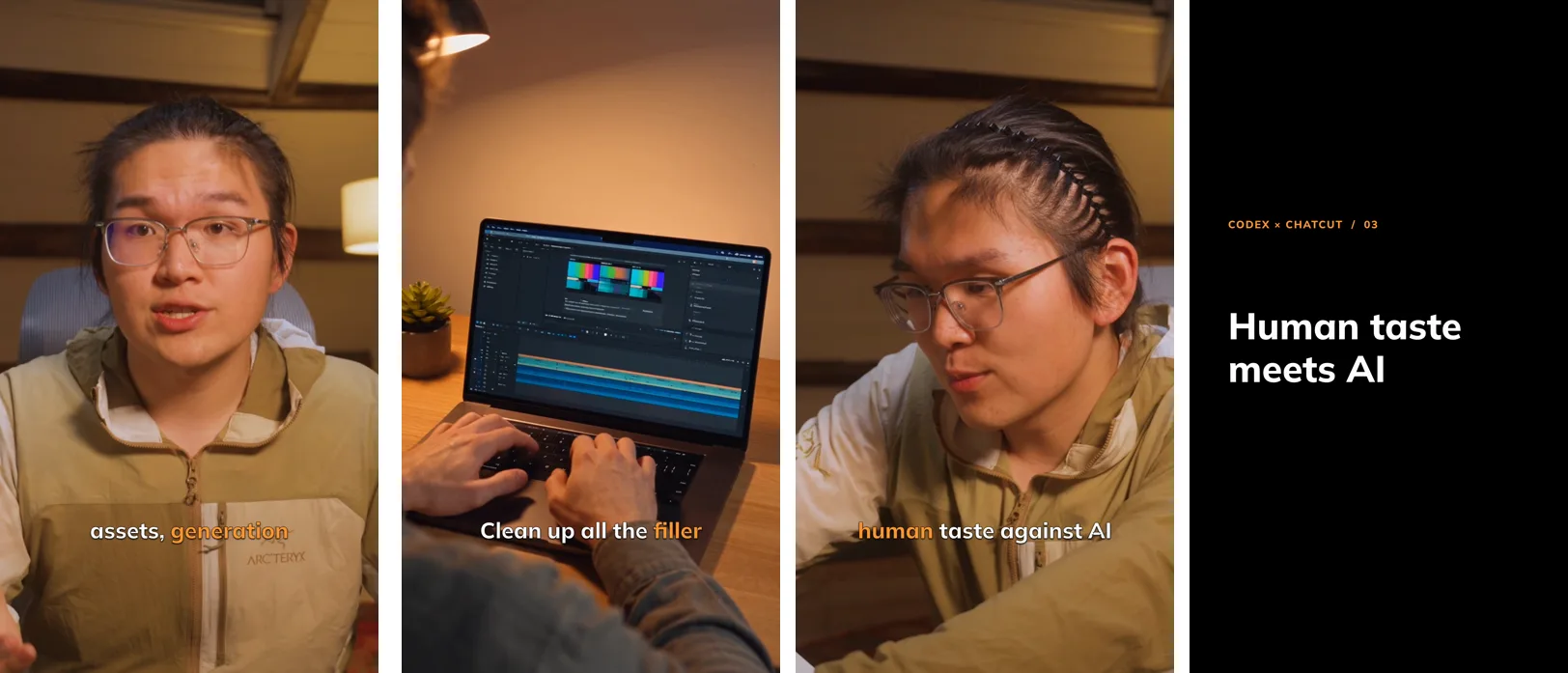
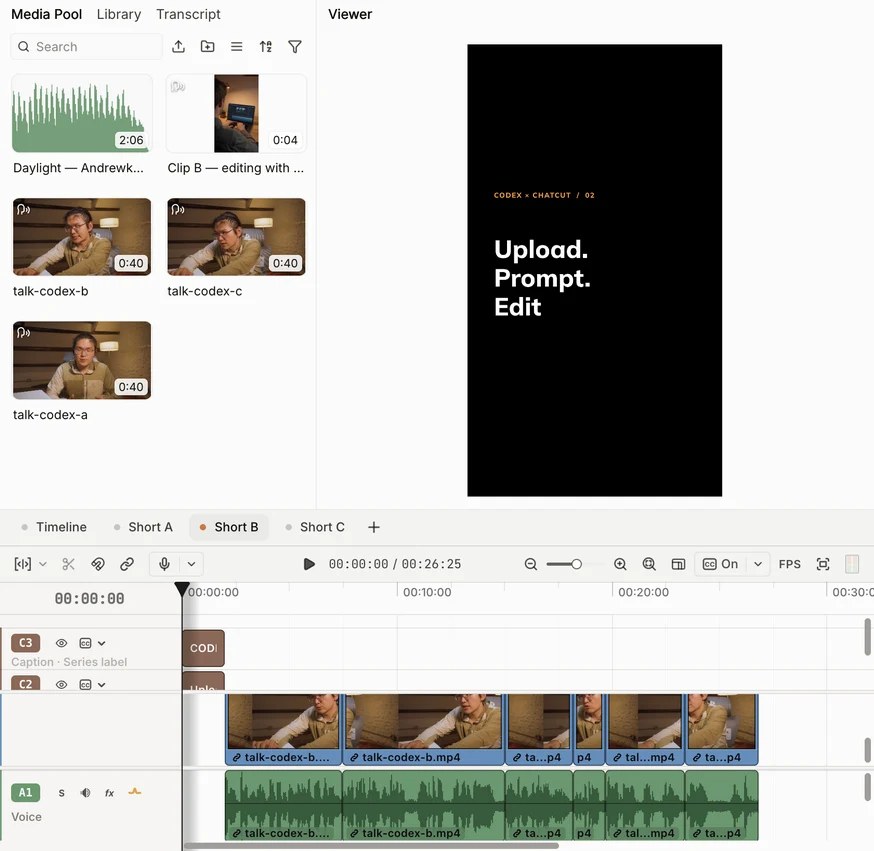
The request that did most of the cutting, verbatim:
What stands out:
- Batch work suits Codex’s terminal: one caption template, title card and music bed reused across three clips, each short on its own timeline in one project, and Codex checked every export’s resolution and decoded each file before reporting back.
- Codex’s reasoning uses your ChatGPT subscription allowance or OpenAI API billing, depending on how you sign in. Editing, transcription, captions and local exports use no ChatCut credits. ChatCut-hosted generation such as AI video, voiceover or music uses credits (product facts); cloud exports beyond the free allowance follow ChatCut’s current credit rules (see Web vs Desktop Export).
Limits:
- ChatCut Desktop requires macOS 13+ (Apple silicon or Intel) or Windows 10+ (x64). This local desktop connection is unavailable on Linux and cannot be installed in ChatGPT on the web or on mobile.
- It needs an internet connection, even with the desktop app.
- Check the framing and proofread captions against the audio before posting. The automated checks in this run do not constitute a full human review for publication.
Pricing: free plan with the editor, transcription, captions and local exports, with no watermark on exports; paid plans from $25 a month for 100 credits. Cloud exports include a free allowance; beyond it, they follow ChatCut’s current credit rules (see Web vs Desktop Export). AI video and image generation need a paid plan.
Install: start a new Codex task and send the message below. Codex follows the official setup guide to install and open the desktop app; sign in there when prompted and verify the connection in your Codex session. The plugin is also listed under Creativity in OpenAI’s catalog; that package provides instructions to install and connect the same desktop app. See the Codex plugin page and the Agent Plugin guide.


-
 Codex
-
 Claude Code
-
 Antigravity
-
 Hermes Agent
- + any MCP client
Skip it if: you need this local desktop workflow on a phone or Linux.
6. Higgsfield: Best for generating AI video and images
Higgsfield’s catalog plugin connects Codex to its hosted MCP server to generate images and videos from a prompt or your own photo, and adds three skills: a faceless-channel video builder, a narrator for voiceover takes, and a subtitle burner.
Best for: making new footage: product ads, restyled photos, animated stills and narrated explainers.
What stands out:
- Higgsfield describes it as “every major image and video model in one place,” behind one sign-in.
- The skills go past single clips, to multi-scene narrated videos with timed subtitles burned in.
Limits:
- Every generation uses credits, and the free plan doesn’t include monthly credits (Higgsfield pricing).
- The faceless-channel skill runs only when you explicitly ask for that kind of video.
Pricing: Starter $15 a month for 200 credits; Plus $49 a month for 1,000 (Higgsfield, October 2026).
Install: Plugins > Higgsfield, then sign in.
Skip it if: you’re editing footage you already shot.
7. Remotion: Best for videos built in React
Remotion makes videos from React code. Its plugin, available in Codex but not in ChatGPT chats, adds 12 skills for animation, captions, audio, 3D, maps, rendering and Remotion Studio.
Best for: title sequences, data-driven videos and templates you want to version like code.
What stands out:
- The catalog plugin is MIT-licensed; the Remotion renderer has separate license terms.
- Outside the directory,
npx skills add remotion-dev/skillsinstalls skills from Remotion’s own repository for supported agents; its contents may differ from the catalog bundle.
Limits:
- Remotion is free for individuals, for-profit companies with up to 3 employees and non-profits. Larger companies need a company license (Remotion license).
- Changing the video means changing React code.
Pricing: free under the terms above; Remotion for Creators is $25 a month per seat for low-volume manual creation. Automated video products use separate Automators pricing.
Install: Plugins > Remotion in Codex.
Skip it if: you don’t want to read code to move a title.
8. HyperFrames: Best for motion graphics written in HTML
HyperFrames from HeyGen renders HTML, CSS and GSAP animations to MP4. Its Codex plugin adds five skills: compositions, the CLI (preview, render, transcribe, text to speech), a registry of reusable blocks, a GSAP reference, and website-to-video capture.
Best for: explainers, product intros and animated captions you’d rather build like a web page.
What stands out:
- The rendering framework is free and Apache-2.0 licensed (repo).
- A capture pipeline turns an existing website into a video.
Limits:
- The OpenAI catalog package is version 0.1.2. HyperFrames recommends
npx hyperframes skills update, which installs skills that match your CLI version. - Rendering needs Node.js 22+ and FFmpeg on your computer.
Pricing: free. The free Studio app has an optional Pro plan that adds HeyGen’s video, image, voice and music models.
Install: Plugins > HyperFrames in Codex, or npx hyperframes skills update.
Skip it if: you want a conventional editor without authoring HTML or running a CLI.
9. ElevenLabs: Best for voiceovers, sound effects and music
ElevenLabs runs a hosted MCP server at https://api.elevenlabs.io/v1/mcp. Connected to Codex, it can generate speech in any voice in your workspace, transcribe audio, design new voices, and make sound effects, music, images and video (ElevenLabs MCP server).
Best for: voiceovers, character voices, sound effects and music beds.
What stands out:
- Sign-in uses OAuth, so no API key is copied into Codex.
- Every generation lands on a Flow, an editable canvas you can open in the ElevenLabs app, and speech comes back as two takes to choose from.
Limits:
- Generations spend your workspace’s credits, and retrying one that’s still running starts and charges a new one.
- Links to generated files expire about two hours after Codex receives them, so save what you keep.
Pricing: free plan with 10,000 credits a month; Starter is $6 a month.
Install: the command pair above combines ElevenLabs’ documented endpoint and OAuth flow with Codex’s documented MCP syntax. We did not run this connection in our test; confirm authentication and available tools in your own session.
Skip it if: OpenAI’s built-in voices are enough for a draft (next entry).
10. Speech and Transcribe: Best for quick narration and transcripts
Two curated skills from OpenAI. Speech turns text into narration with the OpenAI Audio API and built-in voices; Transcribe turns audio or video into text, with speaker labels when you ask.
Best for: batches of narration lines, scratch voiceovers, and interview transcripts.
What stands out:
- Speech handles batches: many lines to many audio files in one run.
- Transcribe defaults to fast text and switches to a speaker-labelled model when speaker labels are requested.
Limits:
- Both need an
OPENAI_API_KEY, and that API usage is billed separately from your ChatGPT plan. - Speech uses built-in voices only; custom voices are out of scope.
Pricing: the skills are free (Apache-2.0); API calls follow OpenAI’s API pricing.
Install: $skill-installer speech and $skill-installer transcribe.
Skip it if: you need to create a custom or cloned voice.
11. Playwright: Best for browser tasks and page checks
Microsoft’s Playwright MCP lets Codex drive a real browser: open pages, click, fill in forms and take screenshots.
Best for: checking a published page, grabbing screenshots for a post, or repeating a web task.
What stands out:
- Free and open source, and it runs on your computer.
- It reads pages through the accessibility tree, so it doesn’t need a vision model.
Limits:
- It needs Node.js 20 or newer.
- Microsoft says its Playwright CLI with skills uses fewer tokens in coding agents; OpenAI’s curated
playwrightskill takes that route.
Pricing: free.
Install: codex mcp add playwright -- npx @playwright/mcp@latest, or $skill-installer playwright for the CLI-based skill.
Skip it if: you only need a page’s text.
What other plugins did we consider?
- Notion is in OpenAI’s catalog, but its four Codex skills focus on specs, research documents, meeting prep and knowledge capture rather than content calendars.
- Creative Production, OpenAI’s own plugin, turns a brief or product image into a board of visual options and uses image generation for creative options. We couldn’t confirm which plans include it, so we didn’t rank it.
- Product Design, also from OpenAI, turns briefs, URLs and screenshots into prototypes for product teams.
- Google Drive and Dropbox are in the same catalog, if your assets live there.
- ElevenLabs’ older local MCP package (
elevenlabs-mcp) is deprecated and its repository is archived. Use the hosted server above instead.
Which Codex plugin should you install first?
- If you make thumbnails, carousels and decks, pick Canva; if you work in design files, Figma.
- If you need a quick image and don’t want to set anything up, use image generation (
$imagegen). - If you edit talking-head, podcast or tutorial footage, especially several clips at once, pick ChatCut.
- If you want new footage from a prompt or a photo, pick Higgsfield.
- If you’d rather build animations as code, pick Remotion (React) or HyperFrames (HTML).
- If you need voiceovers, sound effects or music, pick ElevenLabs; for scratch narration with an API key, Speech.
- If you check pages or capture screenshots before publishing, add Playwright.
Using Claude Code too? Compare the best Claude Code plugins, or the best ChatGPT plugins for ChatGPT chat. For video, see our guide to editing video with ChatGPT and the video editing MCP servers roundup; for voices, the AI voice generators comparison.