If you are asking what can Meta Muse do, start with how it runs: Muse is Meta’s personal AI agent, hosted on its own cloud computer (Muse Secure VM) so it can sort email, coordinate calendars, book reservations, run small-business connectors, and keep working after you lock your phone. For Meta Muse use cases involving recorded footage, this guide uses ChatCut to provide the editable multi-track timeline; Meta’s previewed Muse Video model is built to generate synthetic clips from prompts rather than trim a three-minute talking-head recording. Adding ChatCut as a custom connector brings real Meta Muse video editing into your Muse chat on iPhone, Android, Mac, or the web, with zero software installed on your device.
We make ChatCut, a web and desktop AI video editor behind the ChatCut connector for Muse. Below, we first verify what Muse does on its own from Meta’s official product pages, then walk through an eight-step talking-head edit—from raw attic footage to finished 16:9 YouTube and 9:16 Reels/Shorts MP4s—with 4.38 ChatCut credits for the B-roll used in the finished videos, and 13.14 credits across three generations to remove garbled screen text. The chat windows below are code-recreated Muse interface illustrations, not recordings of a Muse session. The real edit was run once by an external agent in ChatCut Desktop. A connected Muse can use the same ChatCut editing tools for this workflow; these prompts are reusable, but exact editorial decisions, timings, and charges can differ. If you want to compare another cloud-computer mobile agent or a local coding setup, see our guides to editing video with Grok Bot and editing video with ChatGPT and Codex.
What can Meta Muse do—and what are the main Meta Muse use cases?
Meta introduced Muse on September 8, 2026 as a personal AI agent designed to execute multi-step plans rather than stop at chat replies. According to Meta’s official product and help pages, Muse’s capabilities rest on four pillars:
- A dedicated cloud computer (
Muse Secure VM). Each user and their agent share that user’s own isolated, persistent Linux virtual machine in the cloud, complete with its own full browser, CPU, memory, and storage (muse.ai, Muse overview). Because tasks run on that Secure VM rather than on your phone battery, Muse can open websites, fill out forms, and continue longer jobs in the background while you are away. Under Meta’s agent safety architecture, real login credentials stay isolated from the model, an internal Sentinel layer monitors outbound actions, and approval settings govern sensitive actions such as sending emails or spending money; important actions require approval by default. - Everyday personal errands and scheduling. Out of the box, Meta positions Muse around practical daily logistics: sorting your inbox, coordinating schedules across calendars, booking restaurant tables or travel, comparing prices and shopping, saving money, and building fitness plans (muse.ai, Muse Australia launch).
- App Connectors and Muse for Small Business. Through Muse Connectors, you choose which external accounts Muse can access and can revoke them anytime in Settings → Connectors. Consumer connectors include Gmail, Google Calendar, Instagram, and OpenTable (about.fb.com). On September 29, 2026, Meta added Muse for Small Business, bringing connectors for Asana, Box, Canva, Dropbox, Figma, Granola, HighLevel, Intuit QuickBooks, Klaviyo, Lovable, Notion, Shopify, Slack, Stripe, and Zoom alongside Facebook and Instagram business accounts. Developers and services outside the built-in directory can submit integrations for review through the Muse Connector Platform. Custom connectors offer another route; ChatCut documents its remote MCP URL in the setup section below.
- Custom Spaces, multi-device chat, and Meta Superintelligence Labs models. Inside the app, Spaces let you describe a custom tool—such as a holiday shopping hub, a school-email calendar board, or a project tracker—and pin it to your sidebar or tabs. Meta lists iOS, Android, web, and Mac access in its Australia announcement; the Muse homepage also describes WhatsApp access. Voice mode is available only in some countries (Getting started with Muse). The launch announcement named Muse Spark. A separate Muse Spark 1.1 announcement describes generalization to new tools, MCP servers, and skills; it does not identify the model serving your Muse chat. Meta’s October Muse Wonder announcement said it would reach Muse subscribers first. The newer Spaces announcement reports specialized models trained with learnings from Muse Wonder rolling out to Muse, without establishing a selectable model for every account.
How does Meta Muse video editing differ from Meta’s Muse Video model?
Search results for meta muse video mix two separate things from Meta, and confusing them wastes time when you have real footage to publish:
- Muse Video (generative text-to-video model): On July 7, 2026, Meta Superintelligence Labs launched Muse Image and previewed Muse Video, a generative video model built on the same pretraining base with native audio generation, announced as coming soon to creators and Meta AI. That announcement describes media generation, not a documented editable multi-track workflow for trimming a camera recording and revising captions.
- Muse + ChatCut custom connector (timeline video editing): Documented on the ChatCut plugin page for Muse, this route adds ChatCut’s remote MCP server (
https://api.chatcut.io/api/external-mcp/mcp) to your Muse account. Muse orchestrates transcription, semantic rough cuts, word-highlighted captions, punch-in zooms, HTML Motion Graphics, optional AI B-roll, and ducked music from its cloud computer, while every track stays editable in your browser atapp.chatcut.io.
| Option | What it actually does | Editable multi-track timeline? |
|---|---|---|
Muse alone (muse.ai / mobile / Mac app) | Plans campaigns, writes scripts, manages Instagram/Dropbox/Canva connectors, and runs browser tasks on Muse Secure VM | Not documented in the cited source |
| Meta’s Muse Video (MSL preview) | Generates new short video clips with native audio support | Not documented in the cited source |
Muse + ChatCut connector (/muse-plugin) | Cuts your recorded footage, adds word-timed captions, zooms, Motion Graphics, optional AI B-roll, and music, then exports MP4 or opens at app.chatcut.io | Yes |
What do the finished 16:9 and 9:16 videos look like?
Before walking through setup and prompts, inspect both finished exports from our shared master edit. Starting from one 2:48 (168.2-second) 1080p raw talking-head recording shot in an attic studio, eight staged prompts produced a 60.0-second horizontal cut and a re-laid-out 60.0-second vertical Short/Reel:
Here is what each pass added to the timeline:
- 0:00–0:03: Transparent animated opening title (
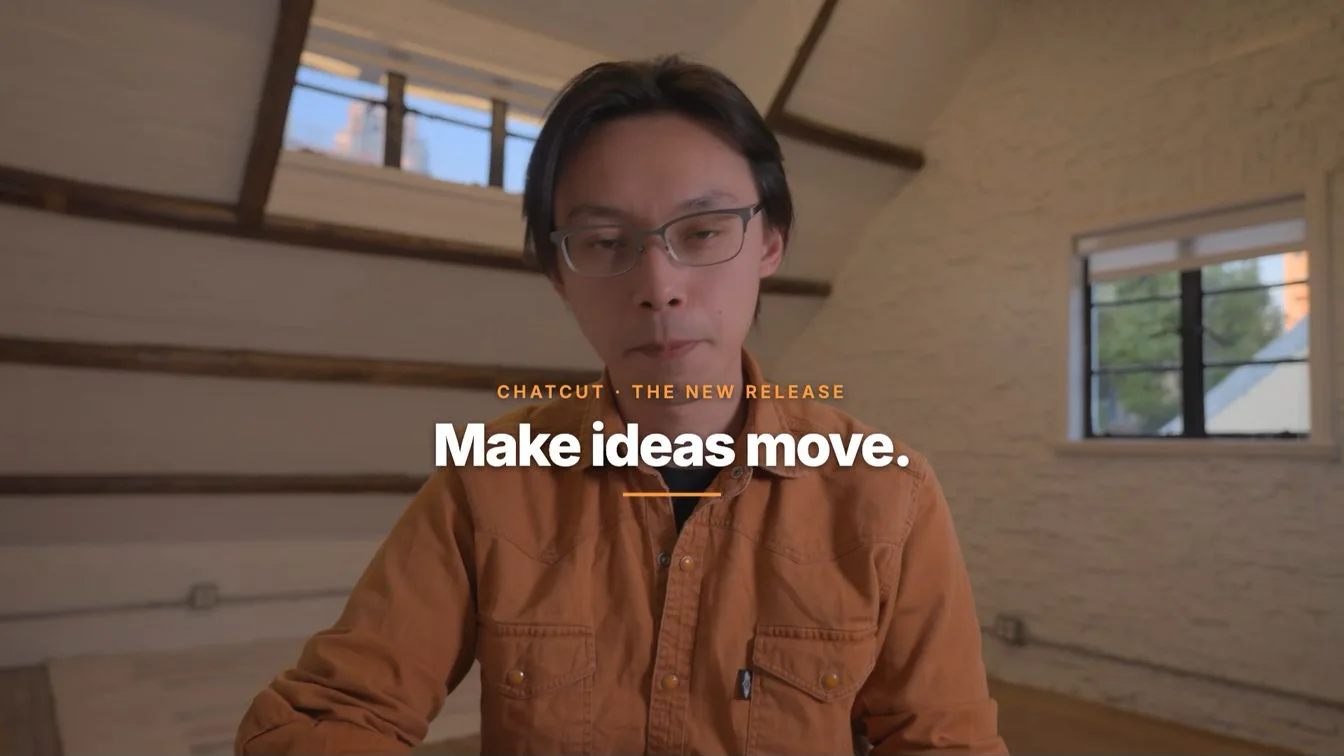
CHATCUT · THE NEW RELEASE/Make ideas move.). - 0:00–1:00: Bold white lower-third captions (
Arial 800) where only the currently spoken word highlights in #FF9B40 orange and returns to white once spoken. - 0:07.5–0:13.5: Numbered Motion Graphics callout (
THREE IMPROVEMENTS:01 Stability + performance,02 A redesigned UI,03 AI Motion Graphics) tucked into the right wall space clear of the speaker’s glasses and chin. - 0:09.3–0:12.7 and 0:38.5–0:42.4: Two 1.18× spring punch-in zooms, plus a -14 dB library
Airy Short Whooshat 0:36.4 marking the transition into the third point. - 0:42.5–0:46.5: One 4-second 720p Seedance 2.5 B-roll cutaway slowly pushes toward a monitor on a wooden desk in a warmly lit attic. Its dark-gray screen shows a large orange square above five colored blocks (cyan, purple, green, orange, and blue)—an abstract illustration, not a real software interface or a complete multi-track timeline. The clip used in the finished videos cost 4.38 credits (13.14 credits across three generations to remove garbled screen text) and sits over the original voice while retaining captions.
- 0:00–1:00: Creative Commons ambient music bed (1.5s fade-in, 2.0s fade-out) auto-ducked under speech to an integrated -20.3 LUFS mix.
How do you start editing a video in Muse in five steps?
- Send one setup prompt. Open any Muse chat on your phone or computer and send
Read ChatCut.io/muse to connect ChatCut(also available on the Muse video editor plugin page), then sign in to your ChatCut account via OAuth. - Attach your clip (or use a mobile browser upload link). Attach your camera-roll recording or product clip in chat. If a large phone video does not come through as a chat attachment, Muse generates a ChatCut upload link that opens directly in your phone’s browser.
- Cut and caption the A-Roll first. Ask for transcription, a target duration, filler and retake removal, word-by-word captions, and restrained punch-ins before adding overlays.
- Add B-Roll with a credit quote gate. Layer zero-credit HTML Motion Graphics, ambient music, and—only after approving a credit quote—AI-generated B-roll.
- Receive the MP4 in chat or fine-tune on the web. Muse renders the video using its cloud browser handoff (or an approved cloud export) and sends the finished MP4 back into the conversation, while keeping the full timeline saved to your account at
app.chatcut.io.
What do you need before you start—and how does billing split?
- A Muse account in a supported region. Meta describes free access with a usage limit, alongside paid monthly Power (
$20/month, 500M weekly Muse tokens) and Maximum ($100/month, 3B weekly Muse tokens) plans. Benefits and availability vary by account and region (About Muse subscriptions). - Zero local software installation. Because Muse connects to ChatCut over HTTPS from its cloud VM, nothing is downloaded onto your iPhone, Android phone, or computer. (By contrast, local coding agents install ChatCut Desktop, which requires macOS 13+ (Apple silicon or Intel) or Windows 10+ x64 and does not support Linux—see ChatCut Product Facts.)
- A ChatCut account. You can create one during OAuth sign-in. ChatCut’s Free plan includes uploads, speech transcription, timeline cuts, captions, and local exports without spending credits.
- Permissioned footage and a clear brief. State the target aspect ratio (16:9 or 9:16), target runtime, key points that must stay, and your credit cap before requesting generated media.
| Part of the workflow | Which plan covers it | Cost in the 8-step master edit |
|---|---|---|
| Muse chat turns, planning, and Secure VM cloud browser | Your Muse plan (free access, Power, or Maximum) | Not measured: the master edit ran through an external agent in ChatCut Desktop, not Muse |
| Uploading footage, speech transcription, rough cuts, captions, library SFX, and agent-authored Motion Graphics | ChatCut Free or Pro (Credits policy) | 0.00 ChatCut credits (Steps 1–5 and Step 7) |
| Standard MP4/WebM, MP3, subtitle, or XML export | 0 ChatCut credits for local exports, including browser handoff rendering; cloud exports include a free allowance, beyond which they follow ChatCut’s current credit rules (Web vs Desktop Export). Muse provides a quote and waits for your confirmation before a paid cloud export | 0.00 ChatCut credits (Step 8) |
| ChatCut-hosted AI video, image, music, voiceover, or SFX generation | ChatCut credits on your account (Pricing; paid plan required for AI video and AI image generation) | 4.38 ChatCut credits for the finished 4s 720p Seedance 2.5 B-roll clip; 13.14 credits across three generations to remove garbled screen text (Step 6) |
Why should you finish A-Roll before B-Roll when messaging Muse?
Messaging Muse feels like texting a human editor on WhatsApp or iMessage, which makes it tempting to cram every instruction—trimming, subtitles, animated cards, generated cutaways, and background music—into one opening paragraph. Resist that shortcut.
For this talking-head workflow, we recommend two stages:
- A-Roll (Steps 1–4): The spoken spine on camera—transcription, cutting false starts and dead air, locking word-timed captions, and adding subtle zooms or transition cues.
- B-Roll (Steps 5–7): Visual and audio layers anchored to that spine—animated titles, numbered callout cards, cutaway footage, and an auto-ducked music bed.
If you ask an agent to time a numbered callout card and a 4-second cutaway before you have approved the spoken cut, later changes to the spoken cut may require retiming those overlays. Lock the 60-second A-Roll first, verify a preview frame, and then stack B-Roll one message at a time.
How do you connect ChatCut to Muse and edit a video step by step?
Connect ChatCut in one message (or through Settings)
Open Muse on your phone, Mac, or muse.ai and send the setup prompt from ChatCut.io/muse:
Muse registers ChatCut as a custom OAuth connector, prompts you to authorize your ChatCut account in the browser, runs a read-only project check, and saves ChatCut's workflow skill on its cloud computer.
Because ChatCut is not yet prelisted in Muse’s built-in connector directory, Muse adds it as a custom remote MCP connector (https://api.chatcut.io/api/external-mcp/mcp) using OAuth—no API keys or custom headers required. Sign in on the ChatCut authorization page, authorize access, and reply "done" in chat. Never type your ChatCut password, one-time sign-in code, or cookies into a Muse conversation. The setup guide then has Muse save ChatCut’s workflow guidance for later chats, including importing media, previewing frames, quoting generation costs, and exporting.
If you prefer adding the connector manually first, open Settings → Connectors → Add custom connector in Muse, enter the name ChatCut and the exact URL https://api.chatcut.io/api/external-mcp/mcp, complete OAuth sign-in, and then send the prompt above so Muse still saves the workflow skill. (Some Muse app builds hide Add custom connector; the guide recommends the chat prompt when the button is absent.)
Step 1. Import the raw clip and transcribe speech (A-Roll)
Our source file is a 168.2-second (5,045-frame, 1920×1080, 30 fps) talking-head recording of a presenter in an orange shirt introducing three product updates from an attic studio. In Muse, attach the video in chat (or use the ChatCut mobile browser upload fallback if the attachment does not reach Muse) and ask to import and transcribe:

You: Import this clip into ChatCut and transcribe it.
Muse: Imported your 2:48 1080p clip (30 fps) into a new ChatCut project and finished cloud speech transcription. Ready for your rough-cut brief.
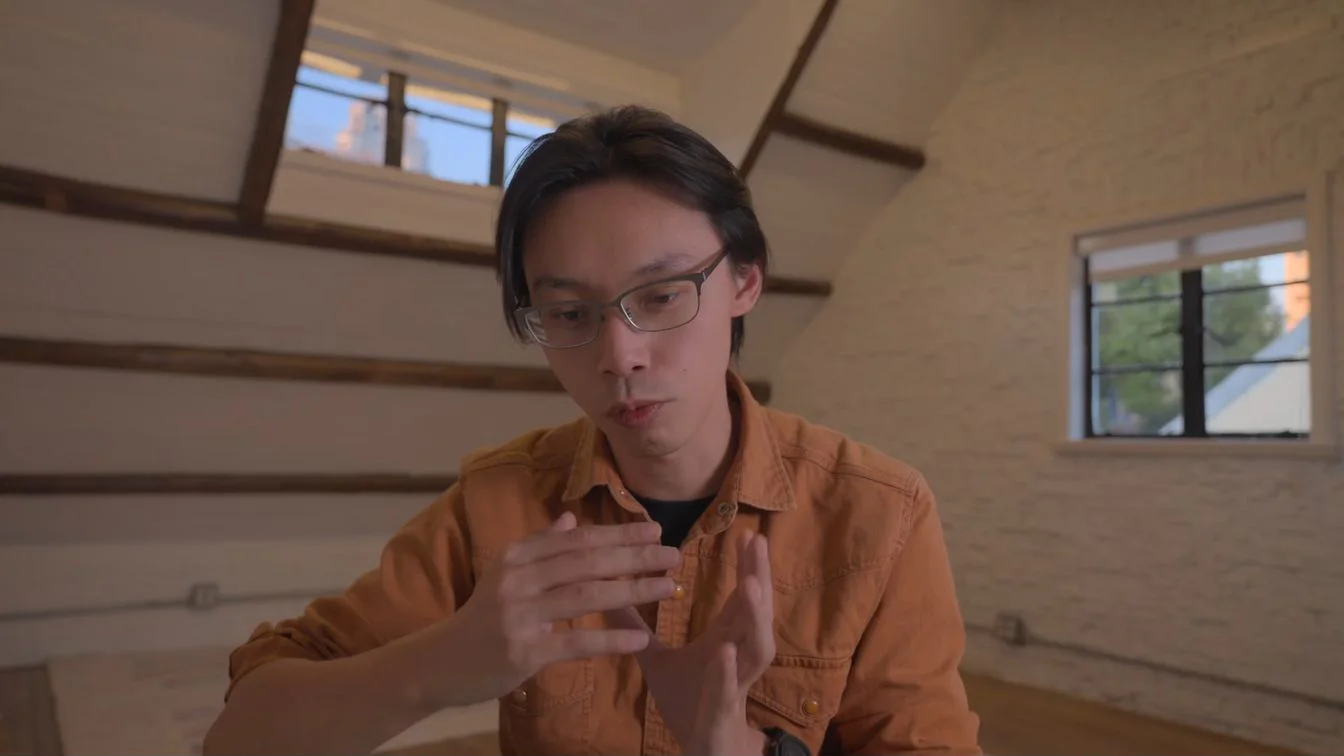
In the ChatCut Desktop master project, import and cloud transcription completed in 38 seconds at 0 ChatCut credits, mapping every spoken word to frame timestamps before any cuts were made.
Step 2. Cut fillers, false starts, and long pauses down to 60 seconds (A-Roll)
Next, give a concrete rough-cut brief with an exact target duration (60 seconds), aspect ratio (16:9), and editorial guardrail (keep the main argument):
You: Make a clean 60-second 16:9 cut: remove filler words, false starts, repeated lines and long pauses. Keep the main argument.
Muse: Cut the 168.2s raw recording down to an exact 60.0s (1,800 frames) across 8 clean segments. Removed 7 filler words ('uh', 'um', 'ah'), dropped retakes and side examples, and tightened three long pauses while keeping the intro, all three product updates, and the close.
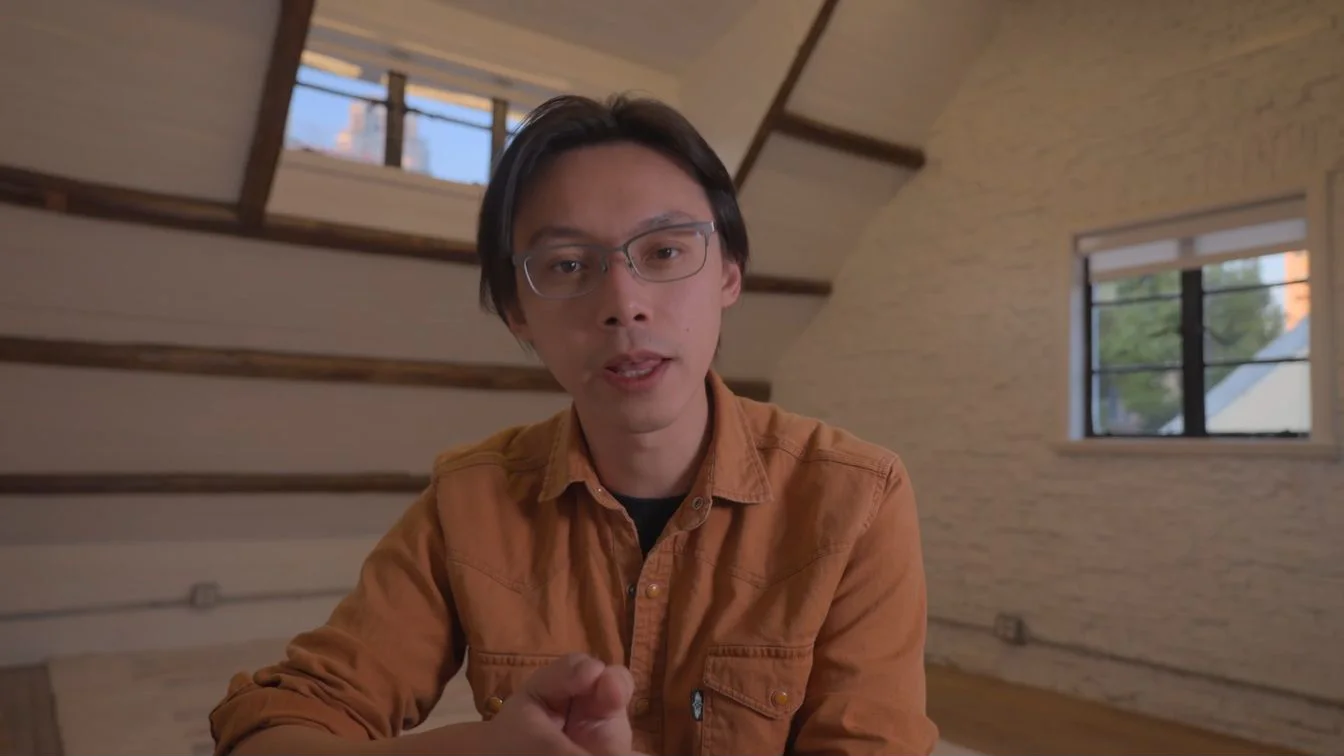
In the master project, 1 minute 33 seconds (0 ChatCut credits) covered ChatCut’s transcript-driven cleanup stripped 7 spoken fillers (4 "uh,", 2 "um,", and 1 "ah," totaling 2.07 seconds), cut false starts and repeated takes down to a 66.4-second semantic pass, and compressed three visible pauses (1.60s → 0.35s, 2.16s → 0.40s, and 4.40s → 0.97s) to land at 60.000 seconds (1,800 frames).
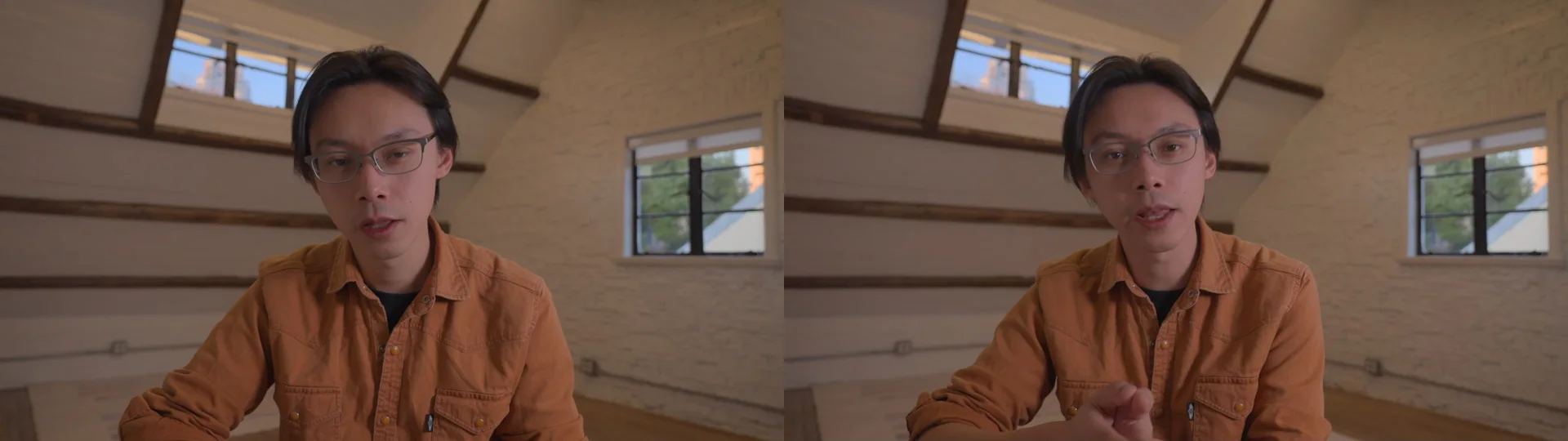
Step 3. Add word-by-word lower-third captions with orange active-word highlight (A-Roll)
With the spoken timing locked at 60 seconds, add AI captions that highlight only the word currently being spoken:
You: Add word-by-word captions: bold white text, the spoken word highlighted in orange, placed in the lower third.
Muse: Added 64px bold white Arial 800 captions in the lower third with active-word #FF9B40 orange highlighting, and fixed two 'Checkout' transcription misspellings to 'ChatCut'.
This pass in the master project finished in 1 minute 6 seconds (0 ChatCut credits). Using an editable HTML caption template tied to each word’s exact start and end timestamps ensured that only the active spoken word turns #FF9B40 orange before returning to crisp white—and inspecting the text caught two places where speech recognition heard "Checkout" instead of "ChatCut", which were corrected in the caption layer without cutting the vocal track.
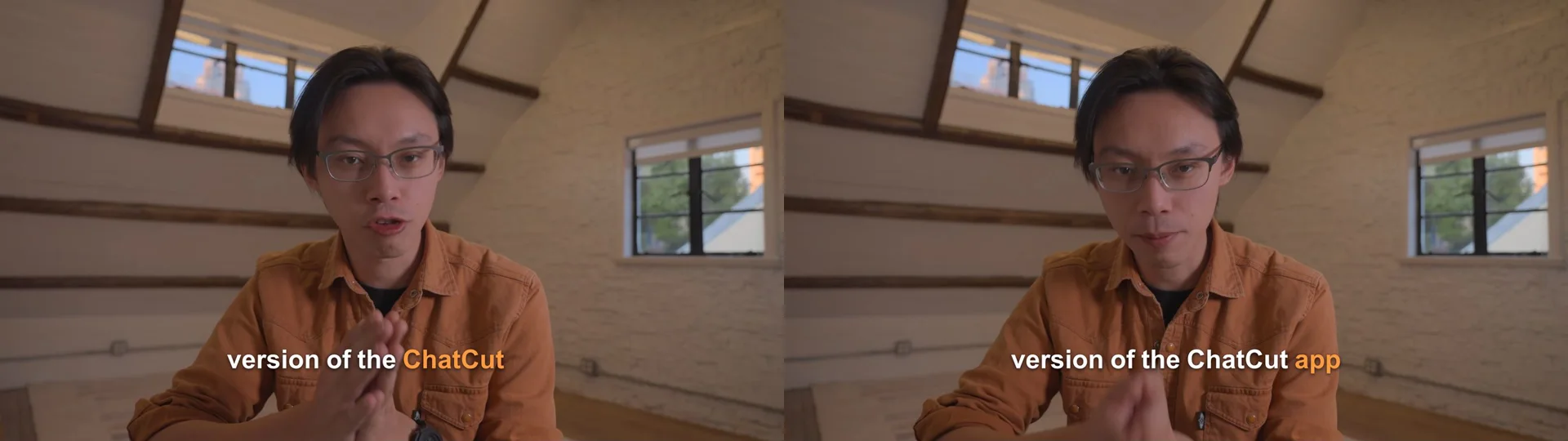
Step 4. Finish A-Roll with two spring punch-in zooms and a topic-change whoosh
To keep a single-camera 60-second talk visually alive without over-editing every sentence, add two gentle scale changes and one quiet transition cue:
You: Add two punch-in zooms on the key lines and a subtle whoosh where the topic changes.
Muse: Placed 1.18× spring punch-in zooms at 0:09.3–0:12.7 and 0:38.5–0:42.4, plus a subtle library Airy Short Whoosh at 0:36.4 (−14 dB) where the third topic starts.
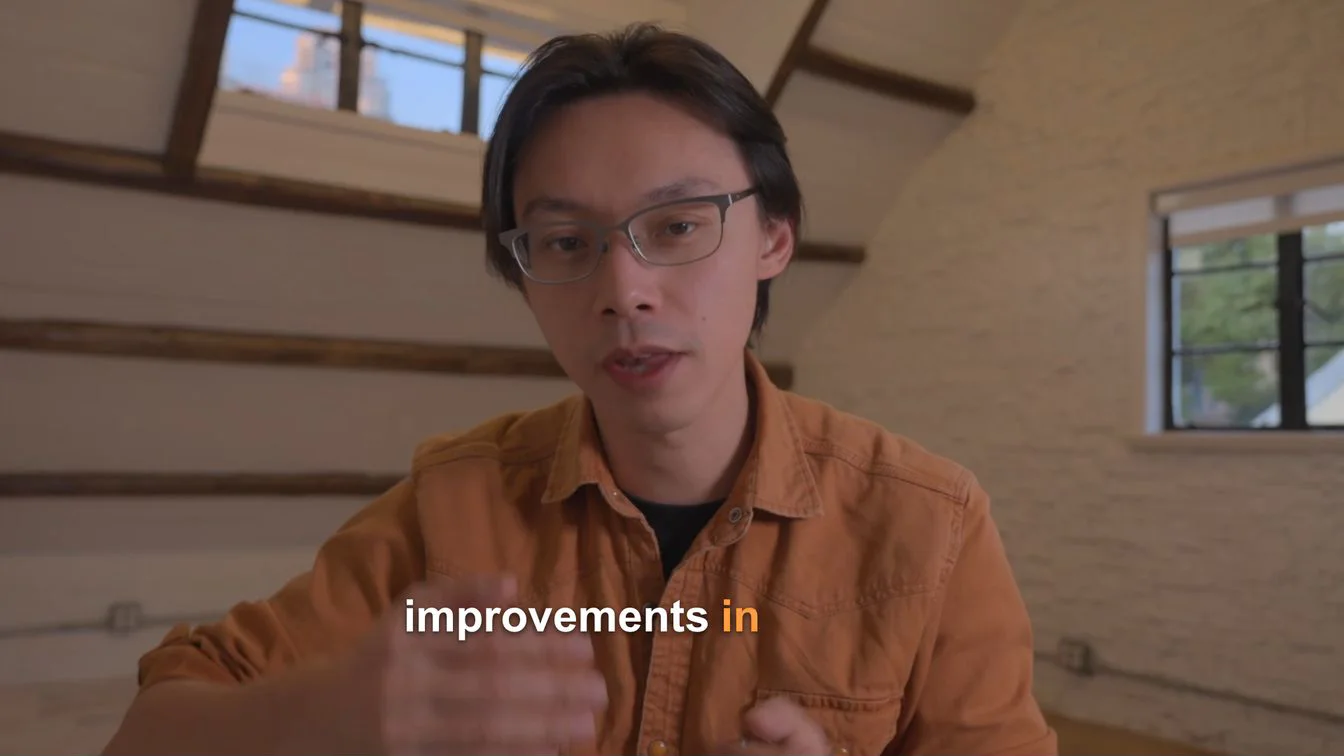
Completed in 25 seconds at 0 ChatCut credits in the master project using ChatCut’s built-in sound library rather than paid audio generation, Step 4 completes the A-Roll.
Step 5. Author an animated opening title and a 3-point Motion Graphics callout (B-Roll)
Now B-Roll begins. Instead of burning flat text into pixels, external agents connected to ChatCut can author transparent, time-driven AI Motion Graphics layers on the timeline. In this master project, that step used 0 ChatCut credits; host-agent usage is separate:
You: Add a 3-second animated title at the start and a Motion Graphics callout that lists the three points I make.
Muse: Created two warm-editorial HTML Motion Graphics overlays: a 0–3s opening title ('Make ideas move.') and a 7.5–13.5s staggered three-point list positioned in the right wall space clear of your face and captions.
In the master project, 1 minute 51 seconds (0 ChatCut credits) covered placing both overlays and checking them across entry, hold, and exit frames so neither graphic collided with the speaker’s glasses or the lower-third captions:
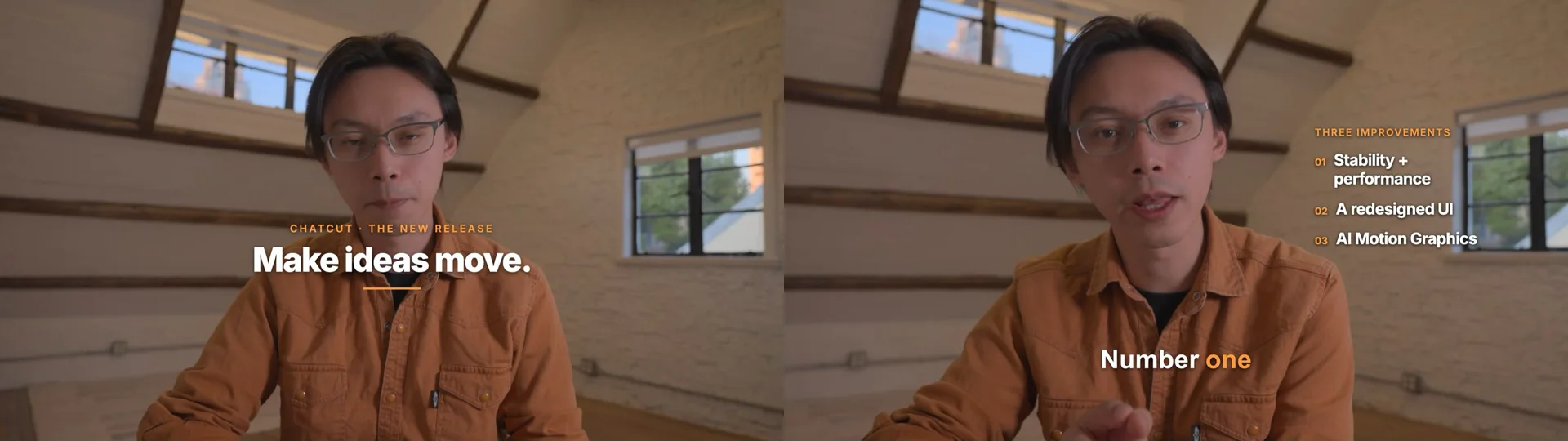
Step 6. Quote and generate one AI B-Roll cutaway (4.38 credits for the finished clip; 13.14 including retries)
When the presenter introduces AI Motion Graphics around 0:42, a slow push toward a monitor on a wooden desk in a warmly lit attic breaks up the single camera angle. The screen shows a large orange square on dark gray above five blocks in cyan, purple, green, orange, and blue. This is an abstract illustration, not a real software interface or a complete multi-track timeline. Always require a credit estimate before submitting paid generation:
You: Generate one short B-roll shot that fits what I'm describing and place it over one line. Tell me the credit cost first.
Muse: The finished 4-second 720p 16:9 Seedance 2.5 cutaway cost 4.38 ChatCut credits; three generations to remove garbled screen text cost 13.14 credits in total. The shot slowly pushes toward a monitor on a wooden attic desk in warm light, showing an orange square and five colored blocks on dark gray. This abstract illustration is not a real software interface or a complete multi-track timeline. Placed fullscreen from 0:42.5 to 0:46.5 while retaining the original voice and captions.
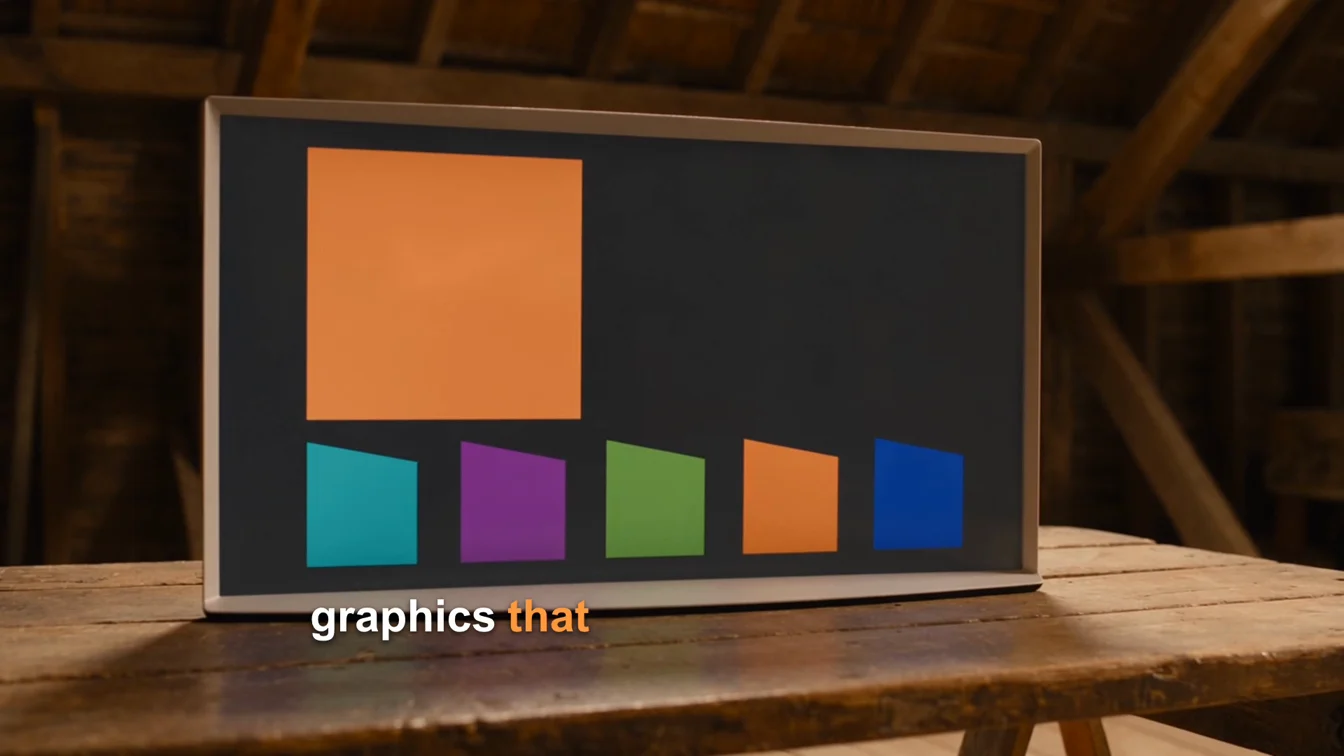
In the original M0 master run, preflight estimation quoted 4.38 ChatCut credits for a 4-second 720p 16:9 Seedance 2.5 shot (within that run’s 5-credit cap; AI video generation requires a paid ChatCut plan). That original generation step, including estimation, waiting, placement, and preview checks, took 5 minutes 29 seconds. The B-roll used in the finished videos cost 4.38 credits; removing garbled screen text required three generations in total (the original plus two retries), costing 13.14 credits. The final prompt restricted the screen to solid-color blocks with no text, letters, logos, or UI labels, and the replacement passed frame-by-frame review. The recorded duration covers only the original M0 step, not the retries.
Step 7. Add a calm ambient music bed with auto-ducking under speech (B-Roll)
To bind the eight spoken edits together without spending generation credits, Step 7 pulled a Creative Commons instrumental track—ViraMiller’s Relaxing Ambient Melodies (CC BY 4.0)—faded it in over 1.5 seconds and out over 2.0 seconds, and linked automatic ducking so the music dips whenever the presenter speaks (while leaving the 0:36.4 whoosh independent):
You: Add a calm music bed and duck it under my voice.
Muse: Placed a 60-second CC BY 4.0 ambient instrumental bed with a 1.5s fade-in, 2.0s fade-out, and voice-triggered auto-ducking. Full-mix render measures −20.3 LUFS integrated (−2.0 dBFS peak).
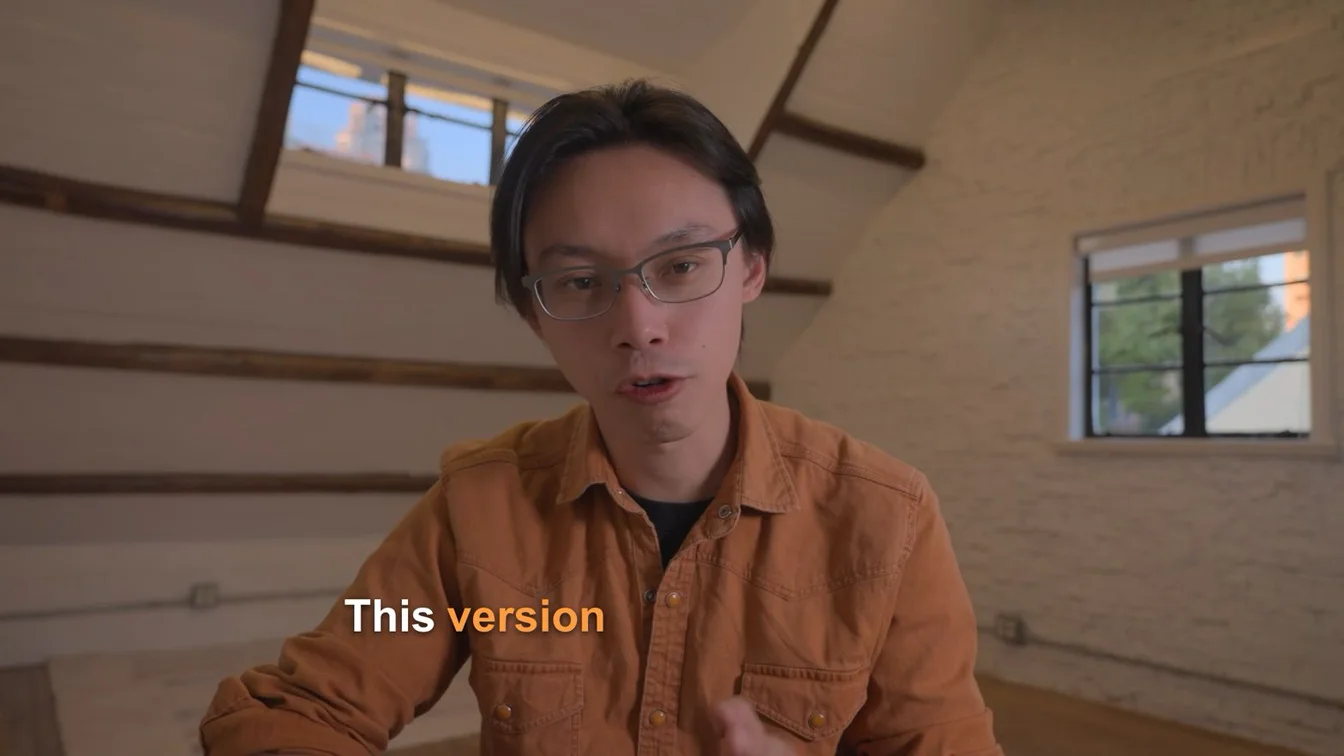
The master project used the first 60 seconds of that track, with fades and ducking added. If you prefer a custom track, ChatCut’s AI music generator has a published indicative rate of about 0.2 credits per instrumental track (Credits policy); check the current quote before generating.
Step 8. Export 1080p 16:9 MP4 and adapt a 9:16 vertical version for Reels and Shorts
Finally, export the horizontal master and spin out a vertical 9:16 version from the same cut so you can post to Instagram Reels, YouTube Shorts, and TikTok without re-cutting the transcript:
You: Export a 1080p 16:9 MP4.
Muse: Exported your 60.0-second 1920×1080 (30 fps) H.264 MP4.
You: Now make a 9:16 vertical version for Shorts from the same edit, keeping the speaker centered, and export it too.
Muse: Duplicated the cut to a 9:16 timeline (1080×1920, 30 fps), centered your framing, resized the opening title and 3-point callout for vertical screens, framed the 16:9 abstract color-block monitor cutaway over a darkened background so neither side of the screen is cropped, and exported the 60.0s vertical MP4.
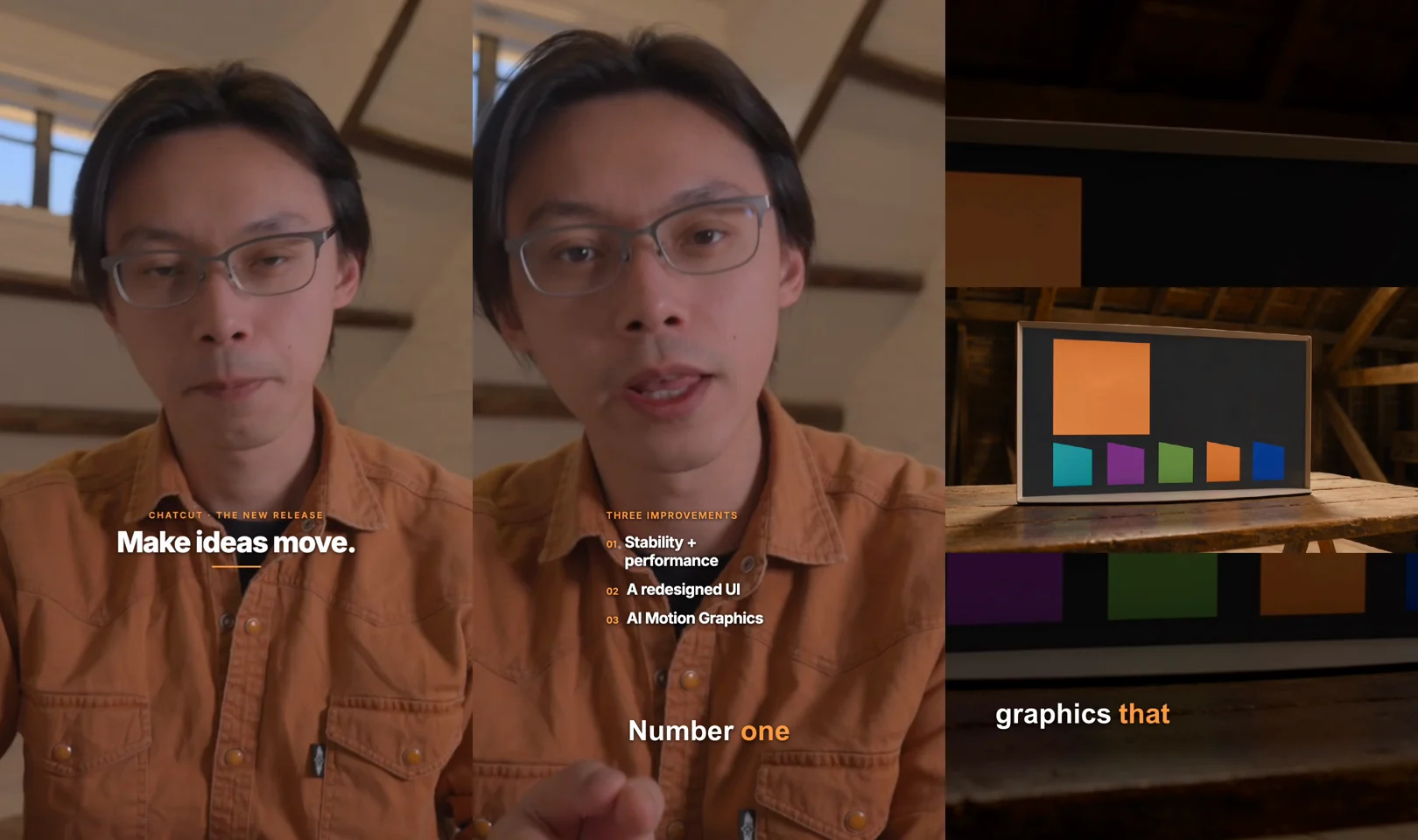
According to the Muse connector guide, when you export through Muse, ChatCut gives Muse a one-time browser handoff on its cloud computer (or runs an approved cloud export) and sends the finished MP4 directly back into your Muse chat, while keeping both 16:9 and 9:16 timelines saved in your account at app.chatcut.io. Browser handoff rendering uses no ChatCut credits. Cloud exports include a free allowance; beyond it, they follow ChatCut’s current credit rules, and Muse provides a quote and waits for your confirmation before proceeding.
| Step | What changed on the ChatCut timeline | Recorded duration in original M0 run | ChatCut credits including B-roll retries |
|---|---|---|---|
| 1. Import & transcribe | Imported 168.2s 1080p clip and completed cloud speech transcription | 0 min 38 sec | 0.00 |
| 2. 60s rough cut | Removed 7 fillers, retakes, and long pauses across 8 segments (60.0s) | 1 min 33 sec | 0.00 |
| 3. Word-level captions | Styled 64px Arial 800 captions with #FF9B40 active-word highlight; fixed 2 spellings | 1 min 06 sec | 0.00 |
| 4. Zooms & SFX | Added two 1.18× spring punch-in zooms + -14 dB library Airy Short Whoosh | 0 min 25 sec | 0.00 |
| 5. Motion Graphics | Authored 0–3s animated title (Make ideas move.) + 7.5–13.5s 3-point callout | 1 min 51 sec | 0.00 |
| 6. AI B-Roll cutaway | Generated 4s 720p Seedance 2.5 abstract color-block monitor clip (42.5–46.5s); three generations to remove garbled screen text | 5 min 29 sec | 4.38 for the finished clip; 13.14 across three generations |
| 7. Music & ducking | Placed 60s CC BY 4.0 ambient track with fades and voice-anchored auto-ducking (-20.3 LUFS) | 0 min 50 sec | 0.00 |
| 8. 16:9 + 9:16 exports | Exported 1920×1080 MP4 + re-laid-out 1080×1920 vertical MP4 (60.0s each) | 1 min 50 sec | 0.00 |
| Total | Original M0 operation window, including waits, checks, and gaps between steps; credits include B-roll retries | 13 min 46 sec | 13.14 |
The timings above describe the original M0 ChatCut Desktop master run, not a Muse speed benchmark. They exclude initial preparation, later media verification, and B-roll retries; the credit totals include all three B-roll generations. Generation charges are historical receipts, not a quote for your next edit.
Which copyable Muse prompts work best for everyday video projects?
Once ChatCut is connected to your Muse account, you can send these briefs from the Muse mobile app, macOS app, or muse.ai. Browse our video editing prompts library for additional templates.
1. Clean up a talking-head clip straight from your phone camera roll
2. Turn a long interview or podcast into standalone 9:16 Reels and Shorts
Pair this prompt with our walkthrough on turning long videos into Shorts:
3. Assemble a small-business shop or product Reel
If you already use Muse for Small Business to coordinate Instagram or Shopify campaigns, hand Muse raw product clips from your counter or workshop (see also our UGC video workflow):
What do you still need to check by hand before publishing?
Even when every timeline metric passes automated checks, open the exported MP4 (and, if needed, the saved project at app.chatcut.io) to verify five details before posting:
- Brand names and proper nouns in captions. Speech-to-text routinely turns unfamiliar product names into common dictionary words—just as
"ChatCut"initially transcribed as"Checkout"twice in our master clip. Fix display spelling in the active caption track’s Content panel rather than deleting words from the Transcript (which cuts the selected track’s time range), and review the W3C WAI captions checklist for line-break readability. - Frame-by-frame review of AI-generated B-roll. Generated screens and signs can contain garbled text, a common generation-model limitation. Specify
no text, no letters, no logosin the prompt, inspect every frame, and budget for retries. Our final monitor cutaway passed frame-by-frame review with only an orange square and five colored blocks on dark gray; it is an abstract illustration, not a real software interface or a complete multi-track timeline. The finished clip cost 4.38 credits, while three generations to remove garbled screen text cost 13.14 credits in total. Capture a real screen recording whenever viewers need to read UI labels. - 9:16 vertical overlay bounds and wide cutaways. Review the composition again after changing aspect ratio. Check that titles, captions, faces, and wide inserts fit the 1080×1920 frame.
- Headphone listen across jump cuts and ducking. The master-project render measured -20.3 LUFS integrated and -2.0 dBFS peak; those measurements do not establish natural phrasing or listening quality. The master report did not include a complete subjective listening pass. Listen once from 0:00 to 1:00 on headphones to make sure tightened pauses did not clip an intake of breath or a consonant.
- Music attribution and synthetic-media disclosures. If you use Creative Commons music such as a
CC BY 4.0track, include the creator credit in your video description, and follow platform disclosure rules such as YouTube’s altered or synthetic content policy when realistic AI-generated footage appears.
How do you fix common Muse and ChatCut connector issues?
The connection and upload steps below follow the chatcut.io/muse connector guide. For file delivery, also see export documentation; the last tip comes from the master-project generation log:
- The ChatCut sign-in page did not open, or ChatCut shows as disconnected. In Muse, open Settings → Connectors, select ChatCut, reconnect, and complete OAuth sign-in in your browser. If it fails once, remove the custom connector, add
https://api.chatcut.io/api/external-mcp/mcpagain with no query parameters or headers, and re-authorize. - Muse asks you to paste a ChatCut sign-in code or password in chat. Do not send it. Tell Muse:
"Read ChatCut.io/muse again."ChatCut provides a host browser handoff link that signs Muse’s own cloud-computer browser in automatically without exposing login codes in the thread. - Opening
https://api.chatcut.io/api/external-mcp/mcpin your own browser showsHTTP 401. That response is expected before OAuth sign-in—the URL is an MCP endpoint for Muse, not a web page. Authorize it through Muse’s connector card instead. - You do not see an
Add custom connectorbutton in Muse Settings. Some Muse app versions have not rolled out that button yet. SendRead ChatCut.io/muse to connect ChatCutdirectly in a Muse chat instead so the agent registers the connector for you. - A video attached from your phone does not reach Muse’s cloud computer. Ask Muse for a ChatCut upload link (
"Give me a ChatCut browser upload link for my clip"). Open that link in Safari or Chrome on your phone to upload straight into the project. - A paid B-roll generation takes a few minutes to finish. The original M0 generation step took 5 minutes 29 seconds, excluding later B-roll retries; that is one observation, not a typical render-time guarantee. Ask Muse to check the existing generation job rather than resending your generation prompt, so you do not submit and pay for a duplicate render.
How was this guide produced?
ChatCut publishes this first-party tutorial. The descriptions of Meta Muse’s architecture (Muse Secure VM and Sentinel), supported apps (iOS, Android, macOS, muse.ai, and WhatsApp), built-in and small-business Connectors, Spaces, underlying models (Muse Spark, Muse Spark 1.1, Muse Wonder, Muse Image, and Muse Video), and subscription options (free access, Power, and Maximum) are based on the linked official pages checked on November 18, 2026. Announcements establish what Meta described at publication; they do not verify the model or feature access in a particular account. Connector setup, mobile browser upload fallbacks, and cloud browser handoff behavior come from chatcut.io/muse and /muse-plugin.
To give readers a consistent worked example across our agent tutorials without fabricating interface screenshots, we ran the eight-step attic talking-head edit once in ChatCut’s shared master project (13 min 46 sec original M0 session window, excluding later B-roll retries; 4.38 ChatCut credits for the B-roll used in the finished videos and 13.14 credits across three generations to remove garbled screen text; checked with ffprobe, sampled export frames, and selected animation previews) and paired those real prompts, timings, credit receipts, and exported MP4s with code-recreated Muse chat window illustrations. Because Meta rolls out Muse features, connectors, and regional availability progressively—and ChatCut model rates can change—always check the live in-app credit quote before starting paid generations.
Frequently asked questions about Meta Muse and video editing
What can Meta Muse do besides chat?
Can Meta Muse edit my own recorded videos?
Is Meta's Muse Video model the same thing as editing video in Muse?
Can I edit videos from the Muse app on iPhone or Android without a computer?
Do I need to install ChatCut Desktop to use ChatCut in Muse?
How much does Meta Muse video editing cost with ChatCut?
Can I take a video Muse edited into Premiere Pro or DaVinci Resolve?
Using a different agent? The same ChatCut edit works from ChatGPT, Codex, Claude Code, Cursor, Antigravity, Grok Bot, OpenClaw, Hermes Agent and WorkBuddy; each guide covers that agent’s install and quirks.