The best video editing software for beginners is the one that exports your first raw clip cleanly without a two-hour tutorial. For most people, that is the free editor already on their computer: Apple iMovie on a Mac, iPhone, or iPad, or Microsoft Clipchamp on a Windows 11 PC. If you make TikToks, Reels, or Shorts from trend templates, CapCut is the fastest start; if you have a talking-head recording and would rather describe the edit in plain English than learn a timeline, ChatCut lets you type what to change and still adjust any cut by hand.
Disclosure: ChatCut publishes this guide and makes one of the tools below. We rank free built-in editors ahead of ours and check every option—including our own—against the same limits and pricing criteria.
Key Takeaways
- Start with what is pre-installed. Apple’s iMovie and Microsoft Clipchamp export clean 1080p video at $0 with no watermark—see our Mac video editing software guide if you only work on Apple hardware.
- Check watermark rules before editing. Several starter apps let you preview paid effects freely, then add a watermark or block export until you pay.
- CapCut’s free tier has tightened. Manual cuts with free assets still export cleanly, but CapCut ended its 1 GB of free cloud storage and moved auto-captions, background removal, and motion tracking to Pro.
- Pick Shotcut or DaVinci Resolve to skip subscriptions. Shotcut needs no account on modest laptops; Resolve offers studio-grade editing at $0 if your computer can run it.
Best Video Editing Software for Beginners at a Glance
| Software | Best for | Platforms | Free-plan limits & watermark | Paid from (US) | Learning curve |
|---|---|---|---|---|---|
| Apple iMovie | Zero-cost edits on Apple devices | macOS, iOS, iPadOS | No watermark; 4K at 30 fps or 1080p at 60 fps | Free | Very easy |
| Microsoft Clipchamp | Windows 11 and browser edits | Windows 11, Web | No watermark up to 1080p; Microsoft login; 4K locked | $9.99/mo or $99.99/yr (M365) | Very easy |
| CapCut | Short-form trend templates | Win, Mac, Web, iOS, Android | Clean manual free edits; auto-captions & cloud storage are Pro | $19.99/mo or $179.99/yr | Easy |
| ChatCut | Plain-English edits on a timeline | Web, macOS, Win (x64) | Core editor & captions free; 60-min cloud cap; AI uses credits | $25/mo or $252/yr | Easy |
| Canva Video Editor | Branded graphics and slides | Web, Mac, Win, iOS, Android | Clean with free assets; Pro elements watermarked; 4K locked | $18/mo or $144/yr | Very easy |
| Wondershare Filmora | Classic tracks with presets | Win, Mac, iOS, Android | Free trial watermarks every export | $49.99/yr or $79.99 once | Easy |
| Descript | Document-style talk cutting | Web, macOS, Windows | 60 media min/mo, 720p export with watermark | $16/mo annual ($24/mo) | Easy–moderate |
| DaVinci Resolve | Growing into pro filmmaking | macOS, Windows, Linux | No watermark, up to 4K/60fps; AI tools need Studio | Free; Studio $295 once | Steep |
| Shotcut | Account-free offline editing | Win, Mac, Linux | Free (GPLv3), no watermark, no sign-up, up to 4K | Free (open source) | Moderate |
US prices and free-tier terms checked on official vendor pages on November 18, 2026.
How We Chose and What We Actually Tested
Beginners quit video editors over unlabeled timeline clutter, laggy playback, or a surprise watermark at the finish line. We judged each option on four checks:
- Time to first export: Can a newcomer trim mistakes, add captions or titles, lower music, and export without reading a manual?
- Honest free-tier rules: Does the free version export clean 1080p video, or stamp a watermark unless you pay?
- Everyday hardware fit: Will it run in a browser or on an 8 GB RAM laptop?
- Room to adjust: Can you fix a mistimed cut or typo afterward without starting over?
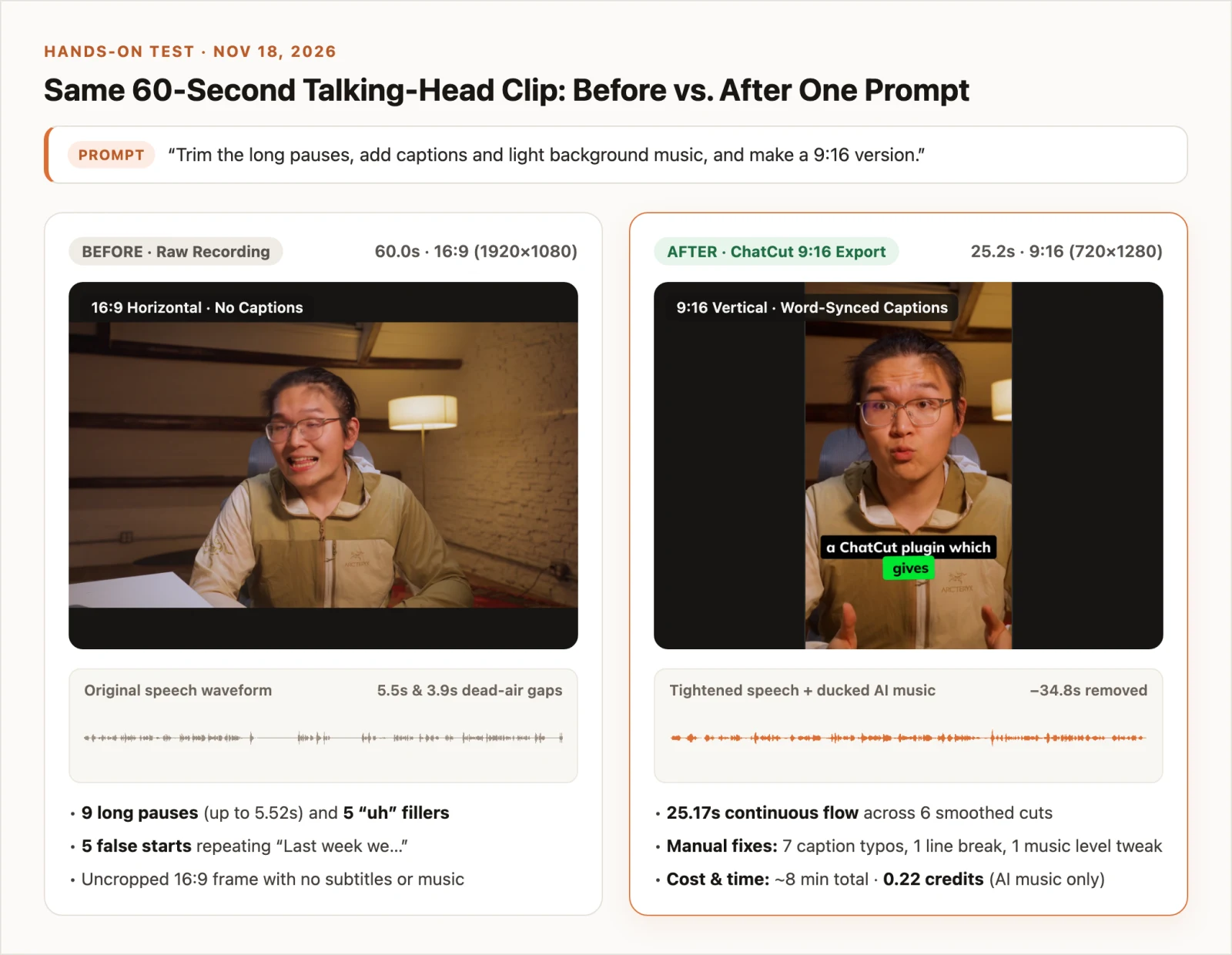
On November 18, 2026, we ran a hands-on test in our own editor on a 60-second 1080p talking-head clip full of pauses and restarts, using one prompt to cut silences, add captions, score light music, and reframe to 9:16. We did not run that footage benchmark in the other eight tools; their features, limits, and prices are based on the official docs and pricing pages, checked on November 18, 2026.
The 9 Best Video Editors for Beginners
1. Apple iMovie: Best free starter editor on Mac, iPhone, and iPad
Apple iMovie is a free Apple app for Mac, iPhone, and iPad with a clean magnetic track, one overlay layer, simple titles, and Storyboard templates on mobile.
Best for: Apple device owners who want $0 horizontal video exports with zero setup.
What stands out:
- Clean 4K exports at $0: Per Apple’s 4K guide, iMovie shares 4K projects at 3840×2160 and 30 fps (60 fps projects export at 1080p), with no watermark or paid tier.
- Gap-free magnetic timeline: Deleting a mistake snaps clips together automatically so beginners avoid black gaps.
- AirDrop handoff: Start a cut on iPhone and finish on Mac.
Limits:
- Apple-only: No Windows, Android, or web version.
- No auto-captions: Titles must be typed manually rather than transcribed from speech.
- 4K and 9:16 quirks: On Mac, the first clip you add sets the project format, so it must be 4K to unlock 4K export, and vertical framing requires workarounds.
Pricing: Free via Apple iMovie Support.
Skip it if: You use Windows or Android, or need automatic vertical captions.
2. Microsoft Clipchamp: Best built-in editor for Windows 11 and web
Microsoft Clipchamp comes pre-installed on Windows 11 and runs in Chrome or Edge, pairing a template sidebar with a clear multi-track timeline.
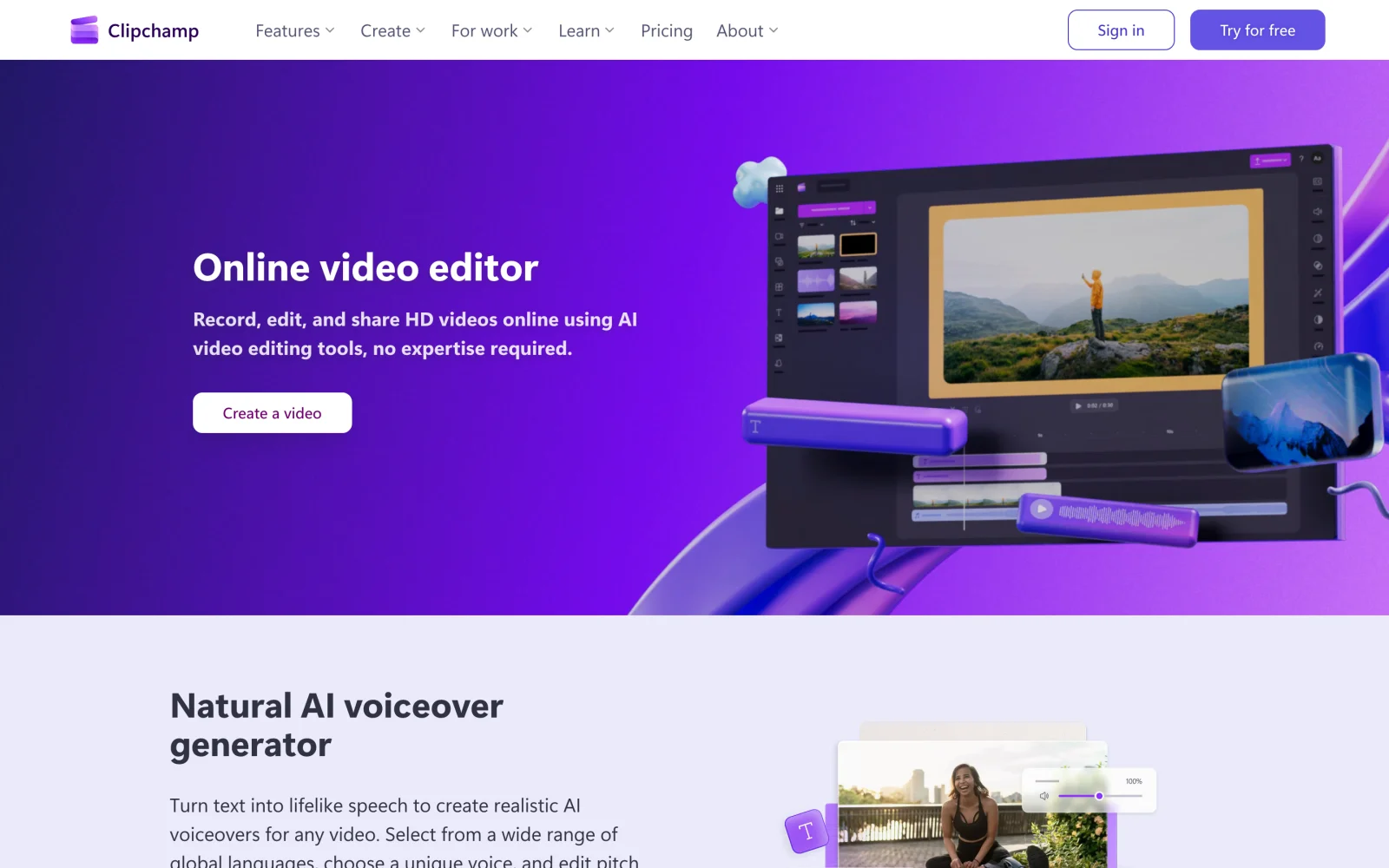
Best for: Windows 11 and browser users wanting free auto-captions, screen recording, and clean 1080p exports.
What stands out:
- Watermark-free 1080p: Clipchamp’s pricing page confirms free 1080p HD exports carry no watermark with personal clips and free stock.
- Built-in speech tools: Free accounts include auto-subtitles, text-to-speech, silence removal, and webcam/screen capture.
- Microsoft 365 perk: Microsoft 365 Personal or Family subscribers already unlock 4K UHD exports and premium stock.
Limits:
- Mandatory Microsoft login: Requires signing into a Microsoft account.
- 1080p cap on Free: 4K UHD exports, Brand Kits, and premium stock require upgrading.
- Large-file lag: Multi-gigabyte files scrub slower than in native desktop apps.
Pricing: Free up to 1080p; Premium included with Microsoft 365 Personal ($9.99/month or $99.99/year in the US).
Skip it if: You want offline, account-free editing or free 4K on Windows.
3. CapCut: Best for social video templates and short-form trends
CapCut, built by ByteDance, runs across Windows, macOS, browsers, iOS, and Android, driving TikTok and Reels formats with ready-made templates.
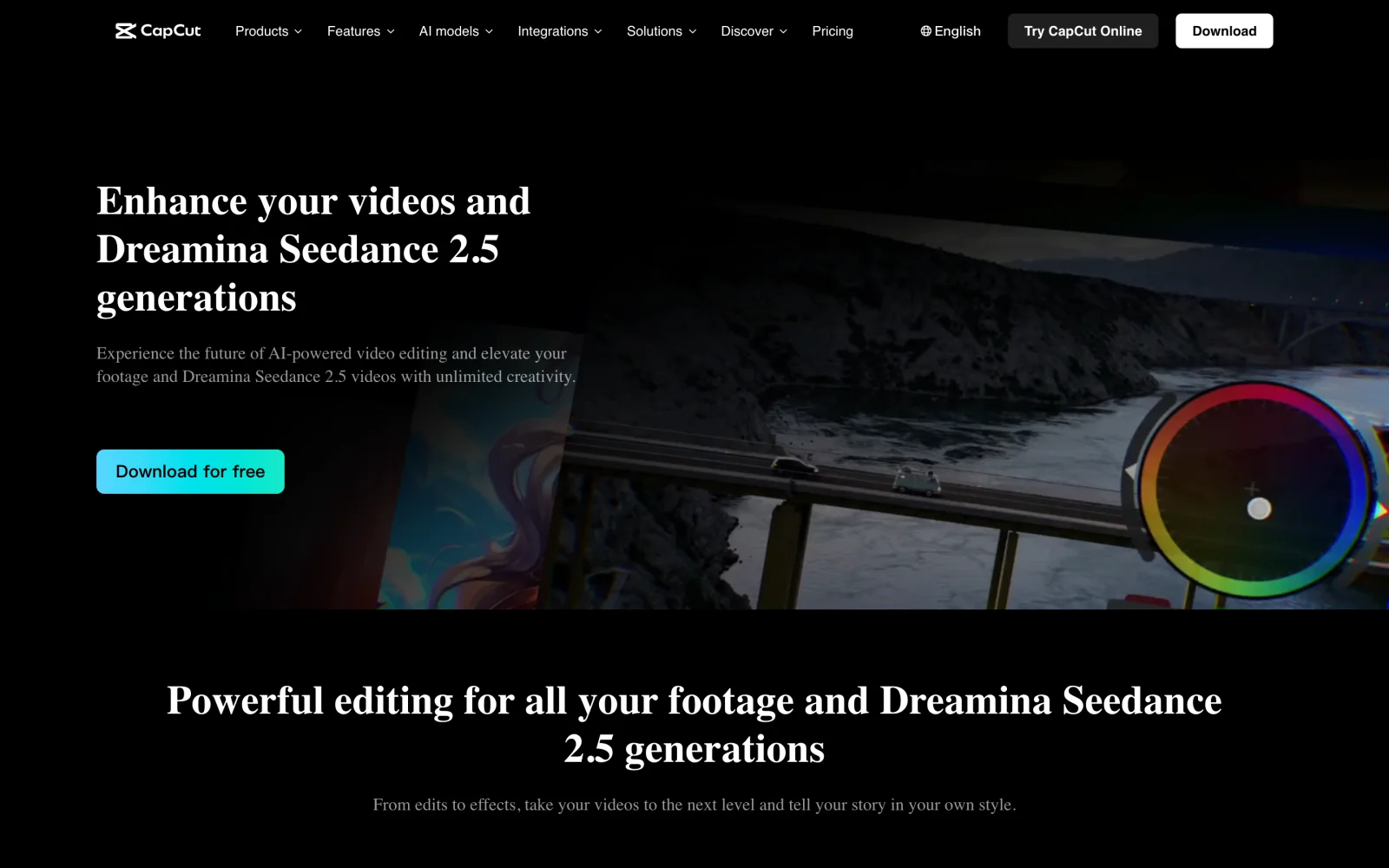
Best for: TikTok, Reels, and Shorts creators starting from trend templates.
What stands out:
- Plug-and-play templates: Swap phone clips into pre-timed beat slots and export quickly.
- Approachable timeline: Splitting clips, keyframing zooms, and layering stickers feel intuitive on day one.
- Clean manual exports: Per CapCut’s watermark guide, manual edits using free assets add no watermark (delete any template end-slate clip before exporting).
Limits:
- Narrower free tier: Per CapCut’s Standard vs. Pro guide, CapCut ended its 1 GB of free cloud storage in August 2024 and moved auto-captions, background removal, motion tracking, and noise reduction to Pro.
- Mixed Pro badges: Paid effects sit beside free ones and add a watermark or an upgrade prompt until removed or paid for.
- Regional blocks: Unavailable in some markets, including India.
Pricing: Free core editor; CapCut’s guide lists CapCut Pro at $19.99/month or $179.99/year, with prices varying by region and platform.
Skip it if: You need free auto-captions, free cloud sync, or zero Pro badges.
4. ChatCut: Best for editing by describing what you want
ChatCut is an AI video editor for the web, macOS, and Windows where you describe an edit in plain English, an agent updates a real multi-track timeline, and you can adjust any cut, caption, or audio track by hand.
In our November 18, 2026 test on a 60.0s 1080p talking-head clip, the prompt below cut five “uh” fillers, compressed nine pauses over 0.5s (saving 13.32s), trimmed five restarts into a 25.17s 9:16 video, styled captions, and generated ducked acoustic music in ~8 minutes (plus 16s for 720p export). Manually, we fixed seven caption cards (“checkout” → “ChatCut”, “EF” → “AI”), added one line break, and set music to -11 dB. Total ChatCut charge: 0.22 credits for music generation (transcription, cuts, captions, and local export used 0 credits; MCP ran on an external agent plan, whereas built-in chat messages use credits).
Best for: Beginners cutting talking-head clips, vlogs, or tutorials in plain English—plus Claude Code, Codex, or Grok Bot users.
What stands out:
- Editable tracks: Every AI cut lands on standard tracks—see the quickstart and video editing prompts.
- Zero-credit manual tools: Uploads, manual cuts, transcription, captions, and local 4K Desktop exports use 0 credits.
Limits:
- Online-only: Both Web and ChatCut Desktop require internet.
- Credit and plan gates: Built-in chat and generated audio use credits; AI video/image generation and ProRes 4444 need a paid plan; Free caps cloud exports at 60 cumulative minutes (1080p).
- OS and scope: No Linux app (Windows x64 only), and not built for pro color grading.
Pricing: Free plan (Free and Pro); paid from $25/month (100 credits) or $252/year.
Skip it if: You edit offline, run Linux, or want AI edits with no credit meter.
5. Canva Video Editor: Best for slides, graphics, and branded social clips
Canva Video Editor treats video like an animated slide deck, letting you arrange scenes, brand fonts, stock clips, and text animations across web, mobile, and desktop.
Best for: Small businesses, teachers, and marketers already designing graphics in Canva.
What stands out:
- Familiar canvas: Text animations, logos, and transitions work just like a Canva presentation.
- Watermark-free with free elements: Exports using personal uploads and free Canva assets carry no watermark.
- Brand Kits: Pro keeps fonts, colors, and logos consistent across social formats.
Limits:
- Watermarked Pro elements: Crown-badged stock clips, audio, or graphics add a watermark or payment prompt.
- 4K locked to Pro: 4K UHD video downloads require upgrading.
- Slow for speech edits: Trimming dozens of pauses from a monologue is tedious on Canva’s scene strip.
Pricing: Free tier; Canva Pro costs $18/month or $144/year for one person in the US.
Skip it if: Your video is a long vlog or interview needing frame-accurate speech cuts.
6. Wondershare Filmora: Best traditional timeline with drag-and-drop effects
Wondershare Filmora (Filmora 16) pairs a classic multi-track desktop timeline with thousands of drag-and-drop titles, transitions, split-screen presets, and guided AI tools.
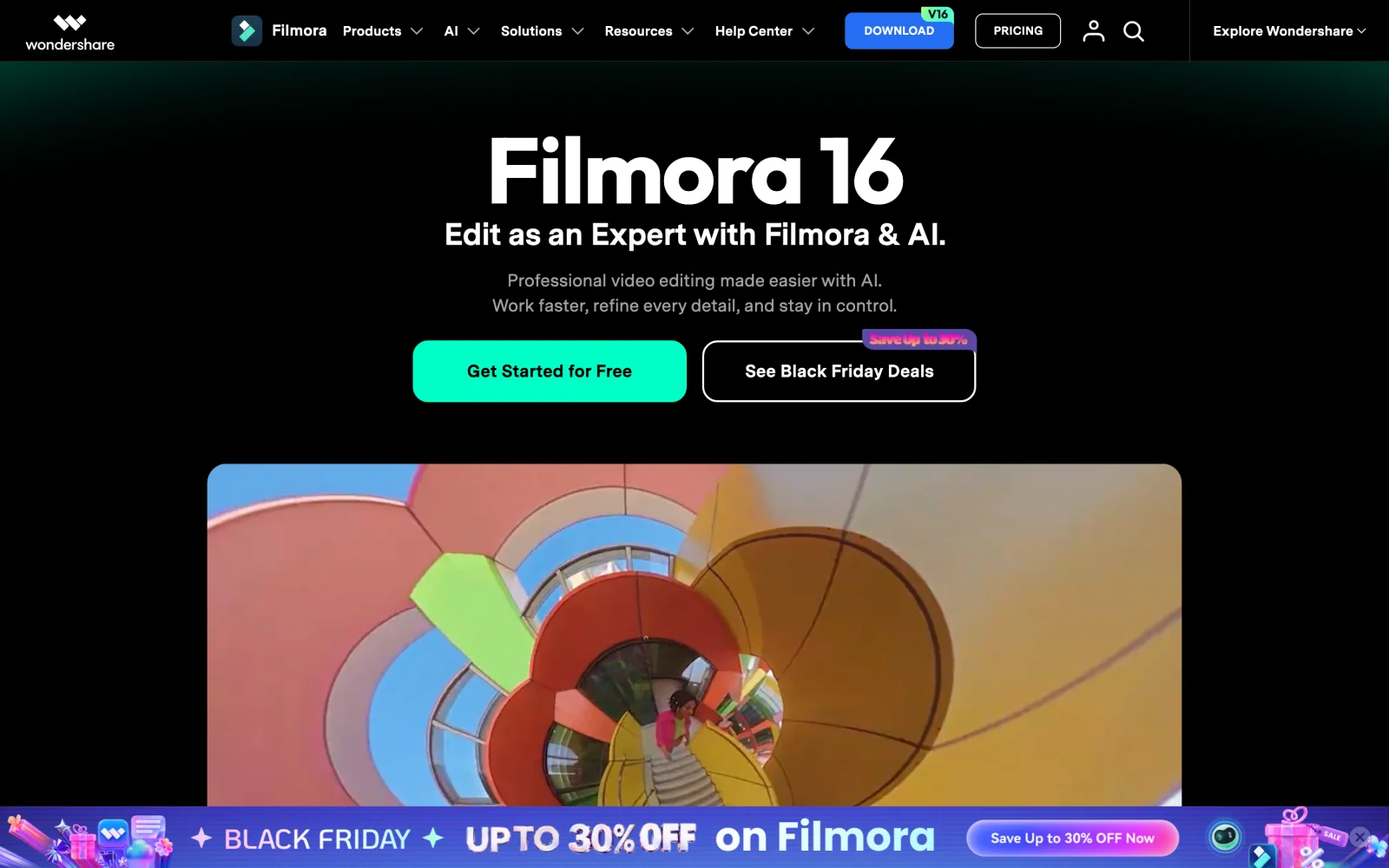
Best for: Beginners willing to pay ~$50–$80 for a friendly traditional timeline packed with visual presets.
What stands out:
- Transferable timeline habits: Tracks, keyframes, and speed ramps mirror streamlined pro editors.
- Built-in preset library: Titles, callouts, and transitions drag straight onto clips.
- Perpetual option: Offers a one-time license alongside annual plans.
Limits:
- Watermarked trial: Unpaid exports carry a Filmora watermark.
- Separate asset upsells: Filmora Creative Assets renew separately after a 7-day trial, and heavy AI tools use Filmora AI Credits.
- Single-OS perpetual license: One-time licenses bind to either Windows or macOS for Filmora 16.
Pricing: Watermarked trial; paid plans on Filmora’s store start at $49.99/year (Basic), $59.99/year (Advanced), or $79.99 one-time (Perpetual).
Skip it if: You want a watermark-free $0 editor or dislike in-app asset upsells.
7. Descript: Best for editing talking-head videos like a document
Descript transcribes imported video into a script so deleting words in the text cuts the matching video and audio automatically.
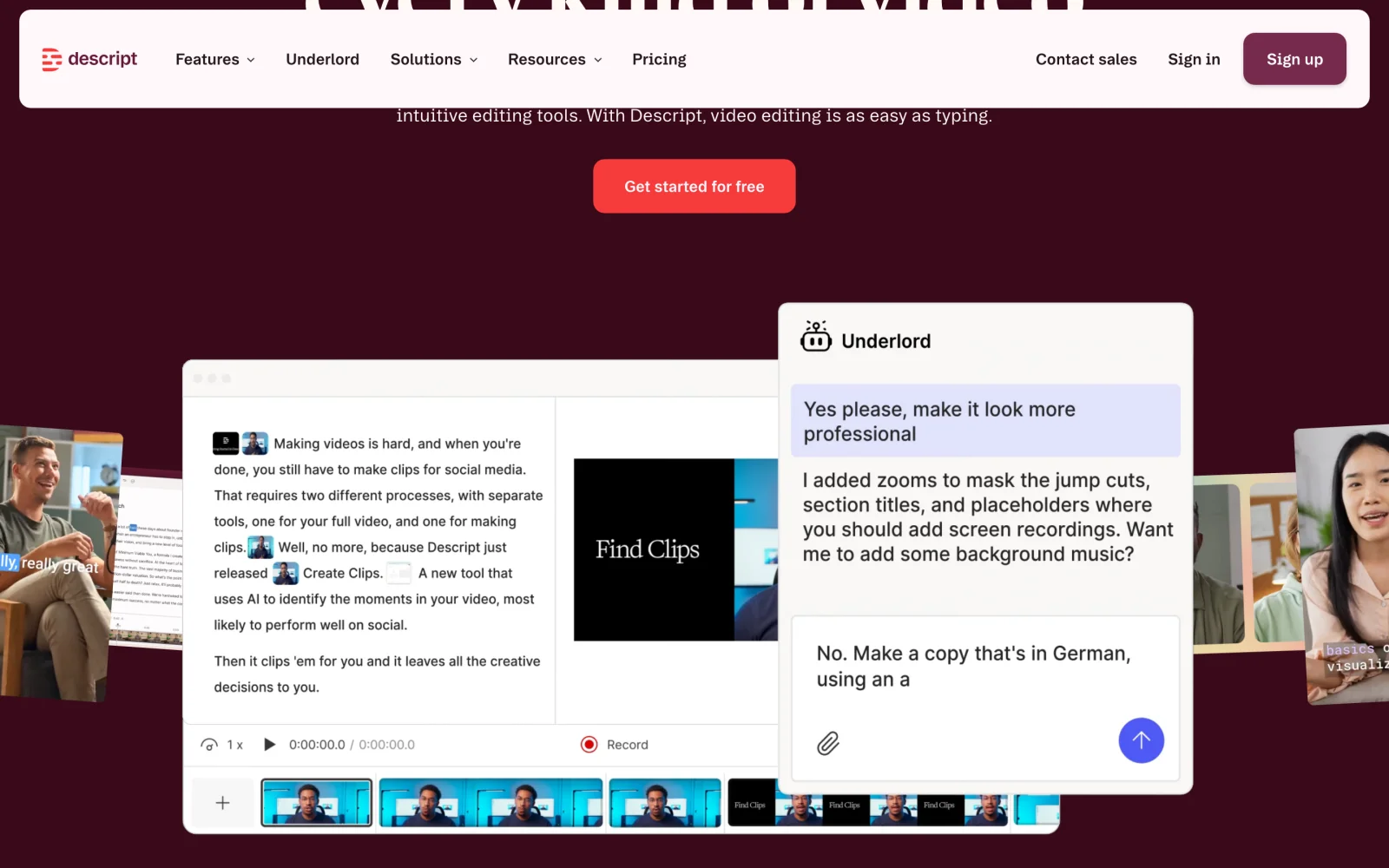
Best for: Podcasters, interviewers, and educators cutting dialogue-heavy recordings.
What stands out:
- Word-doc rough cuts: Highlighting and deleting a tangent trims a 30-minute talk without touching waveforms.
- Voice cleanup tools: Studio Sound noise removal, filler-word deletion, Eye Contact, and Underlord polish home recordings.
- Scene markers: B-roll and slides attach to script boundaries marked with slashes.
Limits:
- Strict free caps: Per Descript’s pricing page, Free caps imports/recordings at 60 media minutes/month and local exports at 720p with a watermark.
- 4K needs Creator: Hobbyist unlocks clean 1080p; 4K requires Creator.
- Awkward without speech: Silent B-roll and music montages feel unnatural in a script layout.
Pricing: Watermarked Free tier; Hobbyist is $16/month billed annually ($24/month); Creator is $24/month annually ($35/month).
Skip it if: You need free clean exports or edit mostly non-spoken footage.
8. DaVinci Resolve: Best free editor to grow into filmmaking
DaVinci Resolve (version 21) is a Hollywood post-production suite whose free edition exports with no watermark or time limit, anchored for newcomers by its Cut page.
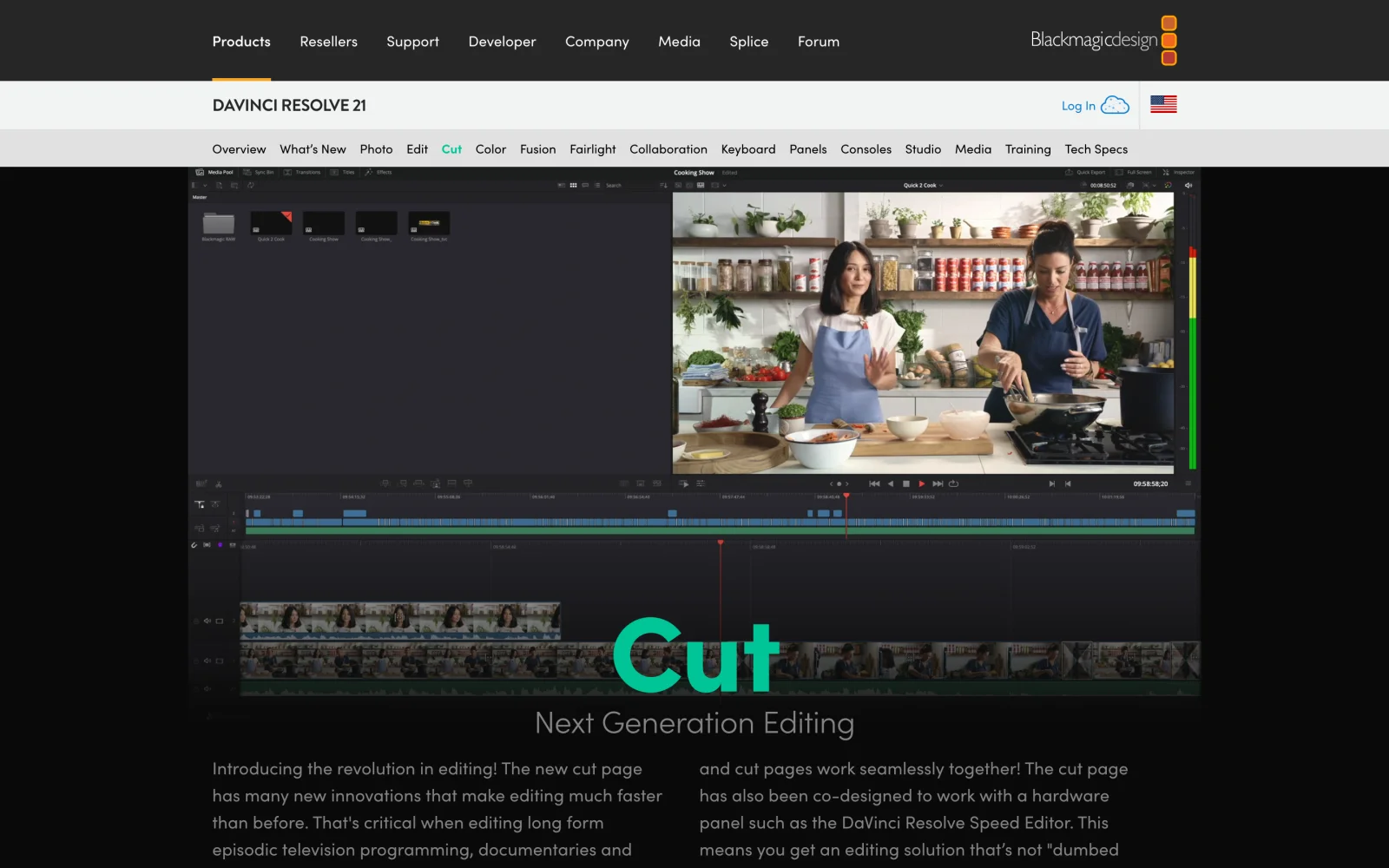
Best for: Patient beginners with strong computers who want $0 software they will never outgrow.
What stands out:
- Deepest $0 toolset: Free exports up to 4K Ultra HD (3840×2160) at 60 fps with multi-track editing, Fairlight audio, and pro color wheels.
- Dual-timeline Cut page: Shows the whole project overview above frame-level trims.
- One-time upgrade: Studio is a single purchase rather than a subscription.
Limits:
- Steepest learning curve: Separate workspace pages (now including Resolve 21’s Photo page) and node-based Fusion VFX require study.
- Demanding specs: Blackmagic lists macOS 15 with 8 GB of memory, or a Windows PC with 16 GB of RAM and an integrated GPU or a discrete GPU with 4 GB+ of VRAM, as the minimum.
- AI gated to Studio: Text-based editing, Neural Engine auto-captions, voice isolation, and Magic Mask require Studio.
Pricing: Free; DaVinci Resolve Studio costs $295 one-time ($236 promo also shown when checked).
Skip it if: You have an older integrated-graphics laptop or want a finished clip in twenty minutes.
9. Shotcut: Best free open-source editor with no account required
Shotcut is a GPLv3 open-source desktop editor for Windows, macOS, and Linux with zero sign-ups, credit meters, or watermarks.
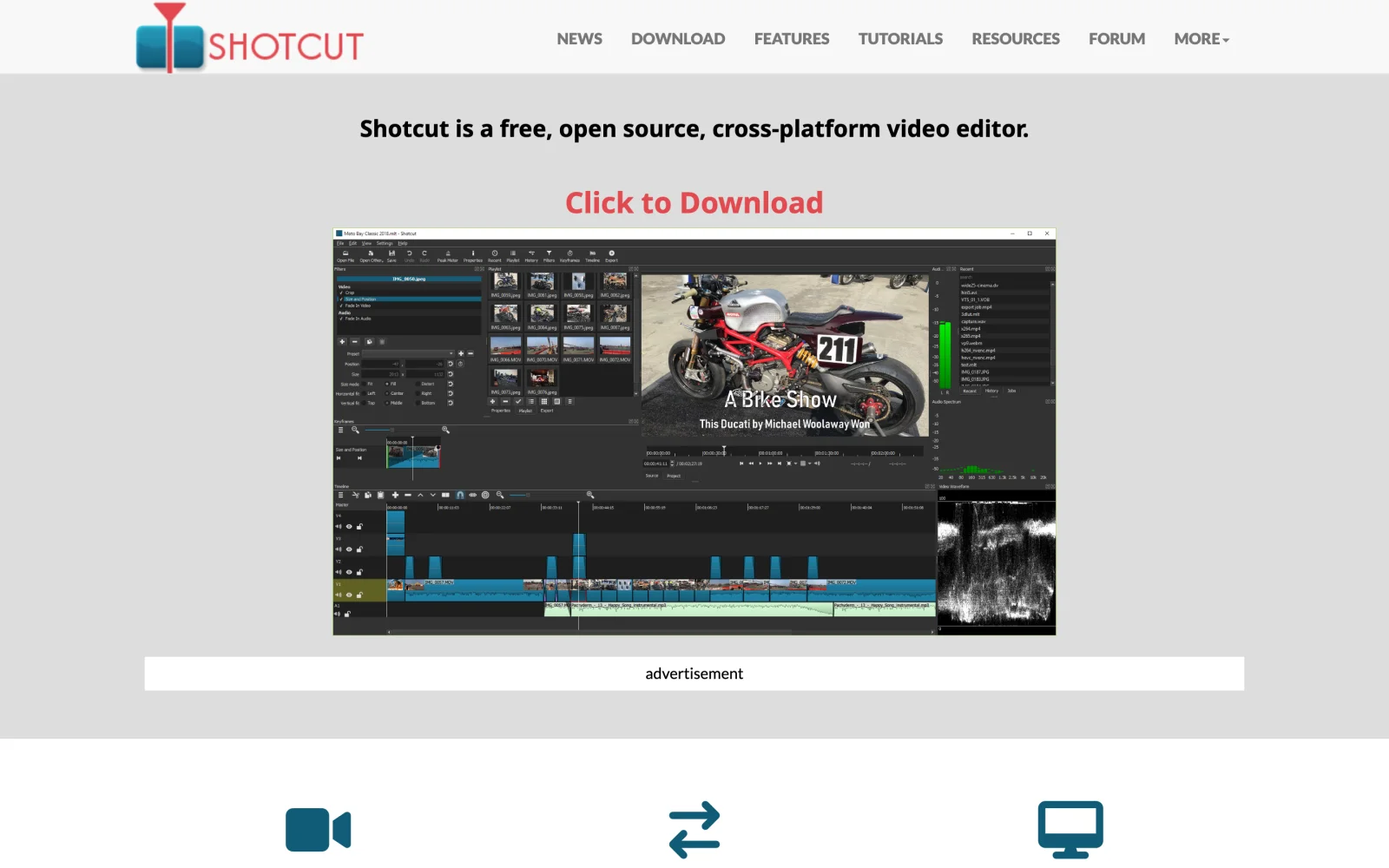
Best for: Privacy-minded beginners, Linux users, and owners of modest laptops wanting offline editing at $0.
What stands out:
- Zero paywalls or watermarks: Per Shotcut’s FAQ, every filter, codec, and 4K preset is free with no registration.
- FFmpeg format support: Edits phone, screen-capture, and camera files natively without transcoding.
- Light footprint: Runs smoothly on older laptops and Linux machines.
Limits:
- Utilitarian UI: Dockable panels feel technical until you learn which tabs to open.
- No templates or cloud AI: Trimming, filters, and keyframes are manual—no TikTok templates or animated auto-captions.
- Paid Microsoft Store listing: Download from
shotcut.orgfor $0; the Microsoft Store version is a paid listing (US$11.49 when checked) that works as optional support.
Pricing: Free and open source (shotcut.org).
Skip it if: You want polished templates, animated auto-subtitles, or a guided UI.
Also Considered (and One Discontinued App to Skip)
- OpenShot: Free, open-source (GPL), and watermark-free on Windows, Mac, and Linux; simpler icons than Shotcut for two-clip trims, though Shotcut handles multi-track timelines better.
- VN Video Editor: Strong free, watermark-free multi-track timeline for iPhone and Android creators; on desktop computers, iMovie, Clipchamp, and CapCut are easier starters.
- Kapwing: Clean browser subtitling and team sharing, but Free stamps a watermark and caps exports at 4 minutes and 720p (Pro from $16/month billed annually).
- Skip Adobe Premiere Rush (discontinued): Older lists still recommend Rush, but Adobe pulled it from app stores in September 2025 and ended support on September 30, 2026.
How to Choose Your First Video Editor
Match your device and footage below—then read how to edit a YouTube video for a step-by-step first cut.
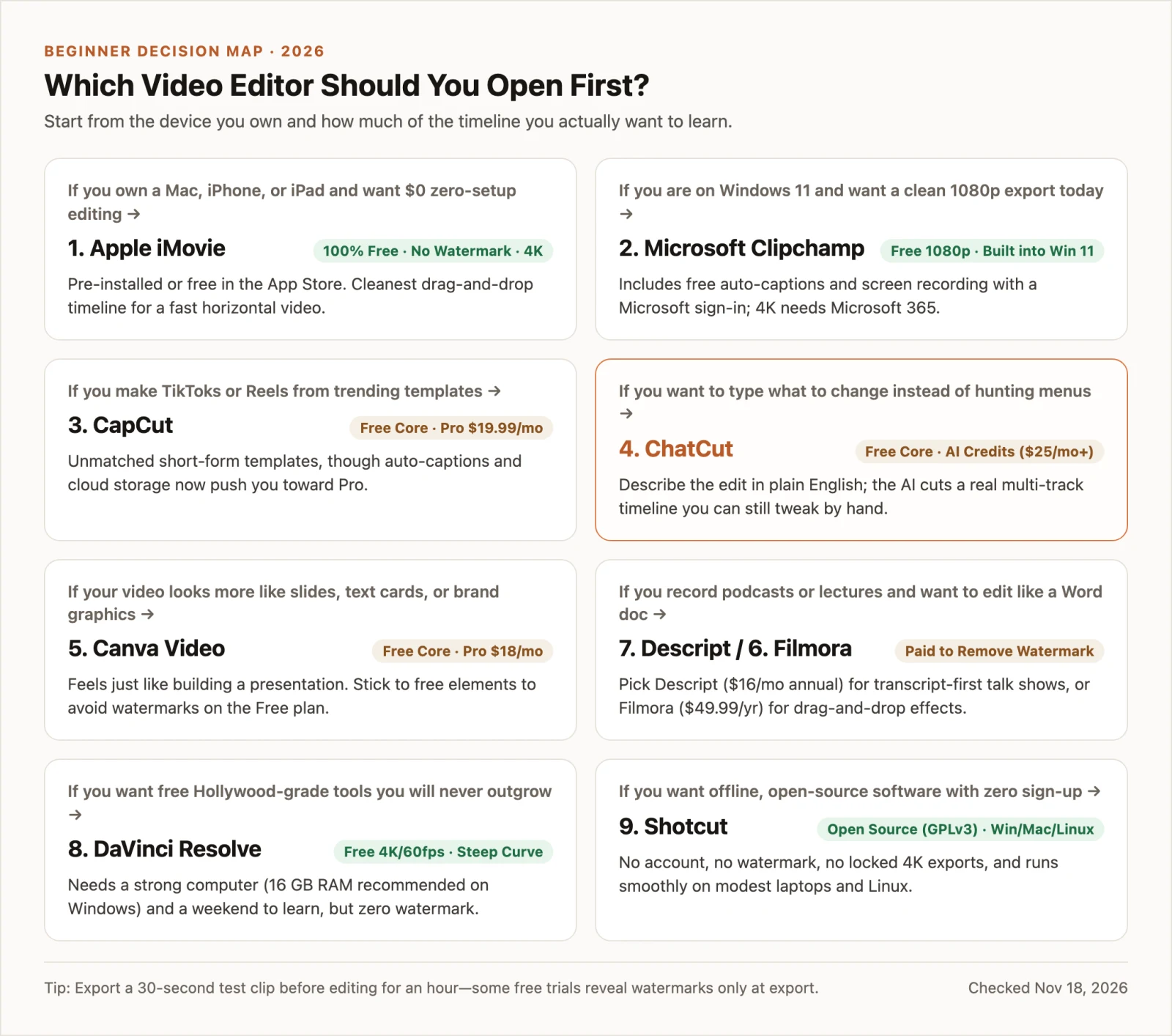
- If you own a Mac, iPhone, or iPad and want $0 zero-setup editing: Pick Apple iMovie.
- If you use Windows 11 and want free 1080p exports with auto-captions: Pick Microsoft Clipchamp.
- If you make vertical social clips from trend templates: Pick CapCut (skipping Pro-badged effects).
- If you want to describe edits in plain English and fine-tune on a real timeline: Pick ChatCut.
- If your video is mostly slides, text cards, and brand graphics: Pick Canva Video Editor.
- If you cut spoken podcasts like a Word doc (and can spend $16/month): Pick Descript—or Filmora ($49.99/year) for classic preset effects.
- If you refuse accounts and subscriptions: Pick Shotcut for older laptops and Linux, or DaVinci Resolve to learn pro filmmaking at $0.