The best screen recording software in 2026 depends on what you need to happen after you press Stop. For free local recording or live streaming with full scene control and no watermark, pick OBS Studio; for a quick clip with nothing to install, use QuickTime and Screenshot on a Mac or Xbox Game Bar and Snipping Tool on Windows. For an instant browser link, use Loom; for polished Mac software demos, use Screen Studio; and if you want to record onto a timeline and let AI cut the pauses and add zoom-ins, use ChatCut.
ChatCut makes one of the tools on this list. We compared every recorder against the same checklist and state our own limits alongside everyone else’s.
Key takeaways
- True zero-cost desktop recorders are OBS Studio (Windows, macOS, Linux), ShareX (Windows), and the recorders built into macOS and Windows—none of them have a watermark tier to upgrade out of.
- Most “free download” commercial recorders gate the export: Camtasia watermarks free exports, Screen Studio disables exporting until you pay, Tella gives a 7-day trial, and Loom’s free Starter tier caps you at 25 videos of 5 minutes at 720p with no MP4 download.
- ScreenPal is the standout free middle ground if you want webcam-plus-screen recordings up to 15 minutes without a watermark.
- System audio on a Mac still trips people up: Apple’s built-in Screenshot recorder only added native system-audio capture in macOS 27, so older Macs need a third-party app.
- Decide between a share link and an editable file first: async tools optimize for fast Slack links, while timeline editors save you from re-recording every hesitation or misclick.
Best screen recording software at a glance
| Tool | Best for | Platforms | Free version limits | Paid from | Learning curve |
|---|---|---|---|---|---|
| OBS Studio | Free multi-source capture and streaming | Windows, macOS, Linux | Open source; no watermark or published time cap; no built-in editor | Free | Steep |
| QuickTime and macOS Screenshot | Quick clips already on a Mac | macOS | Built in; no watermark; system audio needs macOS 27+ | Free | Easy |
| Xbox Game Bar | Built-in single-window and game capture on PC | Windows 10, Windows 11 | Built in; no watermark; can’t record Desktop or File Explorer | Free | Easy |
| ShareX | Windows captures, GIFs, and auto-uploads | Windows | Open source; no watermark, ads, or account required; no timeline editor | Free | Moderate |
| ScreenPal | Free recordings longer than 5 minutes | Windows, macOS, Chromebook, iOS, Android | 15-minute cap per clip; no watermark; 720p online playback | $4/month, billed annually | Easy |
| Loom | Async team updates shared by link | macOS, Windows, Chrome, iOS, Android | 25 videos/person, 5-minute cap, 720p, no MP4 downloads on Starter | $15/user/month, billed annually ($18 monthly) | Easy |
| Screen Studio | Polished Mac product demos with auto-zoom | macOS only | No free plan; without one, every feature works except exporting video files | $9/month, billed yearly | Easy |
| Tella | Presenter-plus-screen walkthroughs | Web, macOS, Windows, Chrome | No permanent free plan; 7-day Pro trial (HD 30 fps, 2-hour clips) | $13/user/month, billed annually | Easy |
| ChatCut | Recording onto a timeline and cutting with AI | Web, macOS, Windows (x64) | Recording and manual editing included; 60 cumulative min cloud export (local Desktop 4K doesn’t count) | $25/month | Moderate |
| Camtasia | Multi-track training and onboarding courses | Windows, macOS | Full editor download is free, but exports carry a watermark | $179.88/year (Essentials) | Moderate |
| Snagit | Annotated screenshot guides with short clips | Windows, macOS | 15-day full-feature trial; subscription required afterward | $39/year | Easy |
Prices reflect each vendor’s listed US pricing on November 18, 2026. Verify current tiers on the linked pricing pages before buying.
How we chose and tested
Most frustration with screen recorders happens after recording stops—when an export unexpectedly carries a watermark, cuts off at five minutes, or omits system audio. We evaluated every pick on five practical checks:
- Platform and audio rules: which operating systems it supports, and whether internal system audio works out of the box.
- Real free-tier limits: whether “free” means open source, a capped free plan, a time-limited trial, or a watermarked export.
- File vs. hosted link: whether you get a local MP4/MOV file, an instant browser link with comments, or both.
- Post-capture editing: what it takes to remove dead air, zoom in on small UI labels, and add captions without switching apps.
- Ongoing cost: monthly vs. annual billing, per-seat fees, and credit rules.
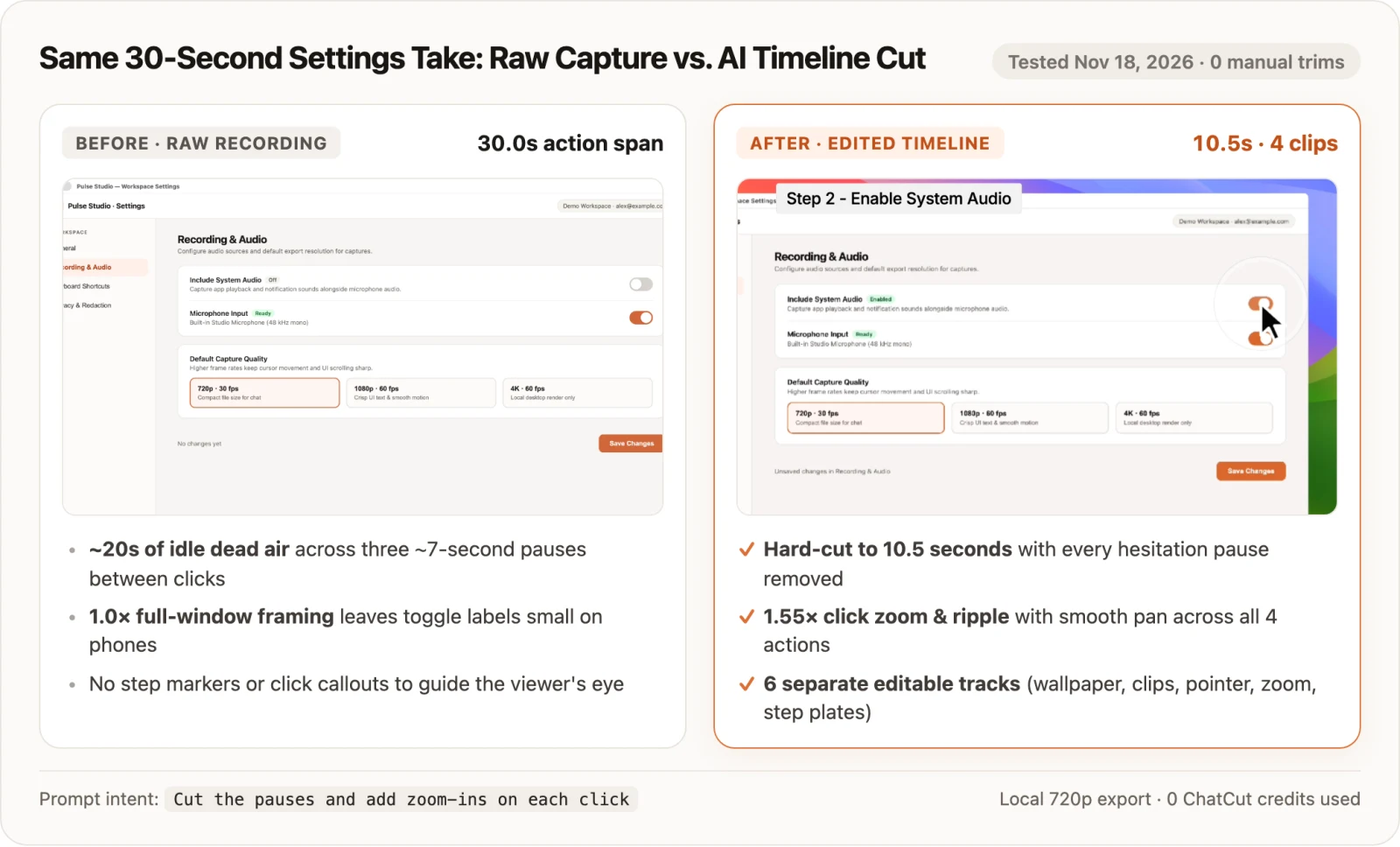
On November 18, 2026, we ran a hands-on capture-and-edit test in our own desktop app: recording a 30-second walkthrough of a demo settings page with three intentional 7-second pauses, then having an AI agent strip the dead air and add 1.55× click zoom-ins (full log in entry #9). Every other tool on this list is evaluated based on the official docs, help centers, and pricing pages, checked on November 18, 2026; we did not run an identical encoding benchmark across all 11 apps, so we don’t rank CPU load or frame-drop rates.
The 11 best screen recorders in 2026
1. OBS Studio: best free recorder for full control and streaming
OBS Studio (release 33.0.1) is the open-source standard for local screen capture and live streaming across desktop platforms. It lets you build scenes from full displays, app windows, webcams, overlays, and separated audio channels.
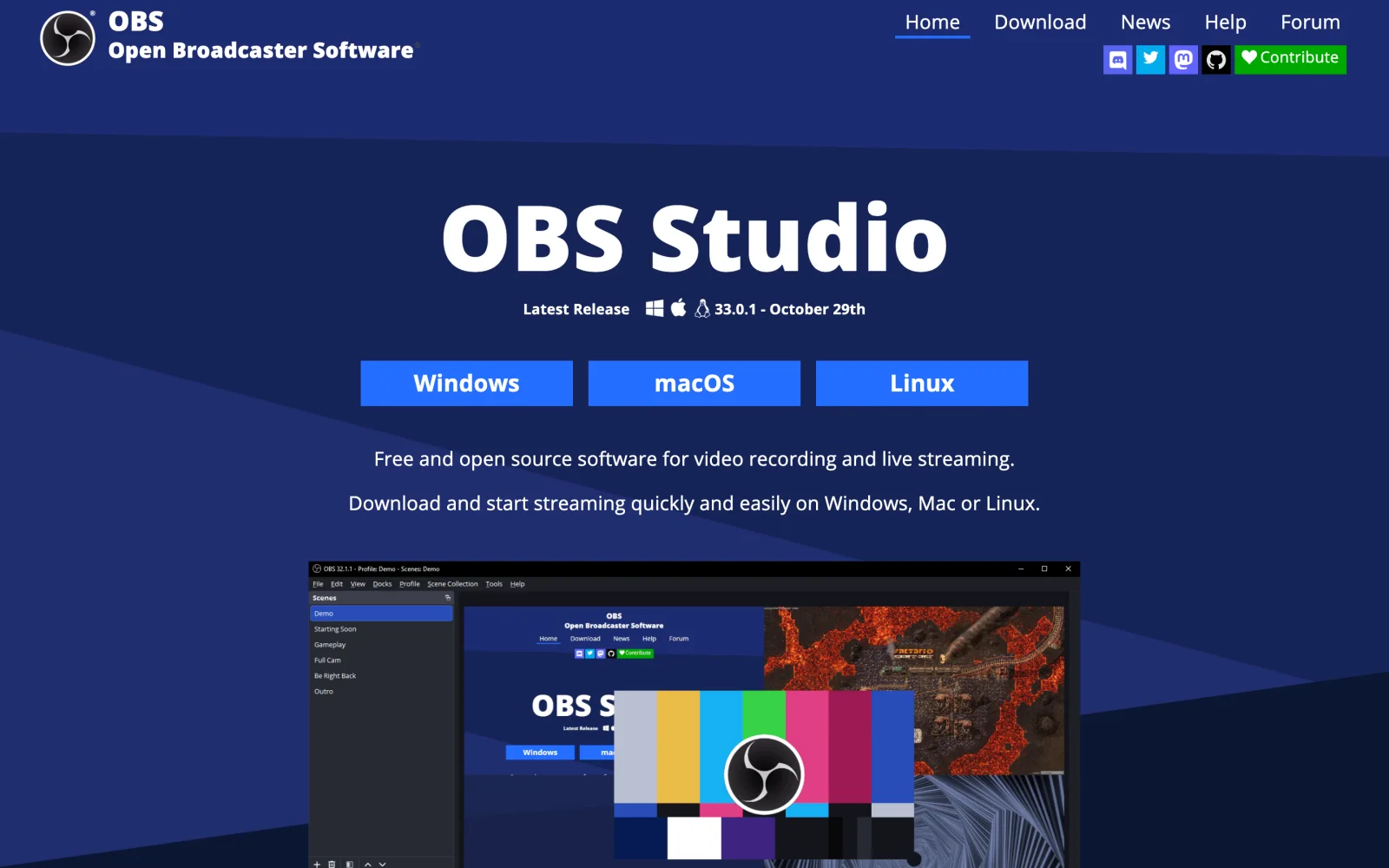
Best for: creators, gamers, and power users who want zero-cost multi-source recording or live streaming with full bitrate and audio control.
What stands out
- Free and open source, with no paid tier, account, watermark, or published length cap (download page).
- Per-source audio mixer with noise suppression, gain, and multi-track routing to separate mic narration from desktop sound.
- Native builds for Windows 10/11, macOS 13.0+ (Apple silicon and Intel), and Linux.
Limits
- Zero post-production tools: trimming mistakes, zooming in, or adding captions requires another editor.
- You set up scenes, sources, and encoder settings before the first take—overkill for a 45-second bug clip.
Pricing: Free and open source (obsproject.com).
Skip it if you want built-in editing or an instant share link right after you stop recording.
2. QuickTime Player and macOS Screenshot: best built-in recorder on a Mac
Every Mac ships with Apple’s native recorder via Shift-Command-5 (the Screenshot toolbar) or QuickTime Player → File → New Screen Recording (Apple Support). It saves .mov files straight to your desktop without an account or installer.
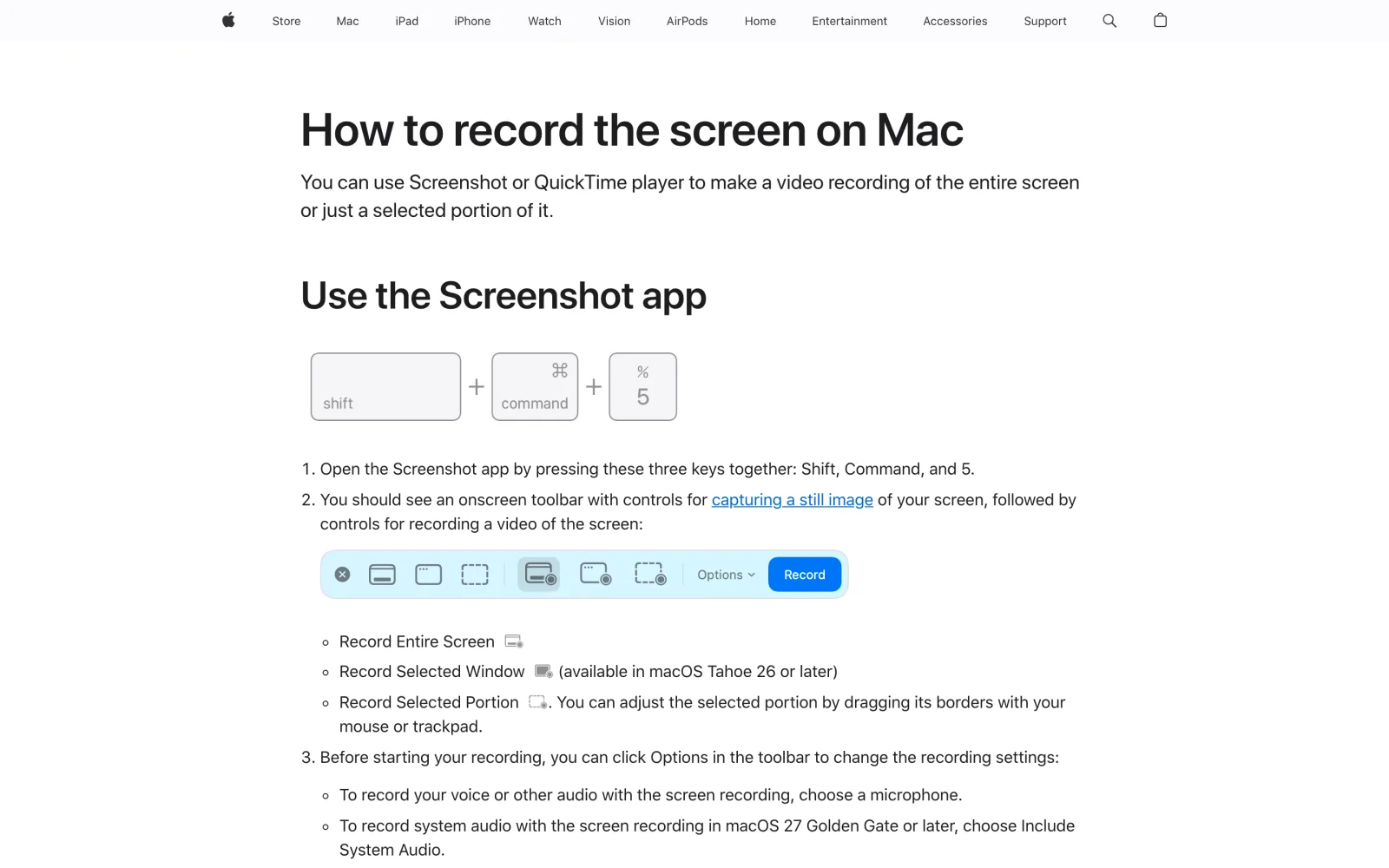
Best for: Mac users who want a fast .mov clip of their screen or a window with nothing to install.
What stands out
- Instant shortcut launch, optional countdown timer, and an option to highlight clicks during capture (macOS User Guide).
- Single-window capture (Record Selected Window) is built in on macOS Tahoe 26 or later.
- Zero watermarks and no published duration cap beyond free disk space.
Limits
- Native internal audio (Include System Audio) requires macOS 27 Golden Gate or later; older versions record only a microphone unless you route audio separately. See our how to screen record on Mac guide.
- Editing stops at basic head-and-tail trims in QuickTime, with no zoom keyframes or captions.
Pricing: Free, included with macOS (Apple Support).
Skip it if you run macOS 26 or older and need internal Mac sound without virtual audio drivers.
3. Xbox Game Bar: best built-in recorder on a Windows PC
On Windows 10 and 11, pressing Windows + Alt + R (or Windows + G for the controls) starts a clip in Xbox Game Bar, saving MP4 clips to Videos\Captures. On Windows 11, pair it with Snipping Tool (Windows + Shift + R) for custom desktop regions (Windows Learning Center).
Best for: Windows 10 and 11 users who want zero-install MP4 capture with system audio and optional mic input.
What stands out
- Can include system audio, lets you toggle the microphone mid-recording, and saves standard
.mp4files locally. - Works on both Windows 10 and 11, whereas Snipping Tool’s video recorder requires Windows 11.
- No watermarks or subscriptions; see both workflows in how to screen record on Windows.
Limits
- Xbox Game Bar records the app or game you’re in—it doesn’t work on the Windows desktop or in File Explorer (Dell support guide; use Windows 11 Snipping Tool or OBS Studio instead).
- No webcam overlay or timeline for cutting pauses.
Pricing: Free, included with Windows 10 and Windows 11.
Skip it if your walkthrough jumps across File Explorer, desktop icons, and multiple windows on Windows 10.
4. ShareX: best free capture and GIF workflow for Windows
ShareX is an open-source capture and automation utility for Windows combining MP4 recording, lightweight GIF capture, scrolling screenshots, and automated post-capture actions.
Best for: developers, QA testers, and technical writers on Windows who take dozens of region clips, GIFs, and annotated screenshots each week.
What stands out
- Records any region, active window, or monitor directly to MP4 or animated GIF with no watermark and no account.
- Automates post-capture steps: copy file path, annotate images, or upload to a wide range of storage and sharing destinations.
- Packs scrolling capture, OCR, color picker, and screen ruler into one lightweight app.
Limits
- Stable release targets Windows only, so cross-platform Mac/Windows teams need another recorder on macOS.
- Built for short raw captures rather than narrated tutorials—no timeline editor, webcam bubble, or captions.
Pricing: Free and open source (getsharex.com).
Skip it if you work on a Mac or need to trim retakes and polish audio after recording.
5. ScreenPal: best budget recorder with a 15-minute free tier
ScreenPal (formerly Screencast-O-Matic) bridges bare-bones OS tools and $18-a-month team platforms. It runs across desktop, mobile, and Chromebooks, capturing your screen, webcam, or both with no credit card required.
Best for: educators, students, and small teams who outgrow 5-minute free limits and want affordable annual plans.
What stands out
- Free tier records up to 15 minutes per clip—three times Loom’s cap—with no watermark on standard exports (ScreenPal plans).
- Runs on Windows, macOS, Chromebook, iOS, and Android, with picture-in-picture webcam capture included.
- Paid plans cost a fraction of enterprise async tools while adding trims, captions, and stock assets.
Limits
- Hosted playback on the free plan caps at 720p; 4K playback requires Max or Business.
- Built for straightforward cuts and overlays rather than automated cursor-zoom choreography.
Pricing: Free tier; Deluxe is $4/month billed annually, and Max is $10/month billed annually.
Skip it if you need 1080p+ hosted playback on a free tier or automatic cursor zoom effects.
6. Loom: best for quick video messages with a share link
Loom, part of Atlassian, remains the fastest way to record your screen with a circular camera bubble and paste a watch link into Slack, Jira, or email the moment you stop speaking.
Best for: remote teams sending quick status updates, code reviews, or bug reproductions instead of scheduling a meeting.
What stands out
- Instant cloud upload creates a browser link in seconds, with time-stamped comments, emoji reactions, and viewer insights.
- Apps for macOS, Windows, Chrome, iOS, and Android.
- Business + AI generates titles, chapters, summaries, and filler-word cleanup.
Limits
- Free Starter caps each person at 25 videos/screenshots (archived items count), 5-minute screen recordings, and 720p quality (Starter FAQ, length docs).
- Starter creators cannot download MP4 files (download docs), and Atlassian-linked free workspaces cap at 10 members.
Pricing: Free Starter; Business is $15/user/month billed annually or $18 monthly, and Business + AI is $20/user/month billed annually or $24 monthly.
Skip it if you want local 1080p MP4 downloads on a free plan or clips over five minutes without per-seat fees.
7. Screen Studio: best for polished product demos on a Mac
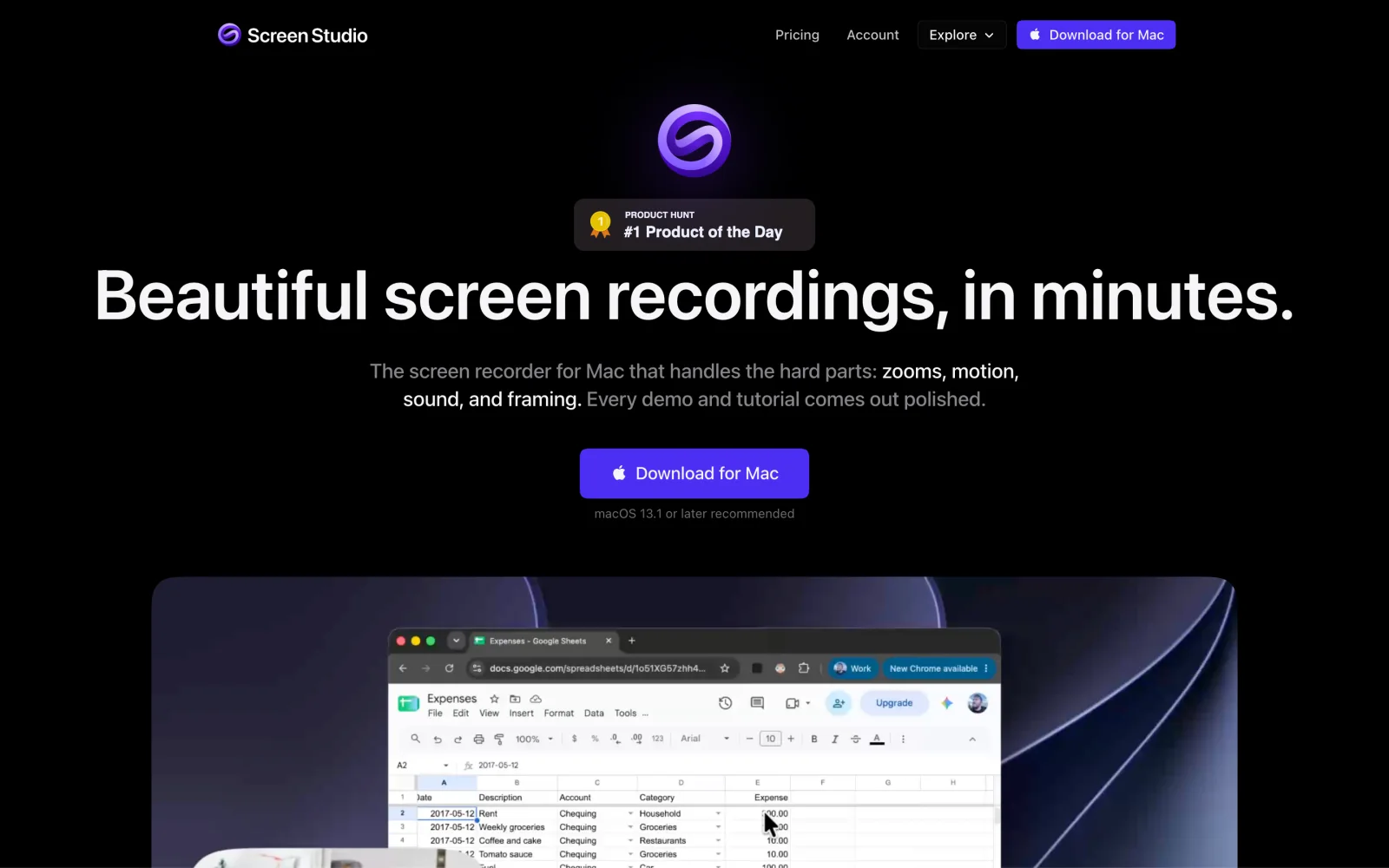
Screen Studio popularized the crisp SaaS demo look on macOS: it logs pointer coordinates during capture, smooths shaky cursor paths, adds motion blur, and automatically zooms into clicks over a clean wallpaper frame.
Best for: founders, designers, and marketers on macOS recording software launches, feature updates, and social demos.
What stands out
- Capture-time cursor tracking creates smooth zoom-ins, click highlights, and cursor smoothing with zero manual keyframing.
- Supports transcript trimming, pause shortening, captions, webcam layouts, local 4K 60 fps exports (pricing), and 1080p60 share links for videos up to 30 minutes (features).
- Every paid plan unlocks the full feature set.
Limits
- macOS only (macOS 13.1+ recommended; download)—no Windows or Linux app.
- No free export: without an active plan you can use every feature except exporting video files (download page).
Pricing: $9/month billed yearly, or $29/month billed monthly (40% student/teacher discount).
Skip it if you use Windows or need a free tier that exports finished videos.
8. Tella: best for presenter-led videos in a browser or app
Tella turns a walkthrough into a sequence of short scenes rather than one stressful continuous take. Record in a browser or with its Mac and Windows apps, switch speaker-and-screen layouts per clip, and publish a hosted page or export locally.
Best for: course creators and founders who appear on camera alongside their screen and want multi-clip editing plus hosting.
What stands out
- Scene-by-scene recording lets you redo one fumbled step instead of restarting a 10-minute talk, paired with silence removal, Auto Layouts, and Auto Zoom.
- Pro unlocks 4K exports, single clips up to 6 hours, custom backgrounds, and viewer analytics (plans guide).
- Runs in desktop browsers, Chrome, macOS, and Windows.
Limits
- No permanent free plan: offers a 7-day free trial with no card required (HD 30 fps exports, 2-hour clips; trial docs).
- Removing Tella branding from hosted pages requires upgrading from Pro to Premium.
Pricing: Pro is $13/user/month billed annually ($26 monthly); Premium is $19/user/month billed annually ($39 monthly).
Skip it if you want an ongoing free tier beyond a one-week trial.
9. ChatCut: best for recording and letting AI cut the edit
ChatCut builds screen, camera, and voiceover capture directly into a multi-track timeline—so as soon as you stop recording, you can ask an AI agent to cut dead air, add click zooms, or generate captions, then adjust any cut by hand. Capture from Record → Screen in the web app or Desktop (recording docs), or use the Desktop Auto Screen Recorder Skill to turn an app workflow into a framed tutorial.
Best for: tutorial and product-demo creators who want AI to strip hesitations and keyframe zooms on an editable timeline.
What stands out
- Tested hands-on (Nov 18, 2026): we recorded a 30-second walkthrough of a demo settings page in our Desktop app (four clicks with three ~7-second pauses). An external agent connected to Desktop ran the Auto Screen Recorder Skill and hard-cut it to 10.5 seconds (four clips) with 0 manual trims, added 1.55× zoom and smooth pan on each click plus four step plates across six editable video tracks, and exported locally at 720p for 0 credits.
- Recording, manual cuts, captions, and local Desktop 4K exports use no credits (Free and Pro); external MCP agents (Claude Code, Codex) use their own plan for reasoning.
Limits
- Camera and Screen are separate modes—no simultaneous webcam bubble during screen capture, and no switching mid-take.
- Drawn pointers and coordinate ripples require an agent-recorded Desktop take (macOS 14+, or Windows 10 2004+ x64 on Desktop 0.9.11+); self-recorded clips keep your system cursor and place zooms by visual frame inspection.
- Needs internet access, has no Linux app, isn’t built for pro color grading, and the Agent Plugin runs in Claude Code, Codex, and WorkBuddy desktop apps (not ChatGPT/Claude websites). Built-in Agent chat uses credits, AI video/image generation needs Pro, and Free cloud exports cap at 60 cumulative minutes up to 1080p (export limits).
Pricing: Free plan includes recording, editing, and local Desktop 4K export; paid plans start at $25/month or $252/year (100 monthly credits).
Skip it if you need simultaneous webcam-plus-screen capture, offline use, or async links with viewer stats.
10. Camtasia: best for structured training videos
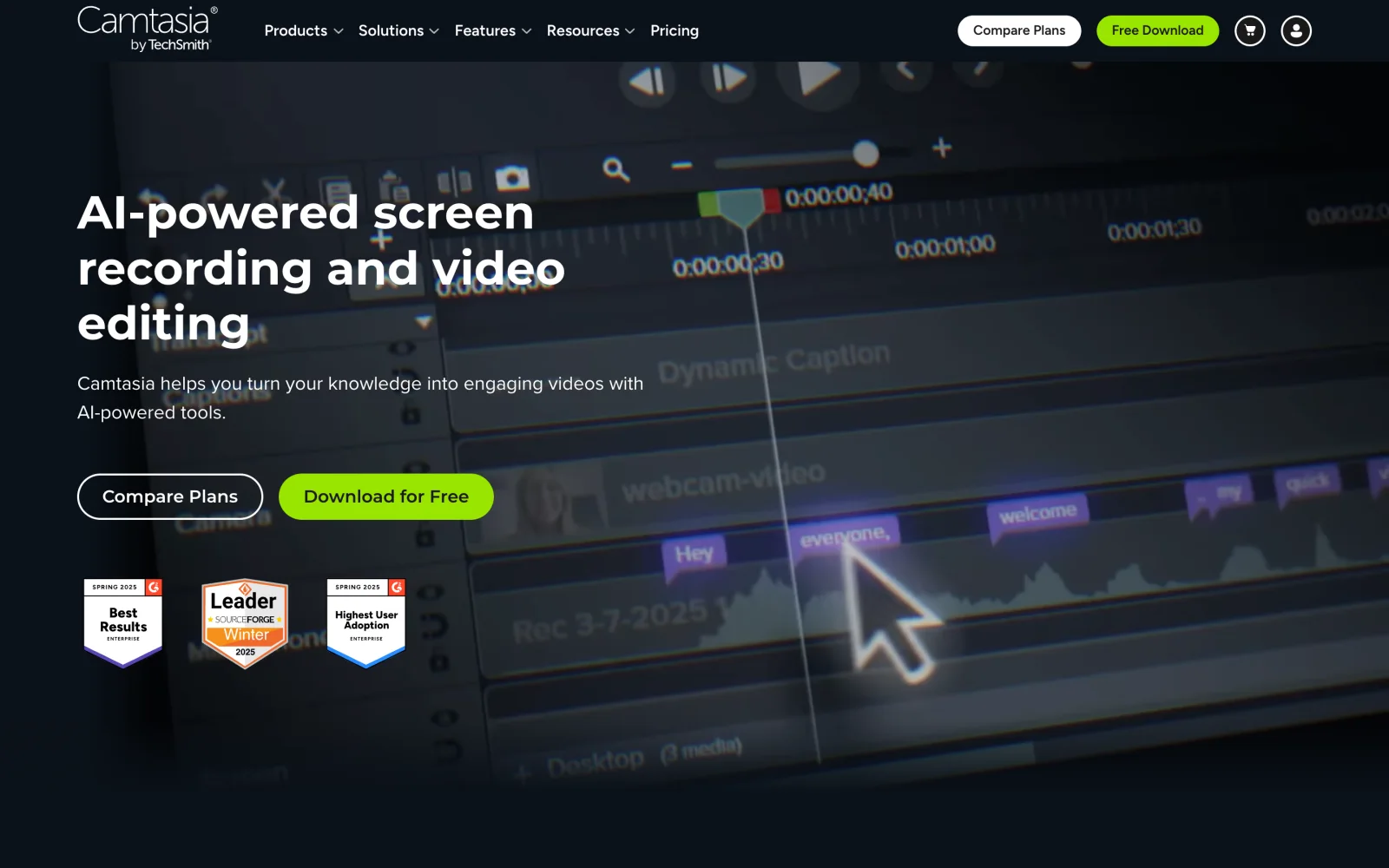
TechSmith’s Camtasia is the long-running corporate training suite for Windows and macOS, recording your screen, webcam, mic, system audio, and cursor metadata onto separate tracks for fine-grained editing.
Best for: instructional designers and L&D teams producing multi-lesson training and onboarding courses.
What stands out
- Independent tracks let you clean mic noise, re-time callouts, or enlarge and smooth the cursor path long after capture.
- Extensive library of callouts, cursor spotlights, quizzes, and Screencast hosting (up to 25 videos on entry plans).
- Runs on Windows 10 (64-bit 20H2+)/11 and macOS 14.0+.
Limits
- The Camtasia Editor is free to download, but every export carries a watermark until you upgrade to Essentials, Create, or Pro (Camtasia FAQ).
- Billed strictly per year (TechSmith licensing FAQ), making it pricey for casual clips.
Pricing: Watermark-free Camtasia exports start with Essentials at $179.88/year; Create is $249/year and Pro $599/year (US list prices). The $39/year Starter plan bundles Snagit but keeps watermarked Camtasia exports—see the TechSmith store.
Skip it if you only record quick clips or want a watermark-free free tier.
11. Snagit: best for step-by-step documentation and SOPs
TechSmith’s Snagit targets help-center articles, SOPs, and bug reports—pairing annotated screenshots with quick MP4 or GIF screen captures.
Best for: support engineers, operations leads, and technical writers creating visual step-by-step guides with occasional short clips.
What stands out
- Step Capture turns clicks into numbered visual guides automatically, and Scrolling Capture grabs full webpages cleanly.
- Smart Redact blurs sensitive emails, names, or account numbers before sharing.
- Includes Screencast hosting for up to 25 private videos plus quick trim and video-to-GIF tools.
Limits
- Video editing stops at basic trims—no multi-track timeline or auto-zoom effects.
- No permanent free plan: after the 15-day trial (trial docs), an annual subscription is required.
Pricing: 15-day free trial, then $39/year in the US (TechSmith lists Snagit under its Starter plan; see the Snagit store for your region).
Skip it if polished video tutorials—not written SOPs—are your primary output.
Also considered
Four other widely searched recorders almost made our main 11, depending on your OS and editing style:
- CleanShot X (macOS 13.0+): A favorite Mac screenshot and recording utility that added Studio Mode smart zoom animations in version 5.0. There is no free plan or standard trial (backed instead by a 30-day refund policy); Basic costs $35 one-time (includes 1 year of updates and 1 GB cloud), and CleanShot Pro is $10/user/month billed annually.
- Bandicam (Windows & macOS): Lightweight desktop and game recorder (now Bandicam 2027). Its free version FAQ notes a 5-minute limit per recording; raw captures carry no watermark, though exporting from the built-in editor or burning in subtitles adds one. On November 18 the Windows personal license was on sale at $33.26/year or $53.90 one-time for 1 PC (list price $77 one-time).
- Descript (macOS 14+, Windows 11+, web): Ideal when your screen recording is mostly spoken narration and you want to cut retakes by deleting text. Its pricing page lists 1 media hour/month and 720p watermarked exports on the free plan; watermark-free 1080p starts at $16/person/month billed annually ($24 monthly).
- Microsoft Clipchamp (Windows 11, macOS, desktop browsers): Free accounts can record screen and webcam together in 30-minute sessions, as many times as you like, with no watermark on the recordings (Clipchamp screen recorder), then edit them in a beginner-friendly timeline.
How to choose the right screen recorder
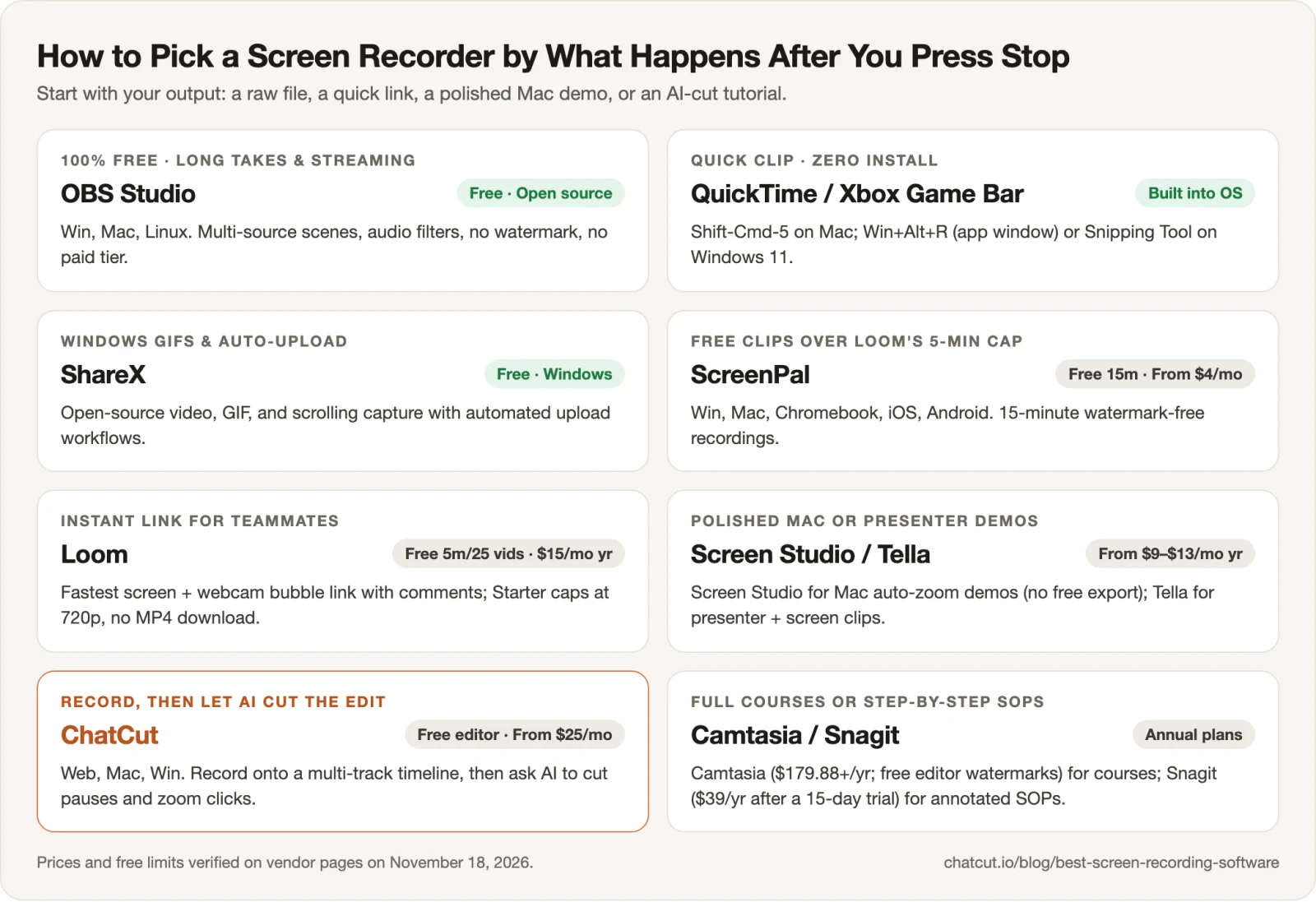
- If you want a 100% free recorder for long sessions, multi-track audio, or streaming, pick OBS Studio on Windows, Mac, or Linux.
- If you just need a fast local clip with zero installs, press Shift-Command-5 on a Mac (Mac guide) or Win + Alt + R / Win + Shift + R on a PC (Windows guide).
- If you live on Windows and send annotated clips or GIFs all day, pick ShareX.
- If you need free webcam-plus-screen recordings longer than five minutes, pick ScreenPal for its 15-minute watermark-free tier.
- If you’re replacing a meeting with a quick browser link and comments, pick Loom (within its 5-minute/25-video free cap) or Tella for multi-clip presenter videos.
- If you record Mac software demos yourself and want automatic cursor smoothing at capture time, pick Screen Studio (and read how coordinate-based vs. vision-based demo tools differ in our AI screen recorder explainer).
- If you want to record onto a timeline and let AI cut pauses and zoom clicks, pick ChatCut—and pair it with our guides to removing silences and filler words and adding readable subtitles.