
The best Grok Bot plugins to connect first are Gmail (with Google Calendar) and Slack: they need only accounts you already have, and they cover the email, schedule and team requests most Bots handle every day. Add Notion if your projects live there, Firecrawl for research that spans many web pages, and Composio when an app you need has no plugin of its own. If you film on your phone, ChatCut lets Grok Bot cut, caption and export that footage on an editable timeline, with nothing to install on the phone.
Key Takeaways
- Plugins live in Connect apps. The page called the Grok Bot Marketplace lists ready-made Bots, not plugins.
- Adding a plugin has no separate fee. You pay for the service behind it if it charges, and the Bot’s work still counts toward your Grok Bot plan’s usage.
- Plugins belong to your account, not your device. Connect one on your computer and it works in the iPhone and Android apps too; a few providers make you finish sign-in on a computer.
- Start with two or three that match work you already repeat every week, then add more.
- Grok Bot isn’t the Grok chat app. Grok’s connectors and Grok Build’s developer plugins are separate catalogs. This guide covers Grok Bot only.
Disclosure: ChatCut makes one of the plugins on this list. We checked every entry against the same kind of official sources and list each one’s limits, including ours.
Grok Bot Plugins at a Glance
| Plugin | Best for | How to add | Free plan limits | Paid from | Setup |
|---|---|---|---|---|---|
| Gmail + Google Calendar | Inbox and calendar triage | Connect apps | Any Google account; company accounts may need admin approval | No extra cost | Easy |
| Slack | Team requests and channel digests | Connect apps | Slack Free keeps 90 days of messages | Pro $8.75/user/month | Easy |
| Notion | Project pages and team knowledge | Connect apps | Block limit for multi-member workspaces | Plus $10/seat/month | Easy |
| ChatCut | Editing video from your phone | One message adds it as a custom connector | Editing, transcription and captions; 60 min of cloud export; no AI video generation | $25/month (100 credits) | Easy |
| Firecrawl | Research across many web pages | Connect apps | 1,000 credits/month | Hobby $16/month, billed yearly | Easy |
| Composio | Apps without their own plugin | Connect apps | 10,000 tool calls/month, up to 3 members | $18/seat/month | Medium: authorize each app |
| Canva | Social graphics and design edits | Connect apps | Some features need a paid Canva plan | See Canva’s pricing page | Easy |
| Granola | Meeting context and follow-ups | Connect apps | Only your last 30 days of personal notes | Business $14/user/month | Easy |
| Descript | Teams already editing in Descript | Connect apps | 60 media minutes/month | Hobbyist $16/month, billed yearly | Easy |
Prices are the vendors’ listed US prices on November 18, 2026. Grok Bot itself is included with Premium ($30/month), Super ($100) and Ultra ($200) on The X Subscription; Plus and Free don’t include it (Grok Bot FAQ).
How We Chose These Plugins
We started from Grok Bot’s own documentation and xAI’s “Add to Grok Bot” pages, then kept plugins that pass four checks:
- Officially available in Grok Bot. Each has an Add to Grok Bot page on x.ai, or a setup written for Grok Bot.
- Better than the browser. Grok Bot can already use websites, but xAI recommends an app when one exists because it is more structured and reliable.
- Published pricing. The service says what its free plan includes.
- Useful outside engineering. Coding plugins such as GitHub and Sentry sit in the same catalog; we left them for a developer list.
We tested one entry hands-on: on November 14 and 15, 2026, we connected ChatCut in the macOS Grok Bot app and edited a 75-second talking-head take into a vertical Short. We didn’t run the other eight. Their details are based on the official docs and pricing pages, checked on November 18, 2026. If you work in another agent, see our lists of ChatGPT plugins and video editing MCP servers.
Grok Bot Plugins vs. the Grok Bot Marketplace
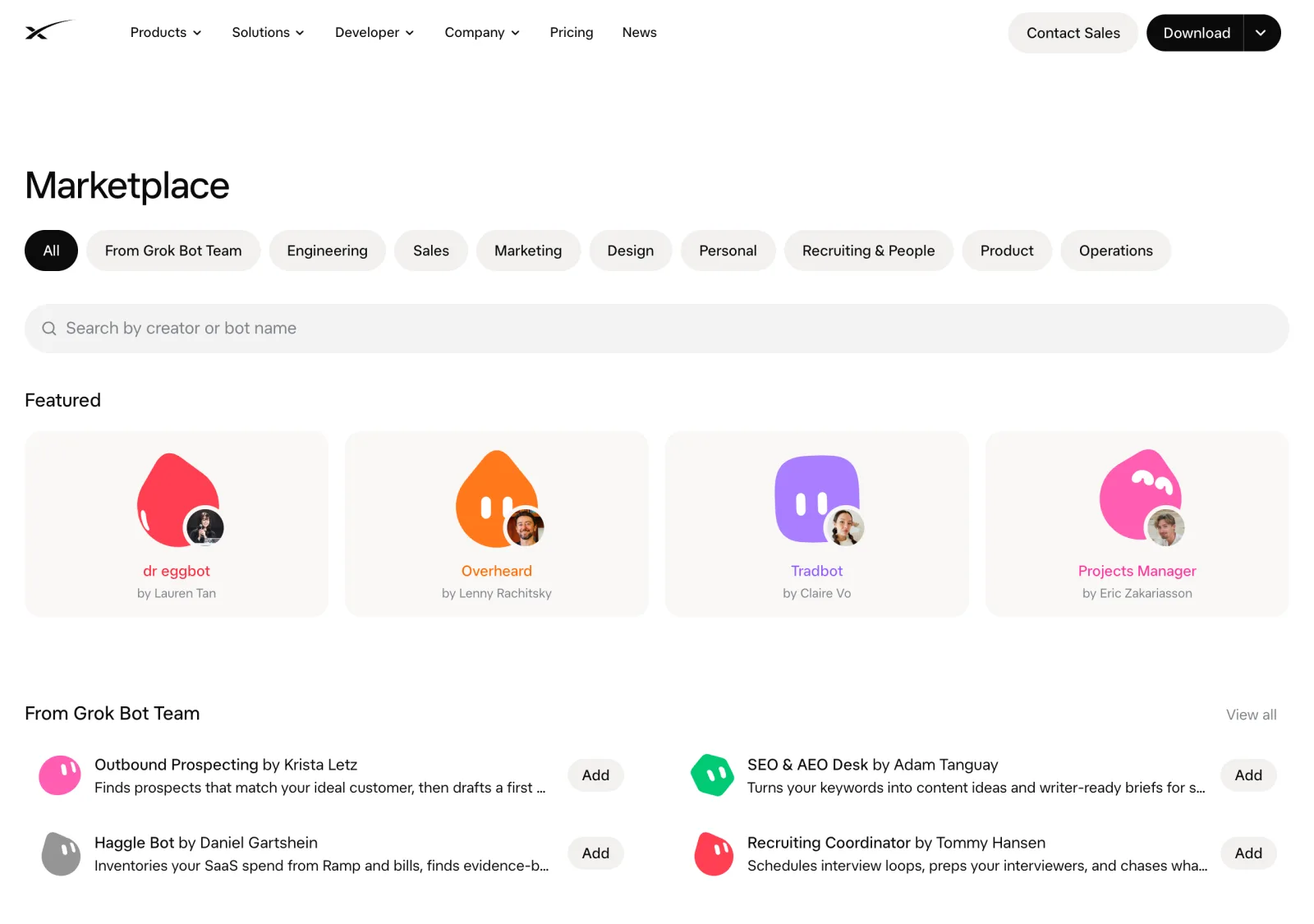
Search for the Grok Bot marketplace and you land on x.ai/bot/marketplace. That page lists ready-made Bots with a job already set up: Overheard watches Reddit, Hacker News, news sites and X for mentions of your brand, and Tradbot keeps school forms and bills from slipping through your email.
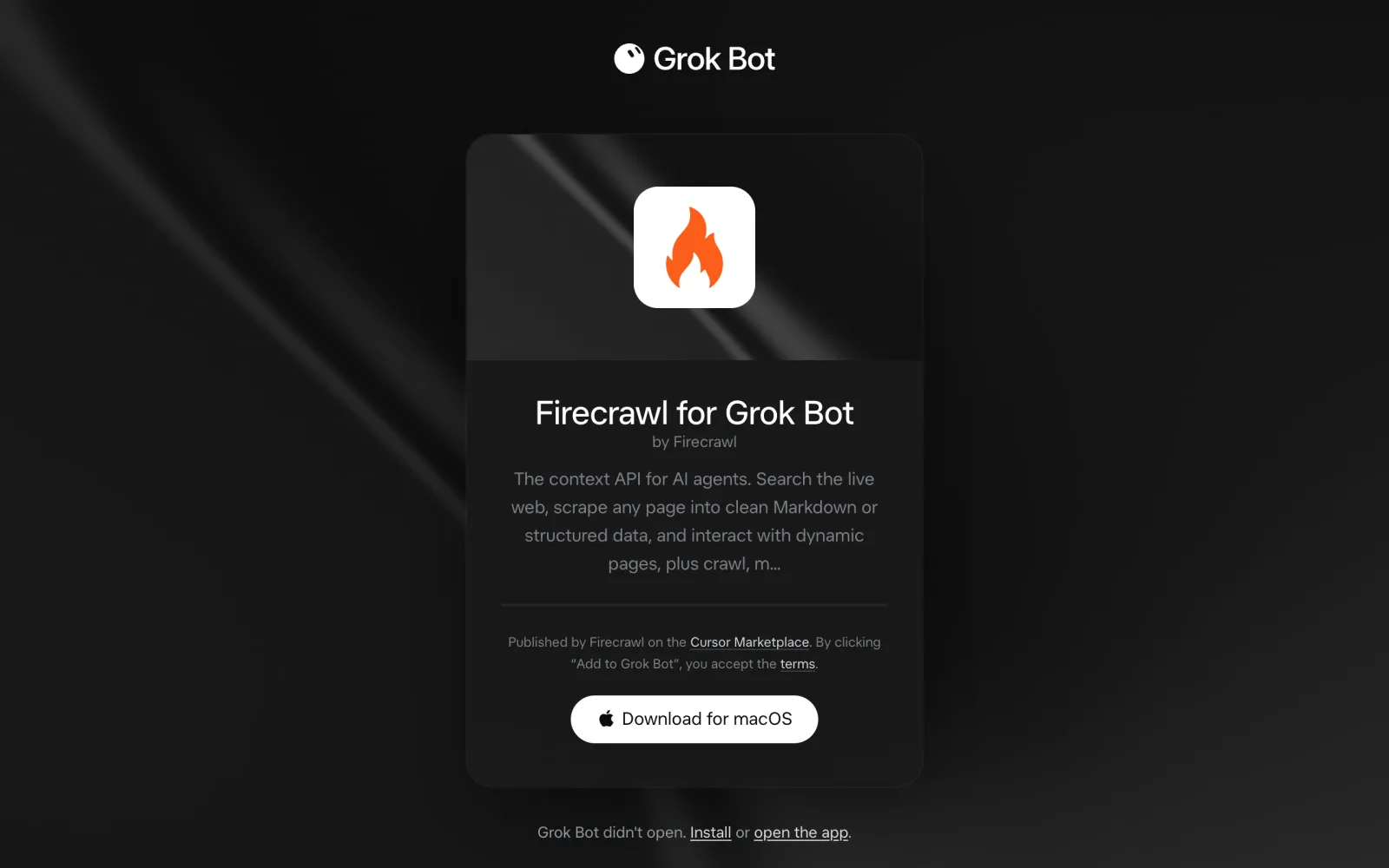
Plugins are different. They give every Bot on your account access to a service such as Gmail or Slack. You add them from Connect apps inside the Grok Bot app, and each one also has an Add to Grok Bot page on x.ai that says it is “Published … on the Cursor Marketplace.” That’s why Grok Bot’s overview links “Browse all apps” to the Cursor Marketplace: Grok Bot draws on the same catalog of several hundred plugins, many of them for coding.
“Grok” also names other xAI products with their own add-ons:
| Product | What it is | Where its add-ons live |
|---|---|---|
| Grok Bot | Agent app with its own cloud computer, on macOS, Windows, Linux, iPhone (iOS 18+) and Android (9+) | Connect apps (this guide) |
| Grok (grok.com and the Grok app) | Chat assistant | Connectors at grok.com/connectors |
| Grok Build | Coding agent | /plugin, from xAI’s plugin marketplace on GitHub |
| Grok Imagine | Image and video generation models | None; see can Grok edit videos |
How to Add a Plugin in Grok Bot, on Desktop or Phone
The steps come from xAI’s Use the computer and apps guide:
- Open Connect apps. On desktop it’s in the sidebar. In the phone app, tap your avatar at the top left, then Connect apps.
- Find the app and add it. Or ask your Bot, for example “Add the Linear app,” and it installs the app and shows a Connect card if you need to sign in.
- Authorize. Sign in to the service when asked. If sign-in stalls, choose Reconnect on the app or Reopen on the in-chat card, and finish within about 10 minutes.
- Use it. Check that it appears under Installed, then type @ in a chat to attach it to a task.
“Added” means installed, not signed in. If a Bot says an app is missing, open it and choose Authenticate (Authorize on the phone).
On a phone: apps belong to your account, so anything you connect on a computer also works in the iPhone and Android apps. A few providers don’t finish sign-in in a phone browser: with phone app 1.19.0 or later, Adapter, Robinhood and Intercom (and Postiz on iPhone) show Connect on your computer, and Slack’s phone sign-in asks for your workspace password.
Not in the catalog? On desktop, choose Add a custom connector at the bottom of Connect apps and enter a remote HTTPS server URL or a command. You can also ask a Bot to add an MCP server by URL.
The 9 Best Grok Bot Plugins
1. Gmail and Google Calendar: best for inbox and calendar triage
Gmail, Google Calendar and Google Drive are published by the Grok Bot team (Gmail, Calendar, Drive). Gmail lets a Bot search, read, draft and label mail. Calendar lets it read your calendars, check free time, create or update events and answer invitations.
Best for: anyone whose day starts in an inbox.
What stands out:
- First-party, so the only account involved is your Google account.
- Drafts keep your Gmail signature, and xAI’s overview suggests a Bot that sorts the night’s mail and leaves every reply as a draft for you to send.
- Drive, Docs and Sheets are first-party too, for briefs and spreadsheets.
Limits:
- Gmail connects one mailbox at a time; to switch, disconnect and authorize the other.
- Calendar can’t change Google Meet settings or add a Zoom link.
- A company Google account can block sign-in until an admin marks the app named “Grok” as Trusted (steps).
Pricing: no extra charge beyond your Google account.
Skip it if: your mail runs on Microsoft 365. Grok Bot has Outlook and Outlook Calendar apps instead, and work accounts may need IT approval.
2. Slack: best for picking up team requests
Slack’s plugin is published by Slack. It connects Grok Bot to the Slack MCP server and adds ready-made skills for channel digests, search, message drafting and announcements.
Best for: catching requests in channels and summarizing what you missed.
What stands out:
- It posts as the Slack user you connected, not as a separate bot you have to invite to channels.
- Skills such as channel digest and draft announcement give the Bot a recipe, so you don’t write one.
Limits:
- It can only post where your Slack user can post, and workspace admins can approve or limit MCP clients.
- Slack’s phone sign-in needs your workspace password; you can connect from a computer instead.
- Slack Free keeps 90 days of message history, so older threads aren’t there to search.
Pricing: Slack Free; Pro is $8.75 per user per month, or $7.25 billed annually (Slack pricing).
Skip it if: your team talks in Microsoft Teams, which Grok Bot also connects.
3. Notion: best for project pages and team knowledge
Notion’s plugin lets a Bot search pages and databases, create and update records, and publish content. Its skills cover creating tasks, querying a database, turning a discussion into a doc and preparing meeting pre-reads.
Best for: teams whose specs, processes and notes already live in Notion.
What stands out:
- The Bot pulls the current brief or process when it needs it, instead of you pasting it into chat.
- You can connect a second workspace, label them “work” and “personal,” and tell the Bot which to use.
Limits:
- It sees only pages the connected account can open.
- Notion’s Free plan limits blocks in workspaces with several members and caps uploads at 5 MB per file.
Pricing: Free; Plus is $10 per seat per month (Notion pricing).
Skip it if: your documents live in Google Drive; the first-party Drive and Docs apps cover that.
4. ChatCut: best for editing video from your phone
ChatCut is an AI video editor that Grok Bot can operate: you describe the edit in chat, and the Bot cuts, captions and exports your footage on a real multi-track timeline you can later adjust by hand in a browser. It isn’t in Connect apps yet. Send one message from the Grok Bot app on your computer or phone, and the Bot adds it as a custom connector; you tap Authorize and sign in. Nothing is installed on the phone.
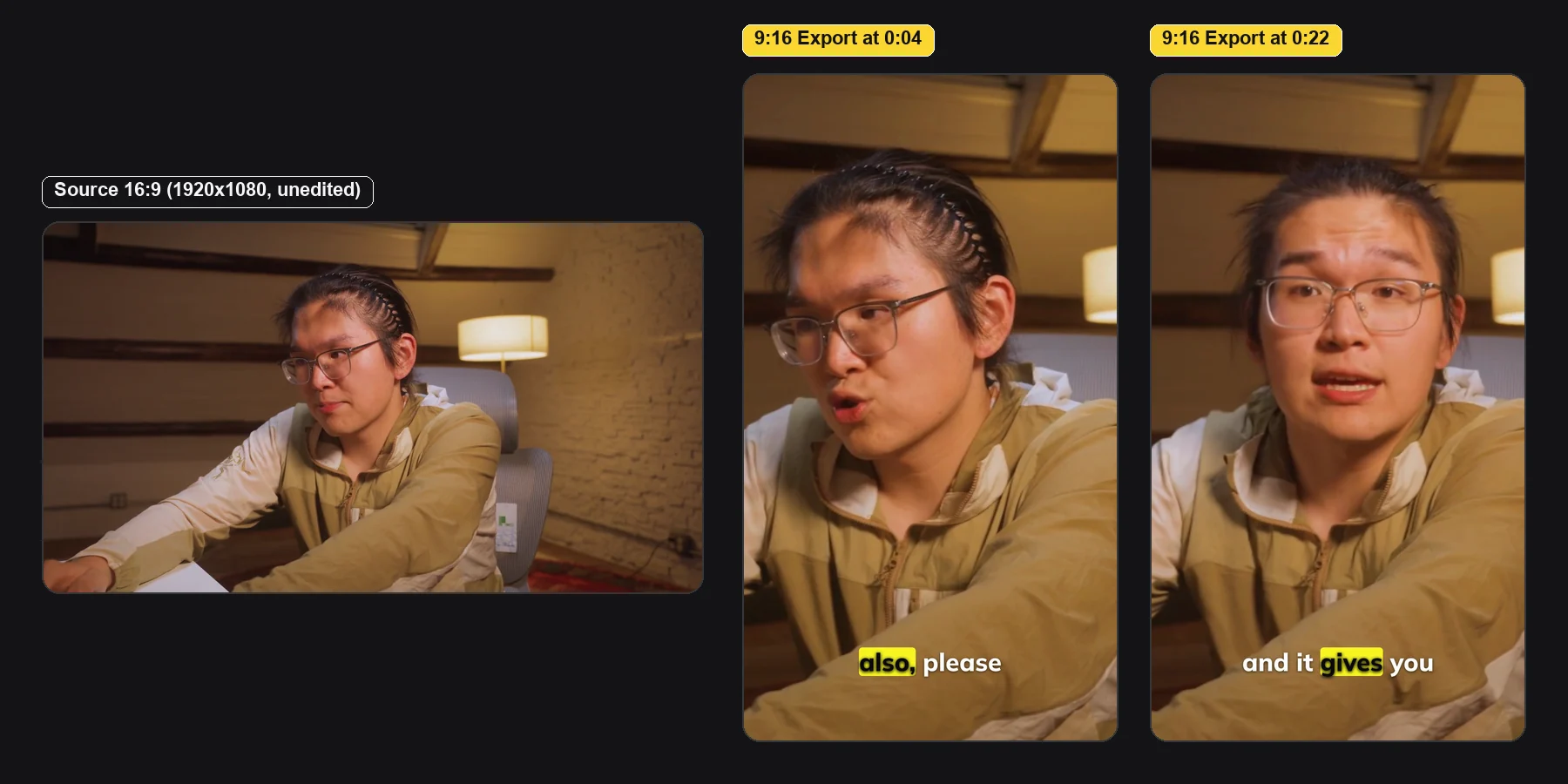
In our test in the macOS Grok Bot app on November 15, 2026, seven plain-English editing requests turned a 75-second 16:9 talking-head take into a 43.8-second 9:16 Short with word-level captions, three punch-in zooms, an animated title and callout, one AI B-roll shot and background music. It took 37 minutes 54 seconds and 13.72 ChatCut credits: 13.5 for the B-roll and 0.22 for the music. The cut, captions, graphics and export used none. We made no manual timeline edits; we did pick a title style, approve two quotes and twice ask the Bot to check on a running generation. We haven’t timed the same run on a phone.
Best for: getting footage you shot on your phone edited without opening an editor.
What stands out:
- Paid generation is quoted first. Before spending anything, the Bot offered the B-roll at 1080p for 13.5 credits, 720p for 5.46 or a 480p draft for 2.43.
- The export came back as an in-chat player plus a download link that opens without signing in.
- If a clip won’t attach, the Bot can give you an upload link that works in a phone browser.
Limits:
- Not in the Connect apps catalog yet, so setup goes through a custom connector.
- AI video generation needs a paid plan and uses credits. The Free plan includes 60 cumulative minutes of cloud export, and cloud renders top out at 1080p (Free and Pro).
- A long generation can finish without a message. Ask the Bot to check the existing job rather than resending the prompt, or you may be charged twice.
- Our export still needed a human eye: dark title text sat on a dark jacket, and the AI B-roll showed placeholder text.
Pricing: Free plan; paid plans from $25 a month for 100 credits. Grok Bot’s own messages and cloud computer run on your Grok Bot plan.
Skip it if: you need frame-level color grading or offline editing; it needs an internet connection and isn’t a finishing tool.
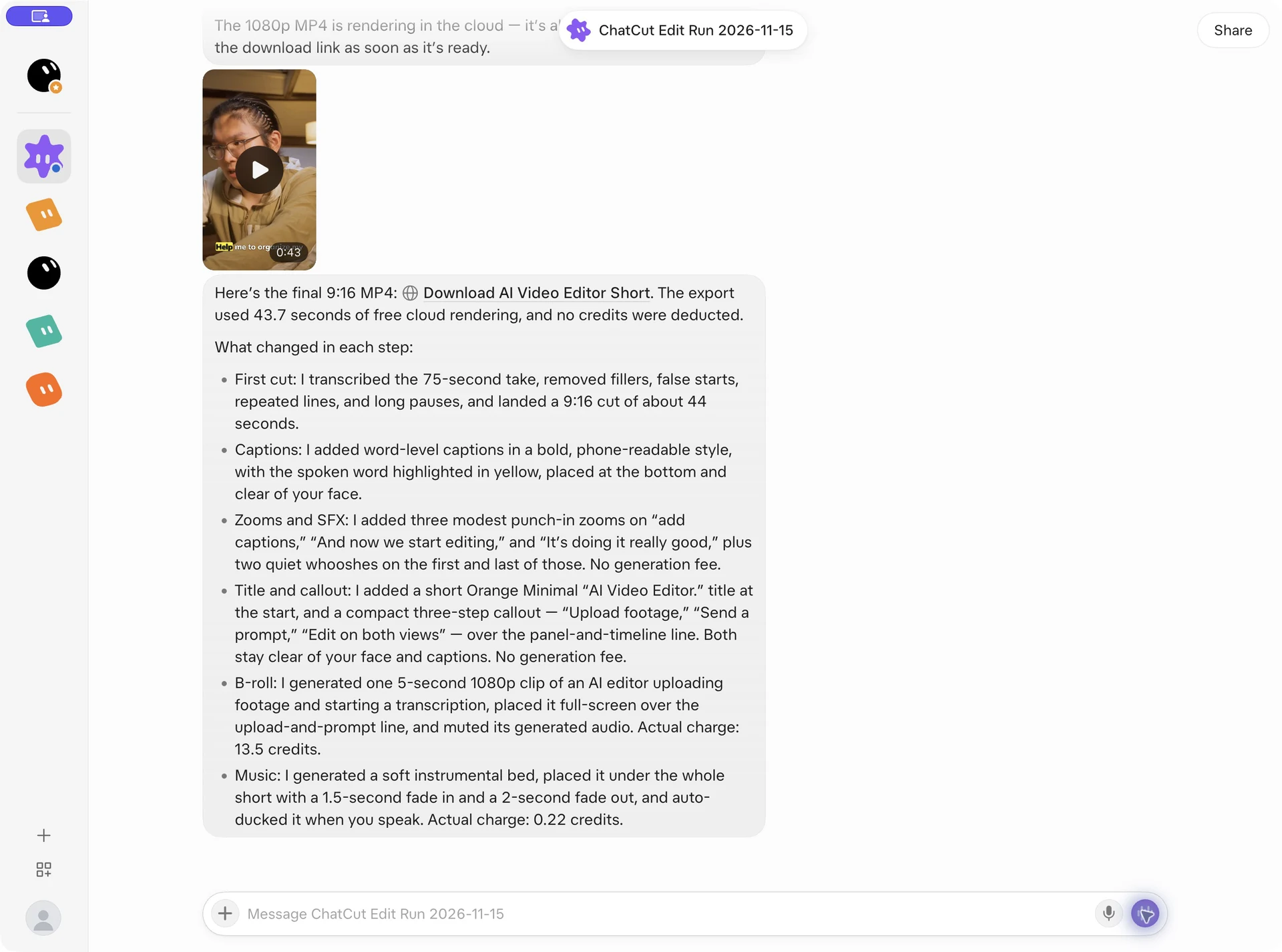
Once connected, try a first edit like this one from our run:
Working on a Mac or Windows PC with Claude Code or Codex instead? Paste this into a new conversation there:


-
 Codex
-
 Claude Code
-
 Antigravity
-
 Hermes Agent
- + any MCP client
Every prompt from the run is in how to edit video with Grok Bot.
5. Firecrawl: best for research across many web pages
Firecrawl’s plugin searches the live web, scrapes pages into clean Markdown or structured data, crawls sections of a site and works with dynamic pages. Type @ in a chat to attach it (Firecrawl plugins).
Best for: jobs that mean opening dozens of pages: competitor pricing, documentation, lead lists.
What stands out:
- Ready-made skills for cited deep research, finding and enriching leads, collecting a company’s logo, colors and fonts, and even checking flight and hotel prices.
- A free Firecrawl account works, with no card required.
Limits:
- The free plan’s 1,000 monthly credits cover about 500 searches or 1,000 scraped pages.
- For a quick lookup, Grok Bot’s own browser is enough.
Pricing: Free; Hobby is $16 a month billed yearly for 5,000 credits (Firecrawl pricing).
Skip it if: you only search the web now and then.
6. Composio: best for apps without their own plugin
Composio’s plugin connects Grok Bot to many external apps through one MCP server, with managed sign-in and tool routing. Composio’s pricing page counts 1,700+ apps.
Best for: a Bot whose workflow crosses several services, or one app that has no Grok Bot plugin.
What stands out:
- One connection instead of a plugin per long-tail app; you authorize each app the first time the Bot needs it.
- A built-in skill summarizes company activity across Slack, GitHub, Notion, Linear and Gmail.
Limits:
- It’s one more account and permission layer to manage.
- The free plan allows up to 3 members, 10,000 tool calls a month and a one-time $2 credit; calls past the allowance cost extra.
Pricing: Free; Standard is $18 per seat per month.
Skip it if: Grok Bot already has a plugin for the app you need; a direct plugin is simpler.
7. Canva: best for social graphics and design edits
Canva’s plugin uses the Canva MCP server to create, edit, review, resize and brand-check designs.
Best for: social graphics, thumbnails and decks you want to keep editing in Canva.
What stands out:
- It edits the real design (text, images, layout), so you keep a file your team can change.
- Skills resize one design for Facebook, Instagram and LinkedIn, bulk-create designs from a table, and apply reviewers’ comments.
Limits:
- Canva says some features need a paid Canva plan.
- It works with your own Canva permissions, so templates your account can’t open stay out of reach.
Pricing: Free plan; paid plans are listed on Canva’s pricing page, which we couldn’t load when checking.
Skip it if: your team designs in Figma, which has its own Grok Bot plugin.
8. Granola: best for turning meetings into next steps
Granola’s plugin gives the Bot your meeting notes: what was discussed, decided and promised. Its skills prepare you for an upcoming meeting, brief you on a topic across meetings, and turn decisions into a spec or plan.
Best for: managers and founders whose decisions happen on calls.
What stands out:
- Follow-ups can come from what was actually said, not from memory.
- xAI’s overview uses it as an example: each evening, read the day’s notes and draft a Slack post of action items for your approval.
Limits:
- You need Granola taking the notes in the first place.
- On the free Basic plan, the plugin sees only your personal notes from the last 30 days; workspace notes and full history need Business.
Pricing: Basic is free; Business is $14 per user per month (Granola pricing).
Skip it if: your meeting notes live elsewhere, such as Notion.
9. Descript: best if your team already edits in Descript
Descript’s plugin lets a Bot create Descript projects from files or links, edit them with Descript’s AI by instruction, and publish a share link or export.
Best for: teams that already edit podcasts or videos in Descript.
What stands out:
- It works in your existing Descript drive, so edits stay in Descript’s text-based editor.
- Three skills cover create, edit and publish.
Limits:
- Imports and AI edits through the plugin use your Descript media minutes and AI credits (Descript help).
- The Free plan includes 60 media minutes a month.
Pricing: Free; Hobbyist is $16 per person per month billed yearly, or $24 monthly (Descript pricing).
Skip it if: you don’t already use Descript.
Also Considered
- Zapier: connects 9,000+ apps through Zapier actions. Choose it over Composio if your team already runs Zaps.
- Linear: issues, projects and documents for product teams.
- 1Password: lets Bots sign in to websites with your 1Password logins, which you approve one by one in 1Password. It needs 1Password 8.12.42 or later and is rolling out gradually.
- Riverside: searches your recordings by what was said, edits video timelines and publishes clips.
- HeyGen: avatar videos, personalized video messages, and translated or dubbed videos.
Which Grok Bot Plugins to Connect First
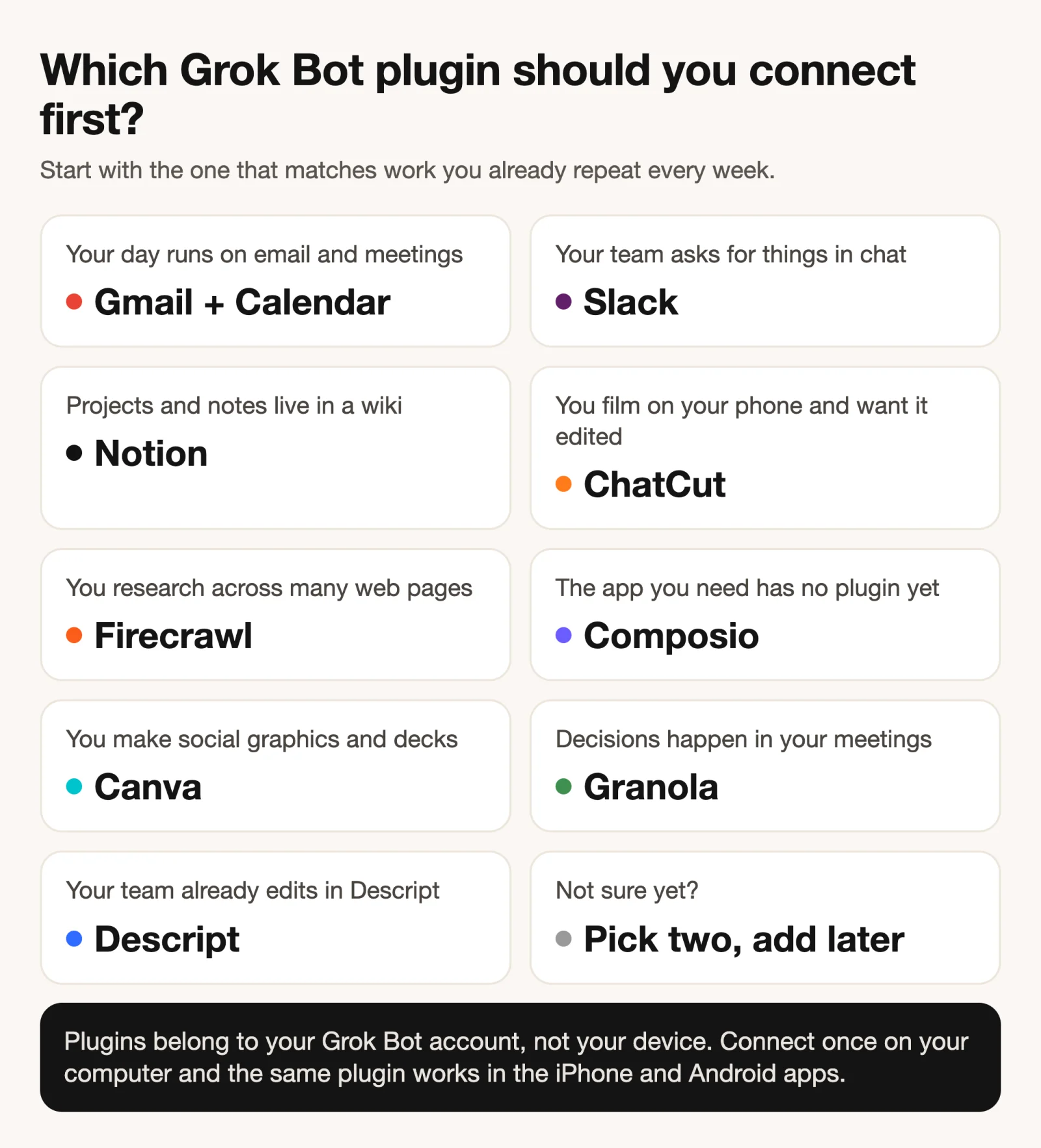
- If your day runs on email and meetings, connect Gmail and Google Calendar.
- If your team asks for things in Slack, add Slack next.
- If your projects live in a wiki, add Notion.
- If you film on your phone and want it edited, connect ChatCut.
- If you research the web for work, add Firecrawl.
- If the app you need has no plugin, try Composio, or Zapier if you already use it.
The setup message and video examples are on our Grok Bot plugin page.